AVG Cleaner for Android is a mobile app designed to help improve the performance of your device and preserve storage space by removing unnecessary media, files, apps, and app data. Remove these items by transferring them to a cloud storage account and/or deleting them from your device. You can also optimize photos to consume less space.
Navigate AVG Cleaner
- On the Home screen of your device, tap the Cleanup icon to open the app.

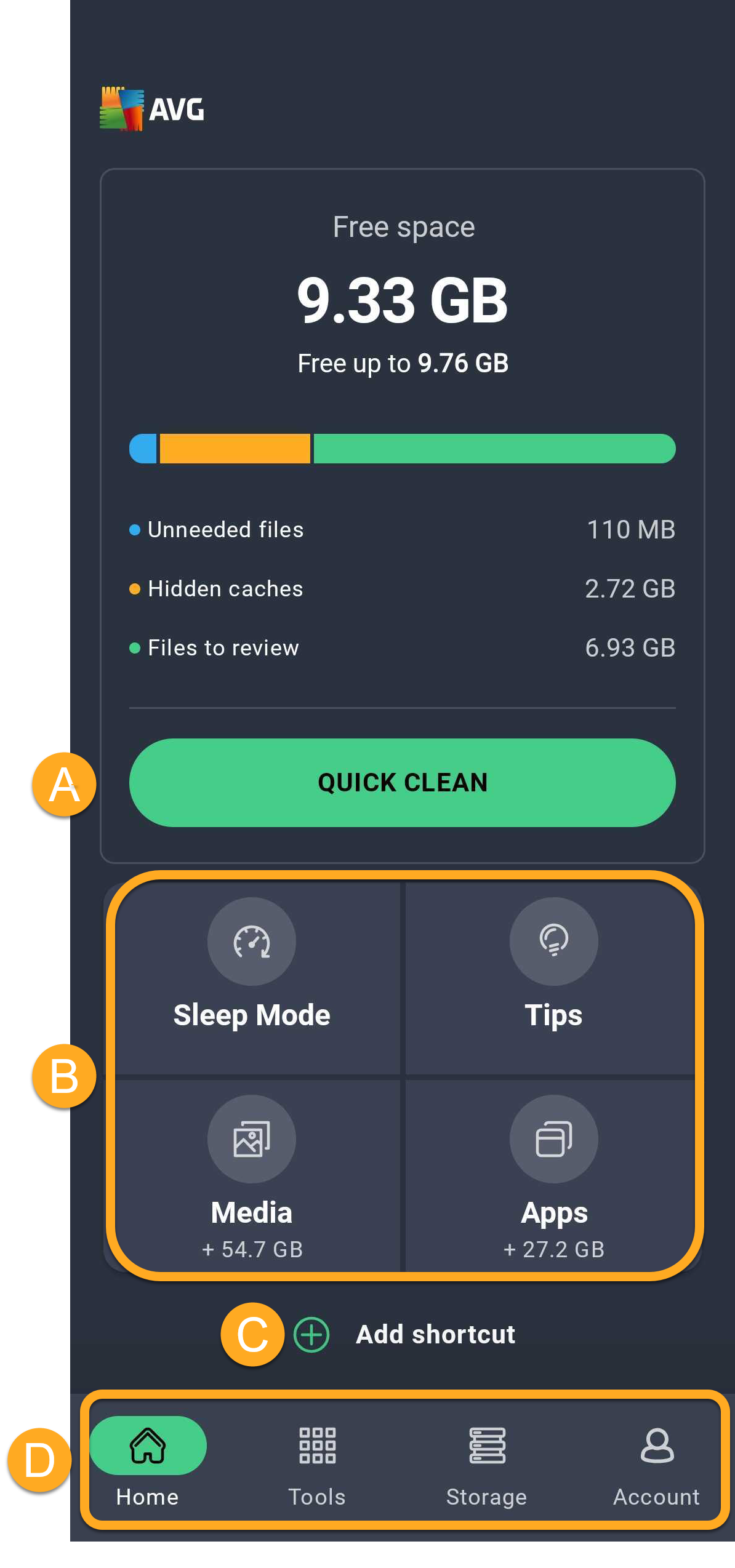
- The following options are available via the main app screen:
- Quick Clean: Scan for and delete dispensable items, including thumbnails, APKs, residual files, and hidden, visible, and shared cache.
- Shortcuts:
- Sleep Mode: Hibernate apps that are running in the background, stopping them from slowing down your device and draining your battery.
- Tips: Review tips for clearing space on your device. The first time you use the Tips feature, you are prompted to specify which kinds of tips you want AVG Cleaner to prioritize via the Analysis preferences screen.
- Media: Access an overview of the media that is stored on your device, including suggestions for clearing space.
- Apps: Access an overview of the apps that are installed on your device, including suggestions for clearing space.
- Add Shortcut: Customize the main dashboard by adding shortcuts.
- The navigation bar:
- Home: A quick access to AVG Cleaner Home screen.
- Tools: Access AVG Cleaner features.
- Storage: An overview of different apps and files.
- Account: Includes various options, such as signing in to your AVG Account, checking your subscription details, and accessing the Settings.

Perform a Quick Clean
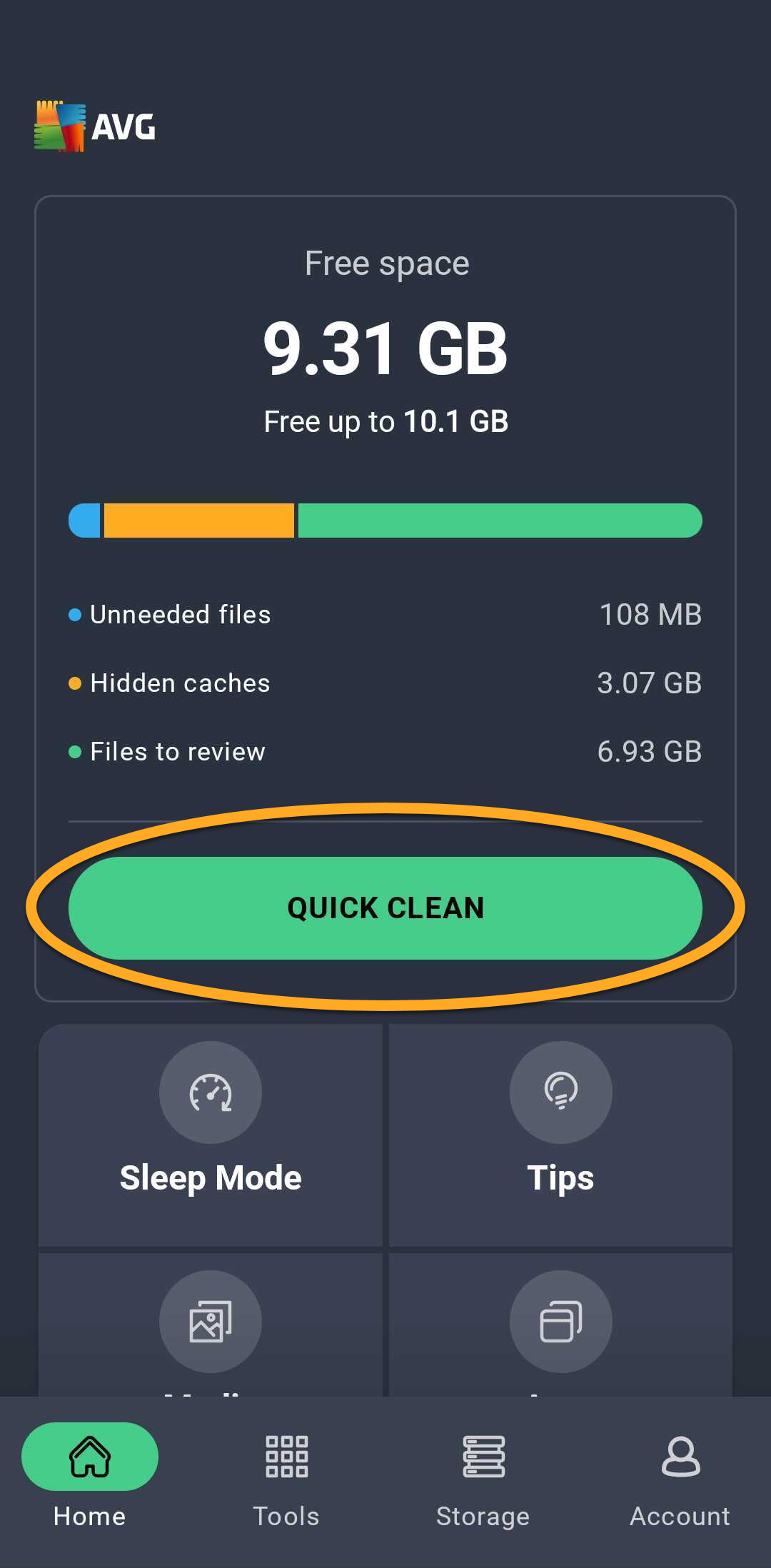
Quick Clean cleans your device by removing unnecessary files to free storage space. You can select which item types are removed before you clean.
- Tap the Quick Clean button.
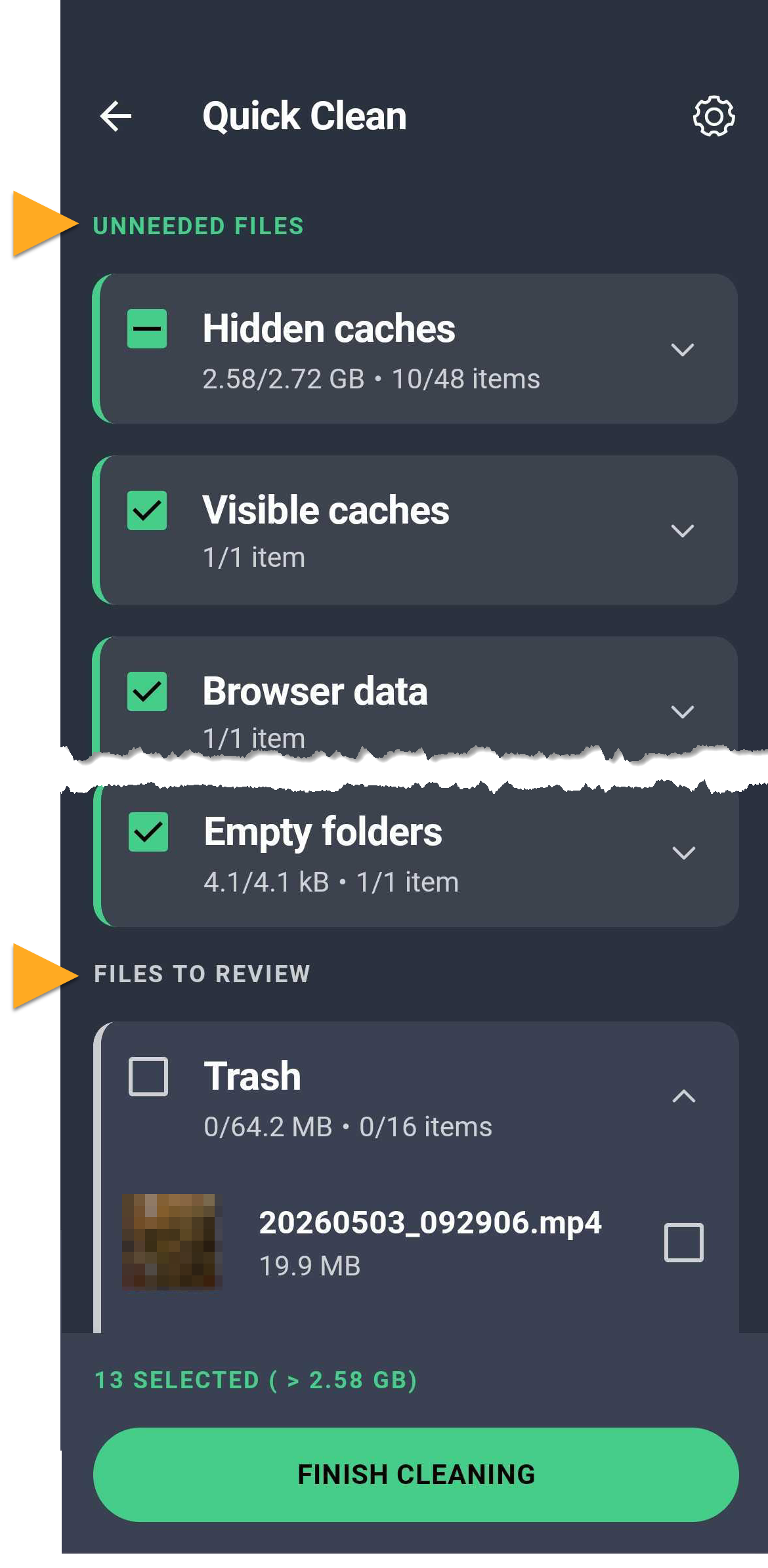
- Tick the item types you want to clean. Item types are divided into two sections (you may see one or both sections, depending on which data types are stored on your device):
- Unneeded files: Data that has been carefully selected to ensure that it is truly dispensable, including visible and hidden cache, browser data, residual files, installed APKs, thumbnails, ad caches, and empty folders.
- Files to review: Data that may not be valuable to you. We recommend reviewing items included in this group and only ticking items that are dispensable. All items are unticked by default and will not be deleted unless you manually select them.
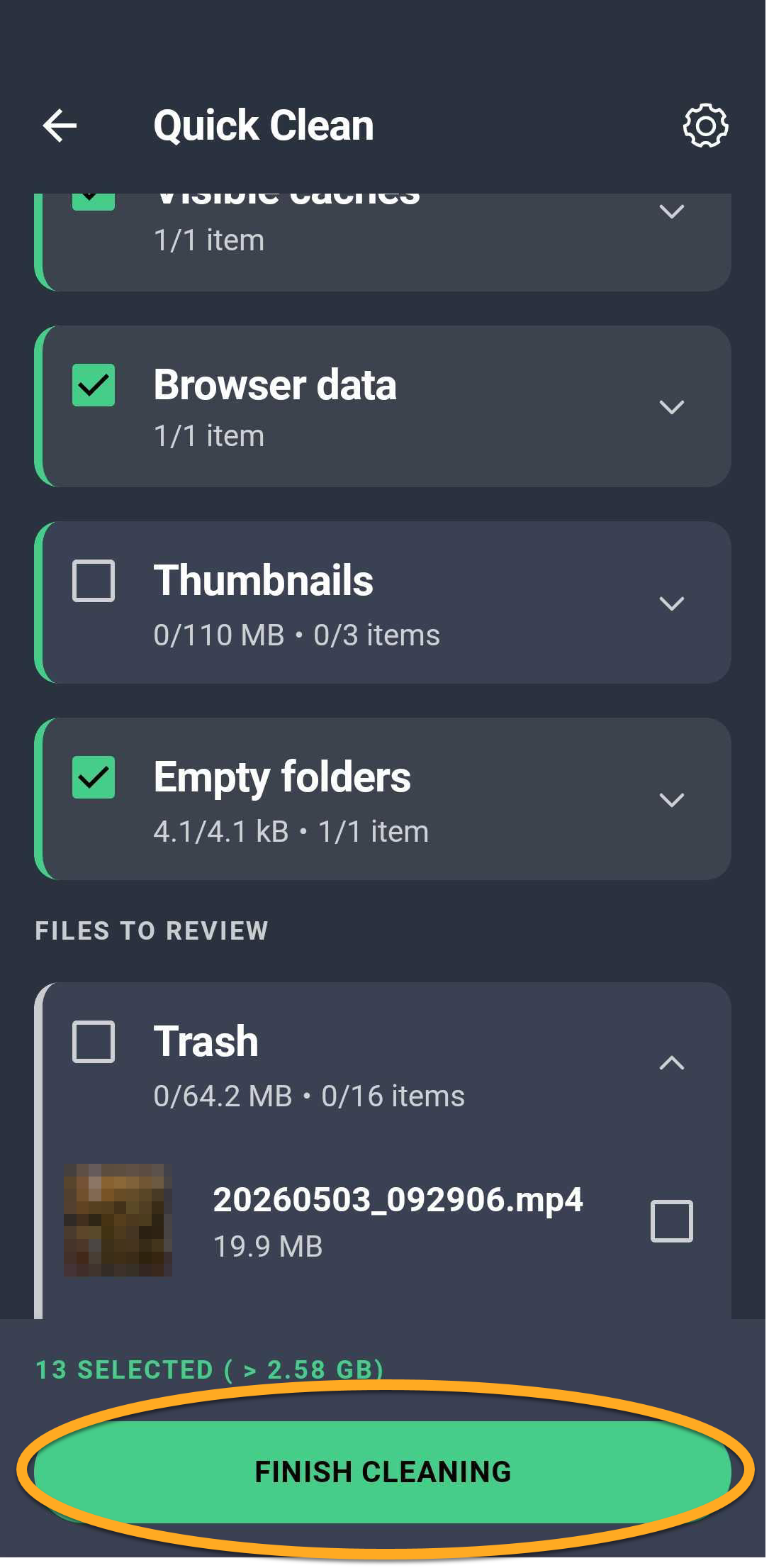
- Tap Finish cleaning to delete the selected items.
Hibernate apps
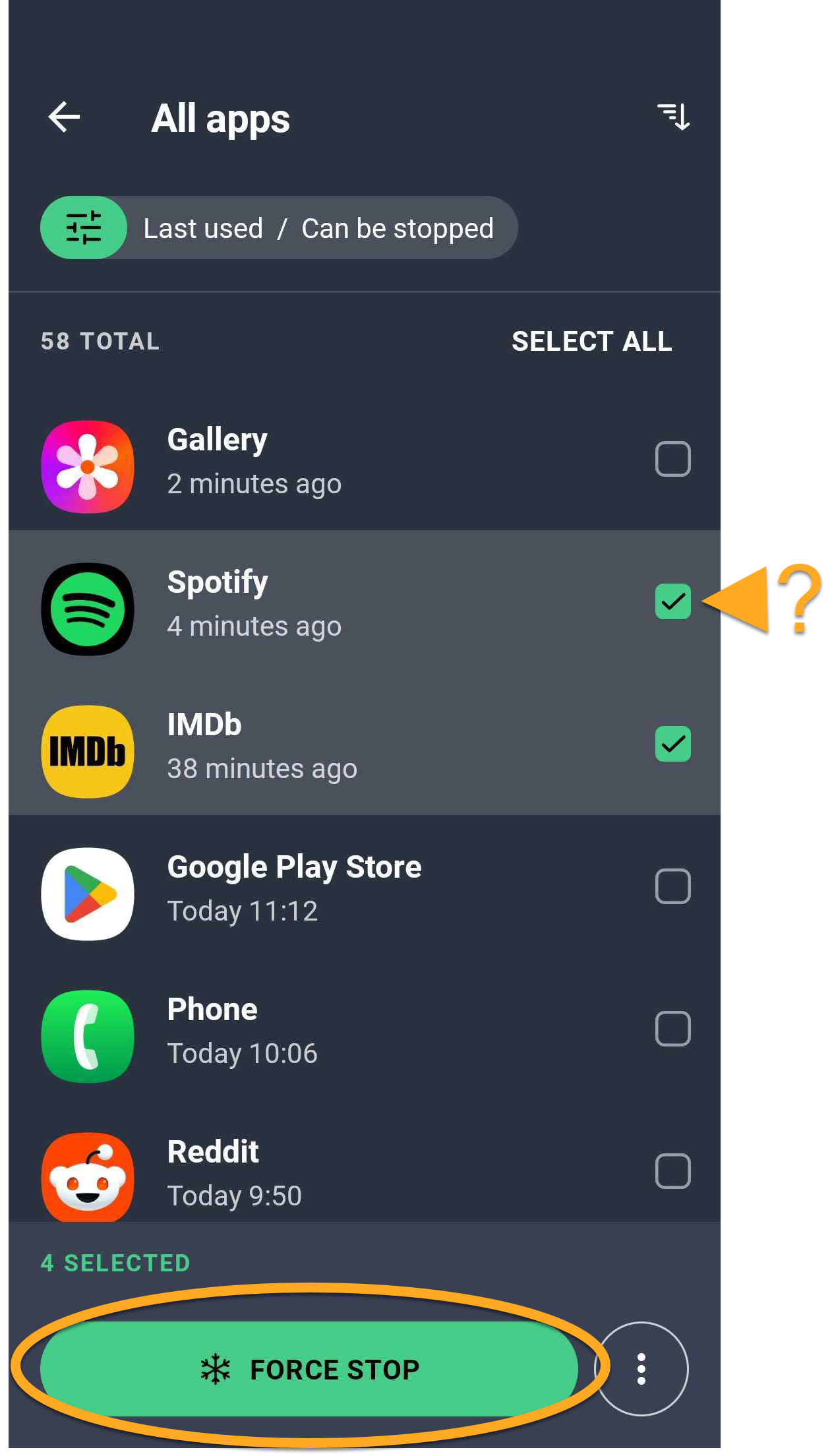
The Sleep Mode feature stops apps from running in the background, releasing memory for other tasks.
- Open AVG Cleaner and tap Tools (in the bottom navigation bar) ▸ Sleep Mode.
- Tick the apps that you want to stop, then tap Force stop.
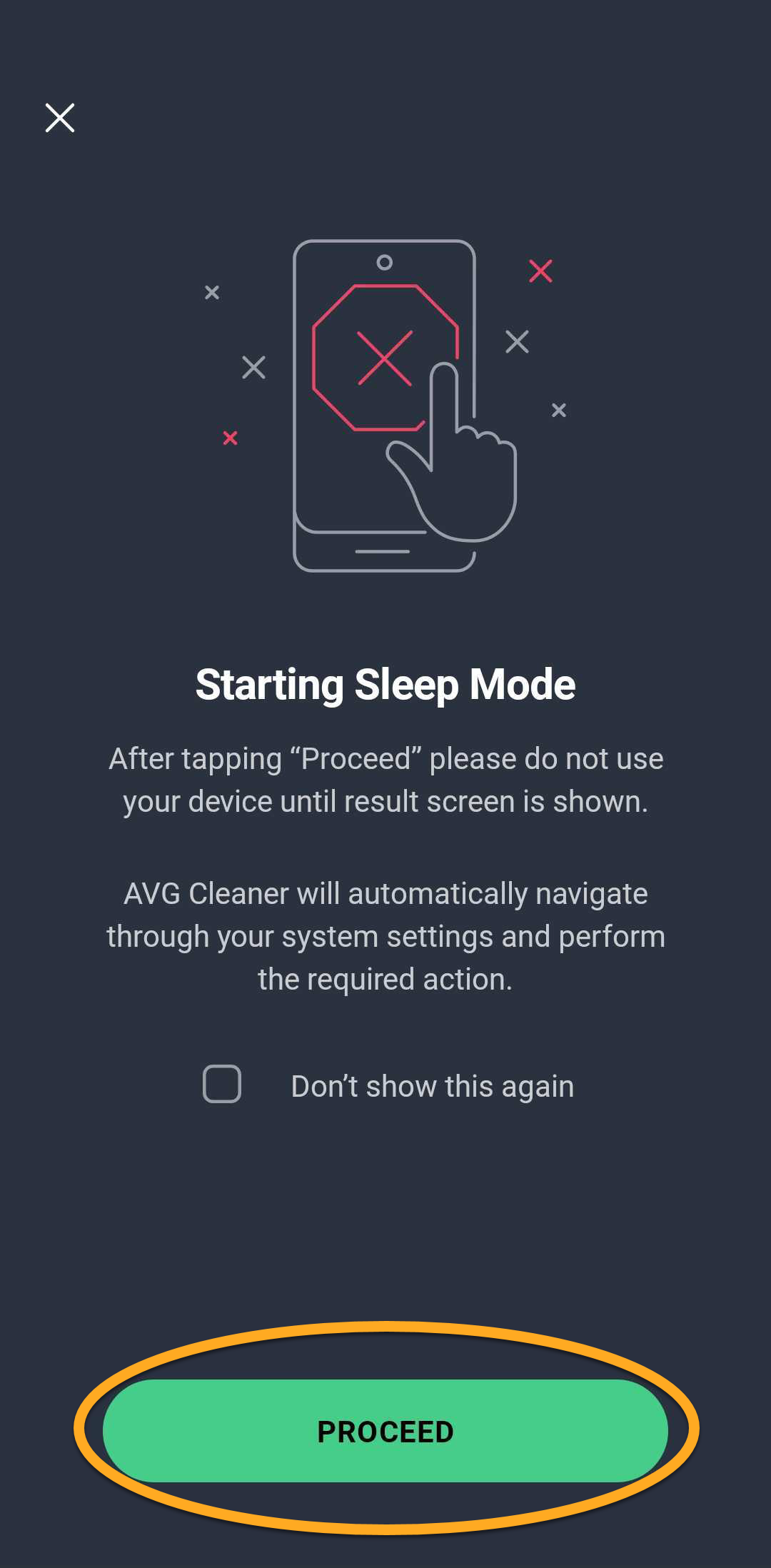
You may need to grant AVG Cleaner permission to force stop apps in bulk via your device settings. Tap Grant, then follow the on-screen instructions. If you do not grant this permission, you are prompted to hibernate each selected app individually.
- Tap Proceed.

The selected apps are no longer running in the background.
Optimize your photos
AVG Cleaner allows you to optimize your images to occupy less space. Images that are already the same size as your device screen (for example, screenshots) are not optimizable. To optimize your photos:
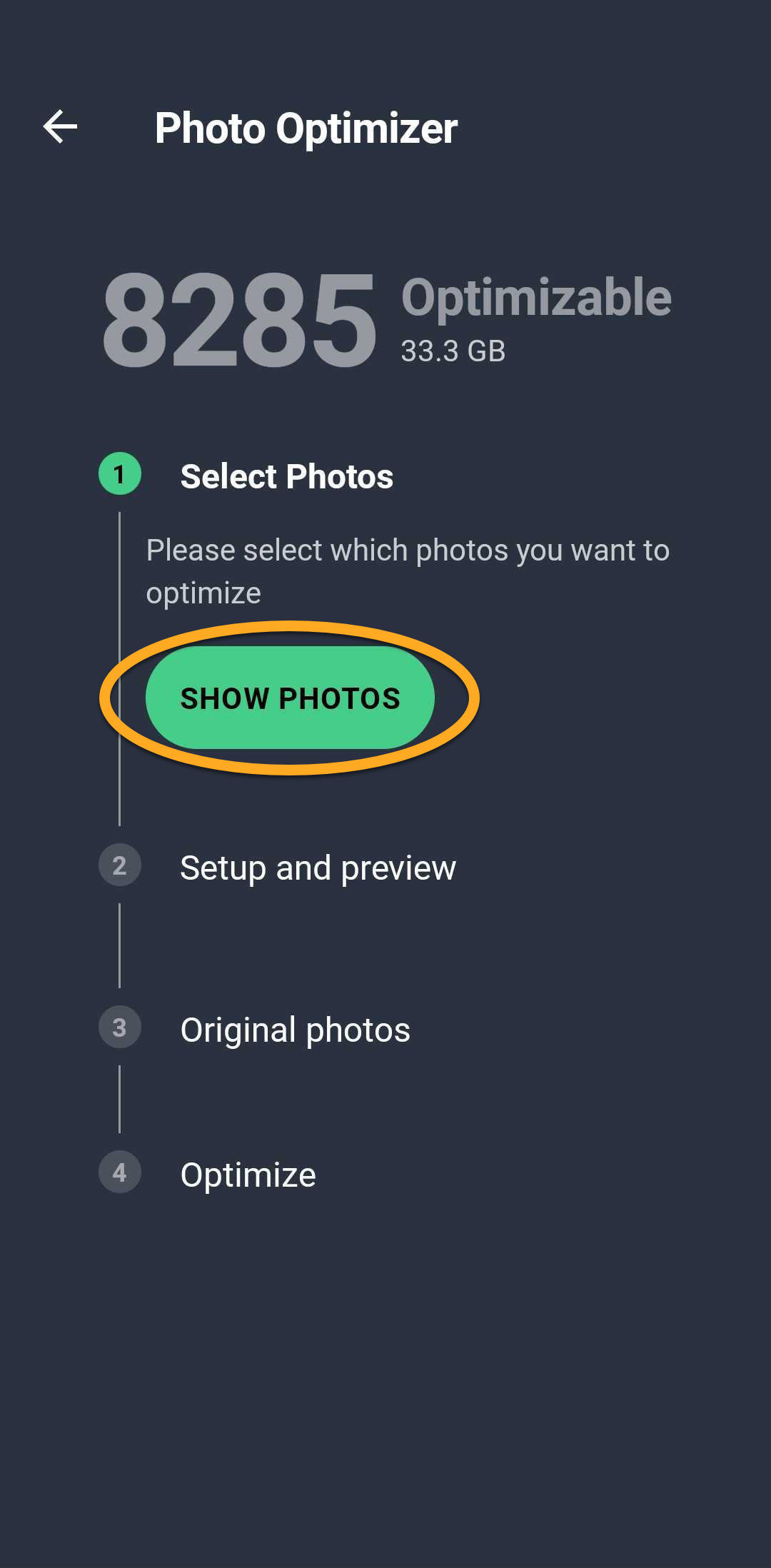
- Open AVG Cleaner and tap Tools (in the bottom navigation bar) ▸ Photo Optimizer.
- Tap Show photos.
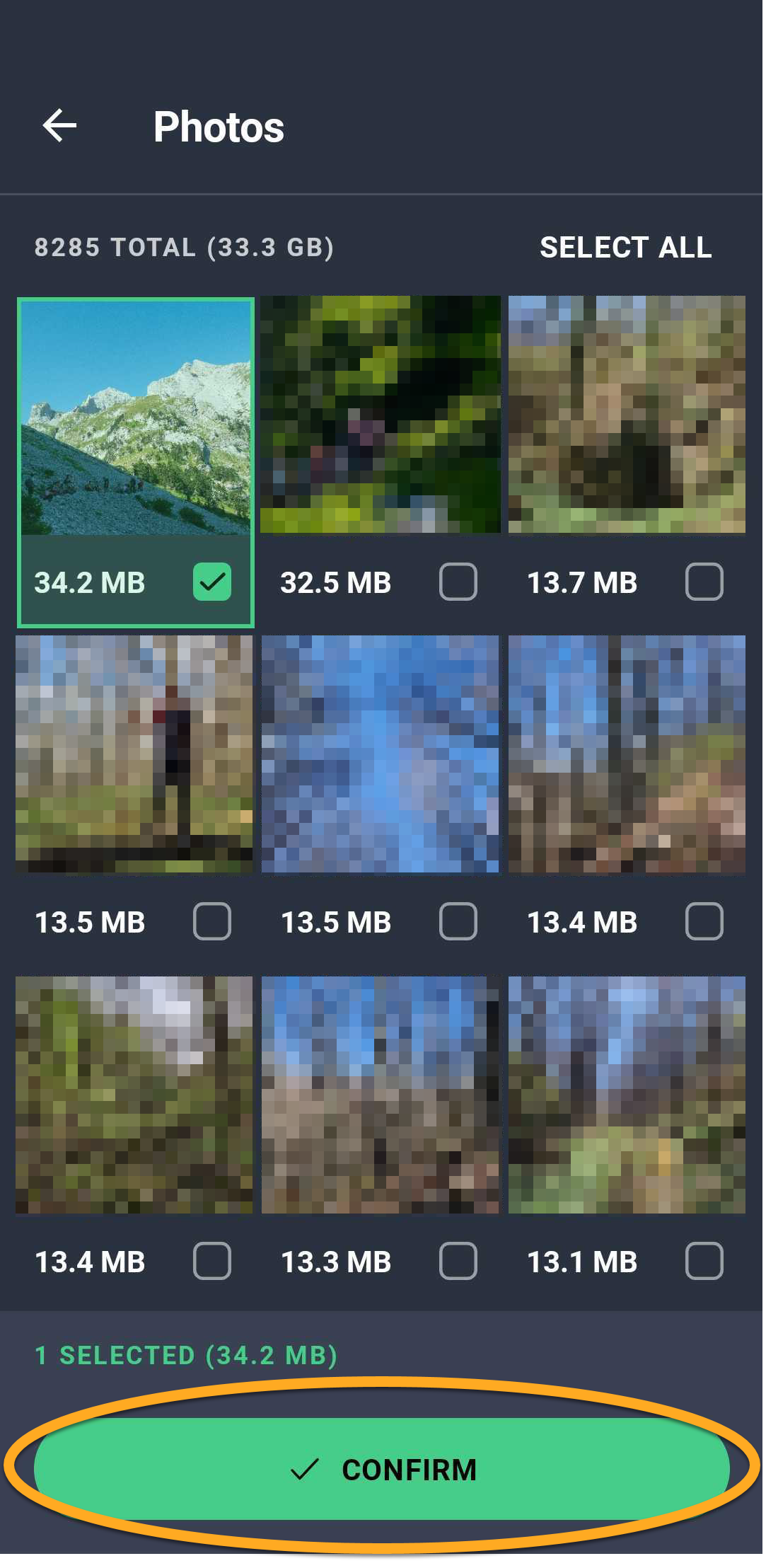
- Photos are arranged in groups according to age. Tick the photo(s) you want to optimize (or tap Select all), then tap the Confirm button at the bottom of the screen.
- Tap Setup, then use the slider to select an optimization level. When done, tap Continue.
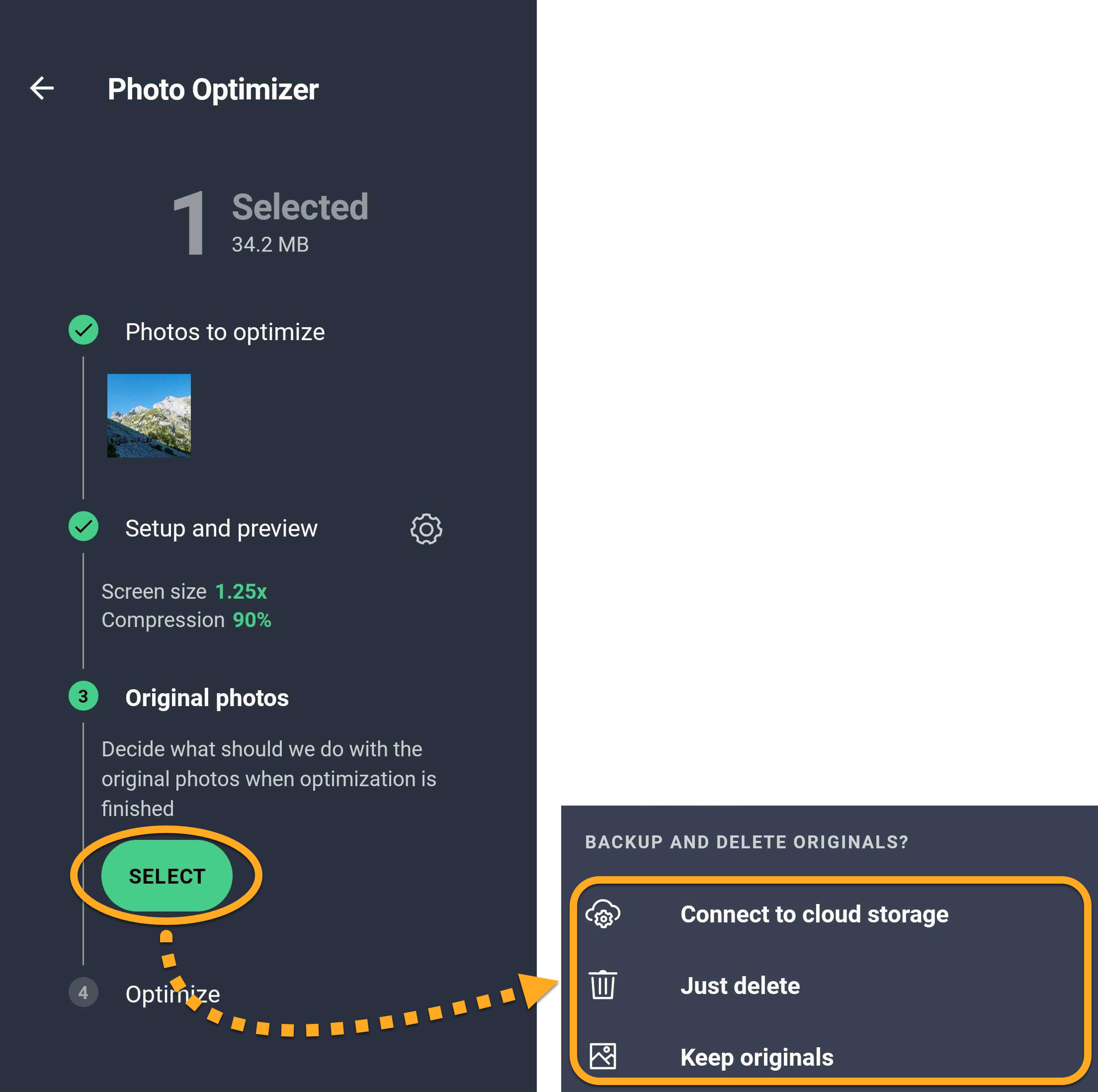
- Under Original photos, tap Select (or Change) to specify what will happen to your original photo(s). The following options are available:
- Send originals to cloud storage: Remove the original photos from your device and send them to cloud storage. If AVG Cleaner is already connected to a cloud storage account, tap the email address connected to your preferred account. If not, tap Connect to cloud storage to connect the app to a new cloud storage account.
- Just delete: Remove and permanently delete the original photos from your device.
- Keep originals: Keep the original photos on your device.
- Tap Optimize now to start optimizing the selected photo(s) immediately.

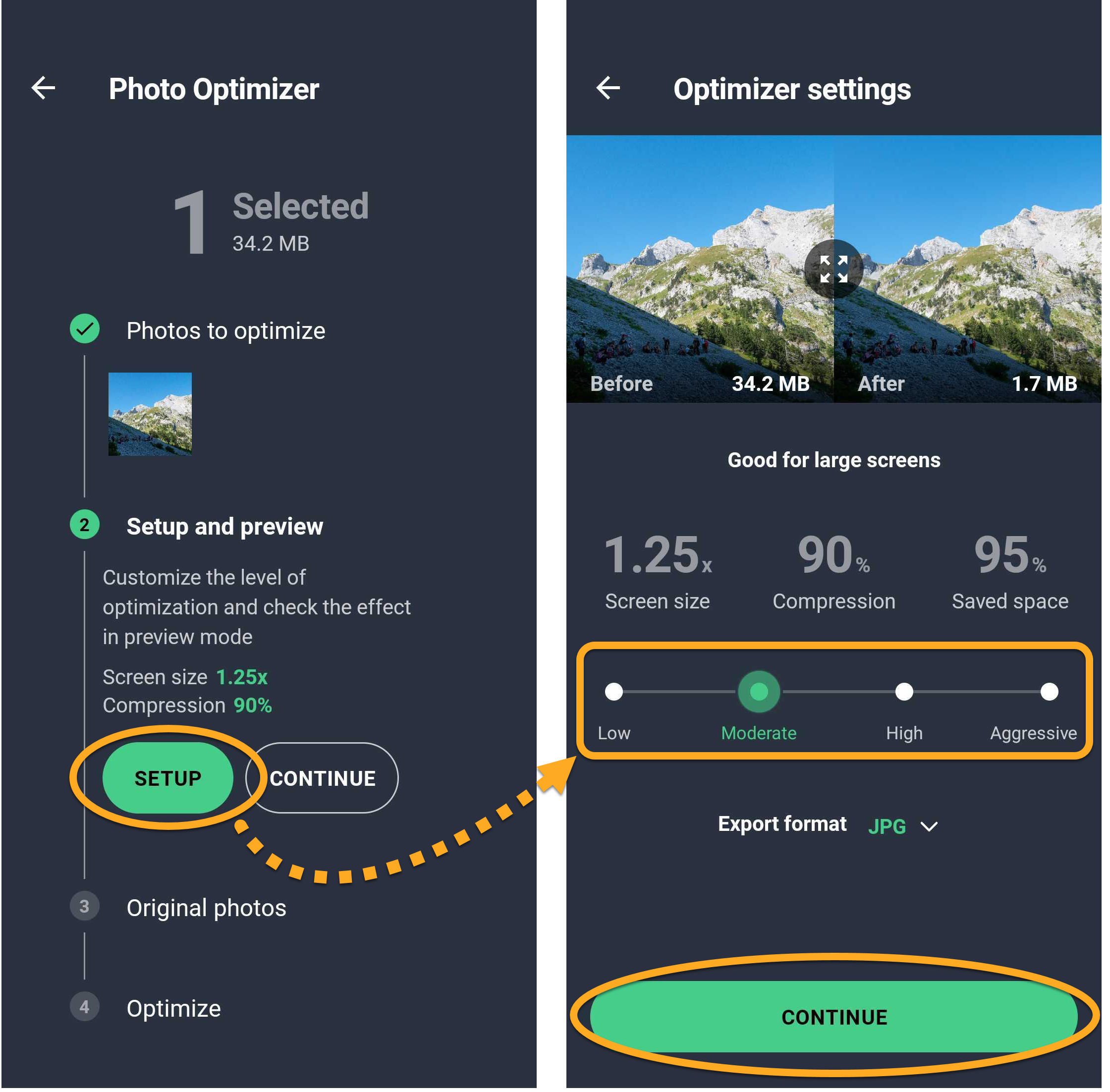
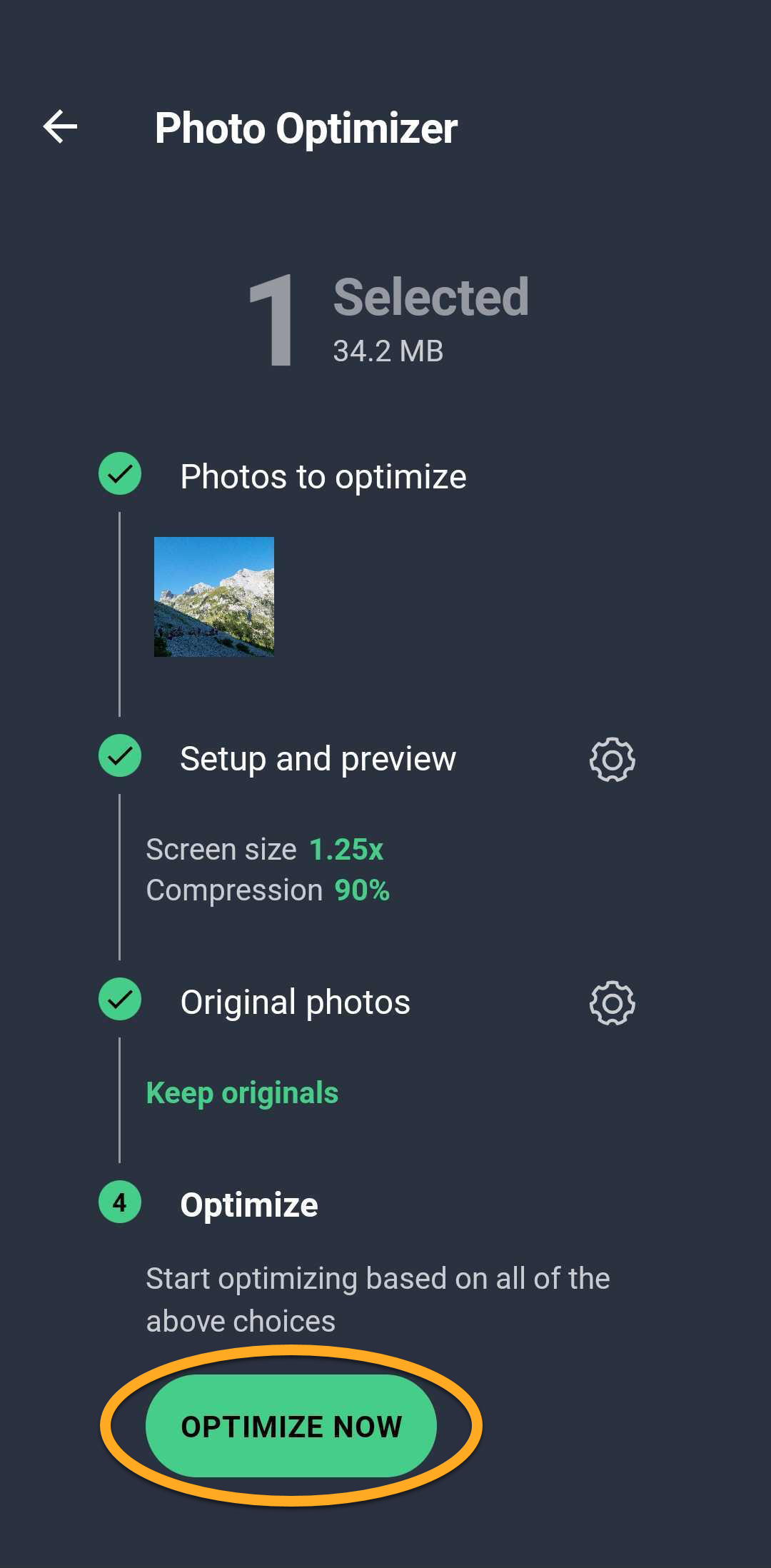
Your photos are now optimized to occupy less space on your device.
Define your Analysis preferences
When you tap the Tips tile on the main app screen, you can review tips for clearing space on your device. You can specify which kinds of tips you want AVG Cleaner to prioritize via the Analysis preferences screen:
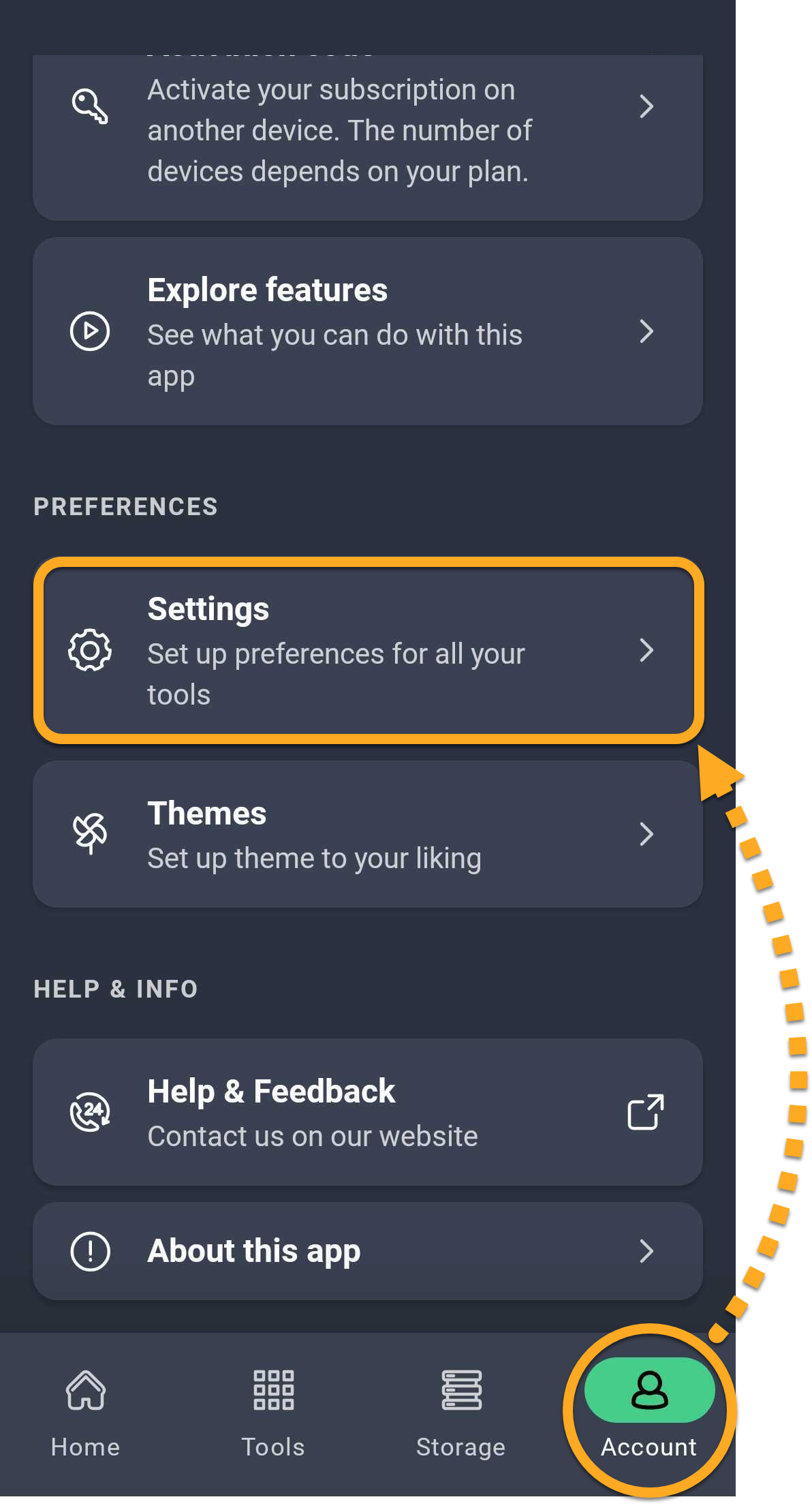
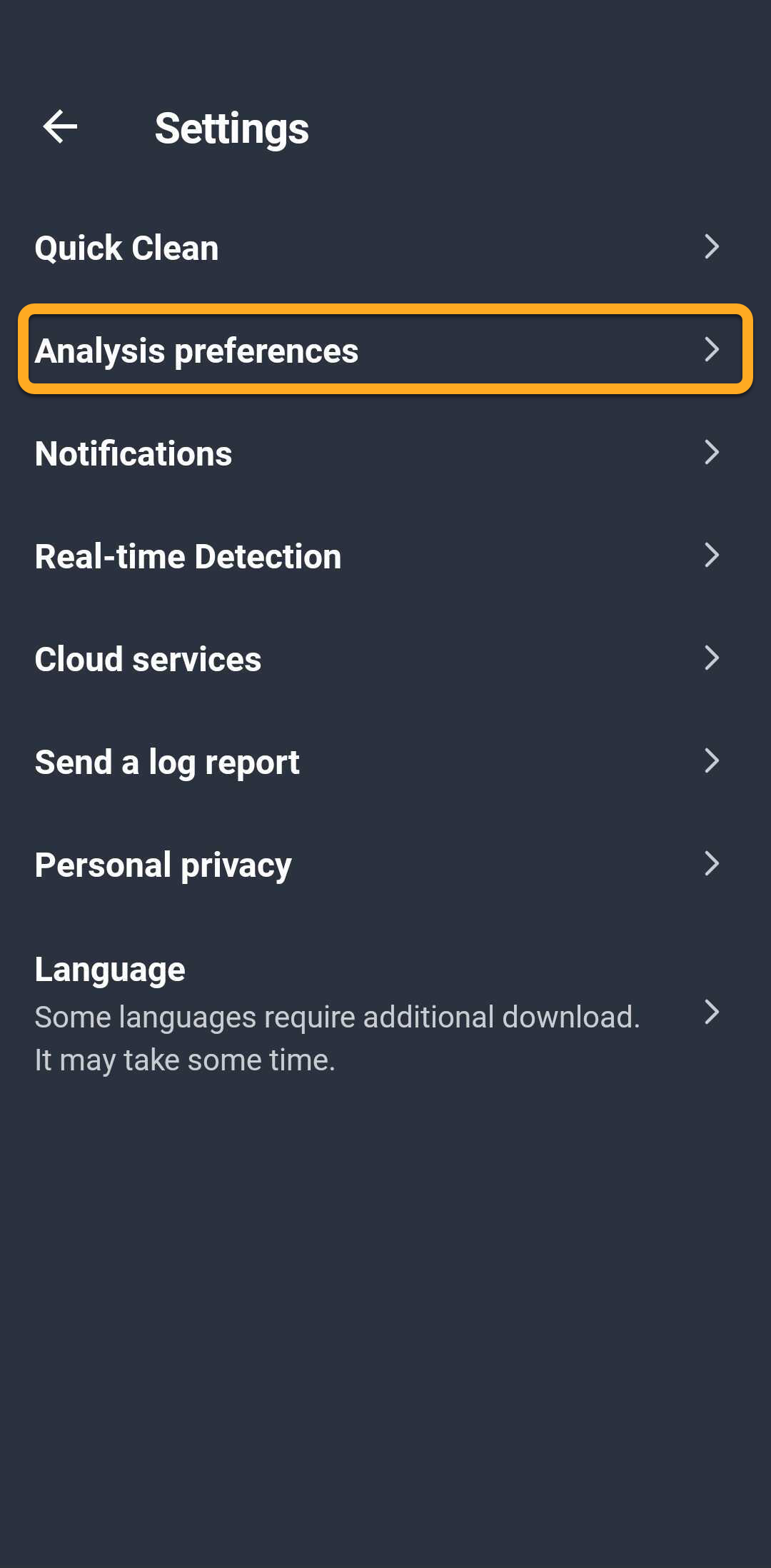
- Open AVG Cleaner and tap Account (in the bottom navigation bar) ▸ Settings.
- Tap Analysis preferences.
- Touch and hold the icon (four lines) next to a tip category and drag the panel up or down to reorder your preferences. Optionally, tap the slider beside Find unwanted photos to turn the feature on (blue) or off (gray).
 icon (four lines) next to a tip category and drag the panel up or down to reorder your preferences. Optionally, tap the slider beside Find unwanted photos to turn the feature on (blue) or off (gray).
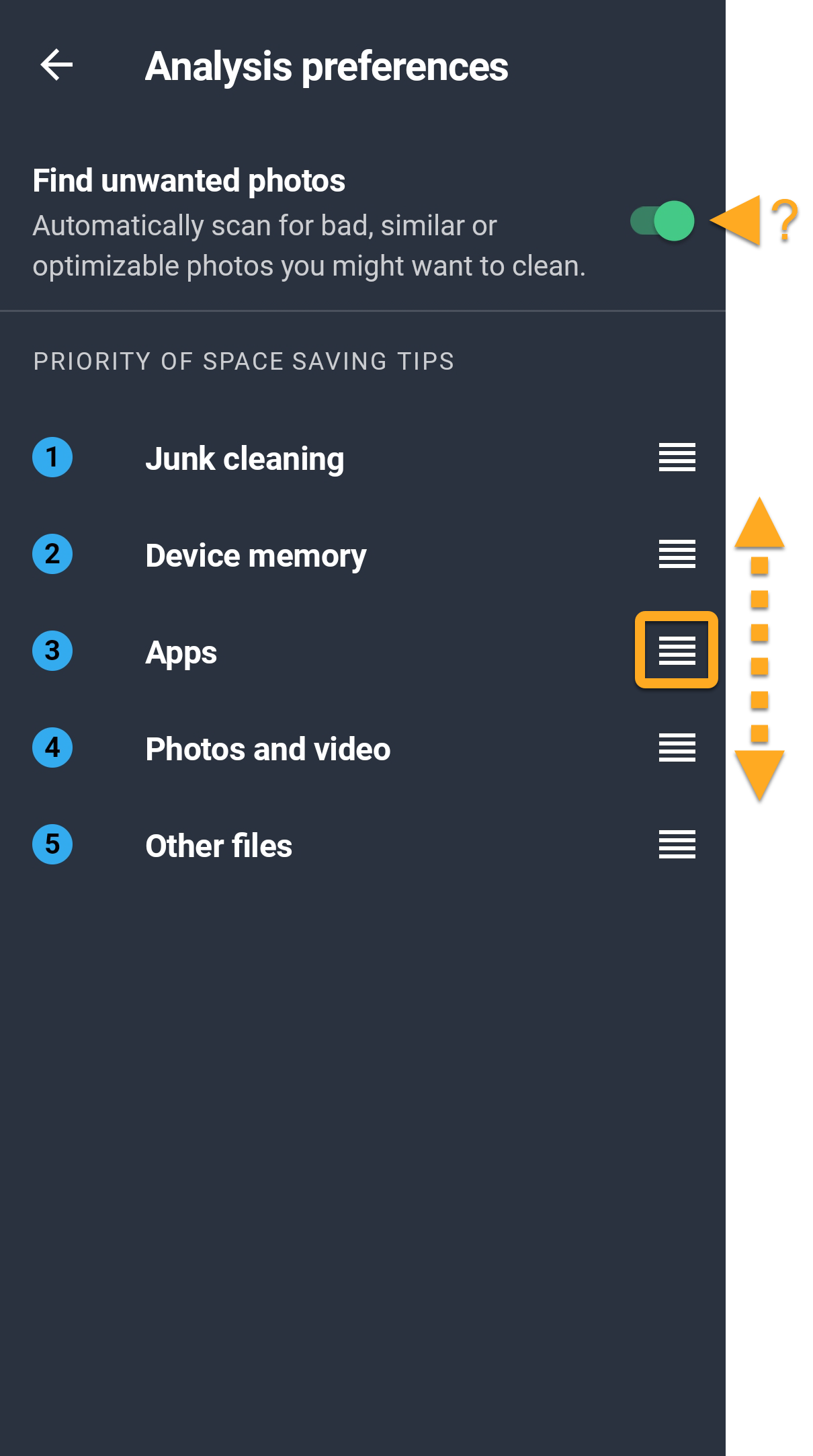
AVG Cleaner shows tips that match your specified preferences.
Manage cloud transfers
'The cloud' refers to virtual storage space where you can keep media and files such as photos, videos, and documents. AVG Cleaner allows you to easily transfer items from your device to a connected cloud storage account. To connect AVG Cleaner to a cloud storage account:
- Open AVG Cleaner and tap Account (in the bottom navigation bar) ▸ Cloud Transfers.
- Tap Connect next to your chosen cloud service (Dropbox or Google Drive).
- Select your preferred account and tap OK. Enter login credentials if prompted.
- The account now appears under Connected. To sign out of an account, tap
⋮More options (the three dots) next to the account and select Sign out.
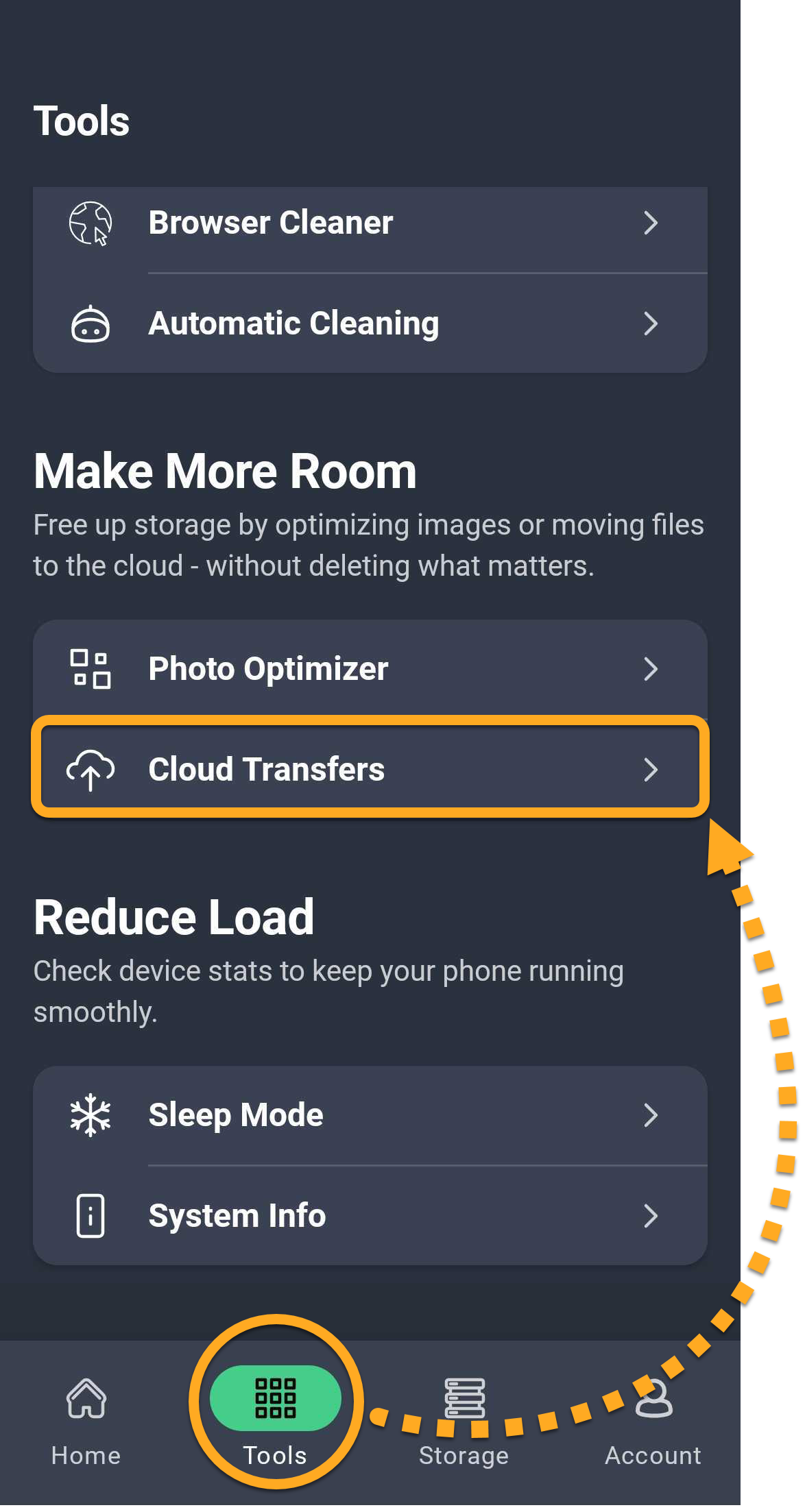
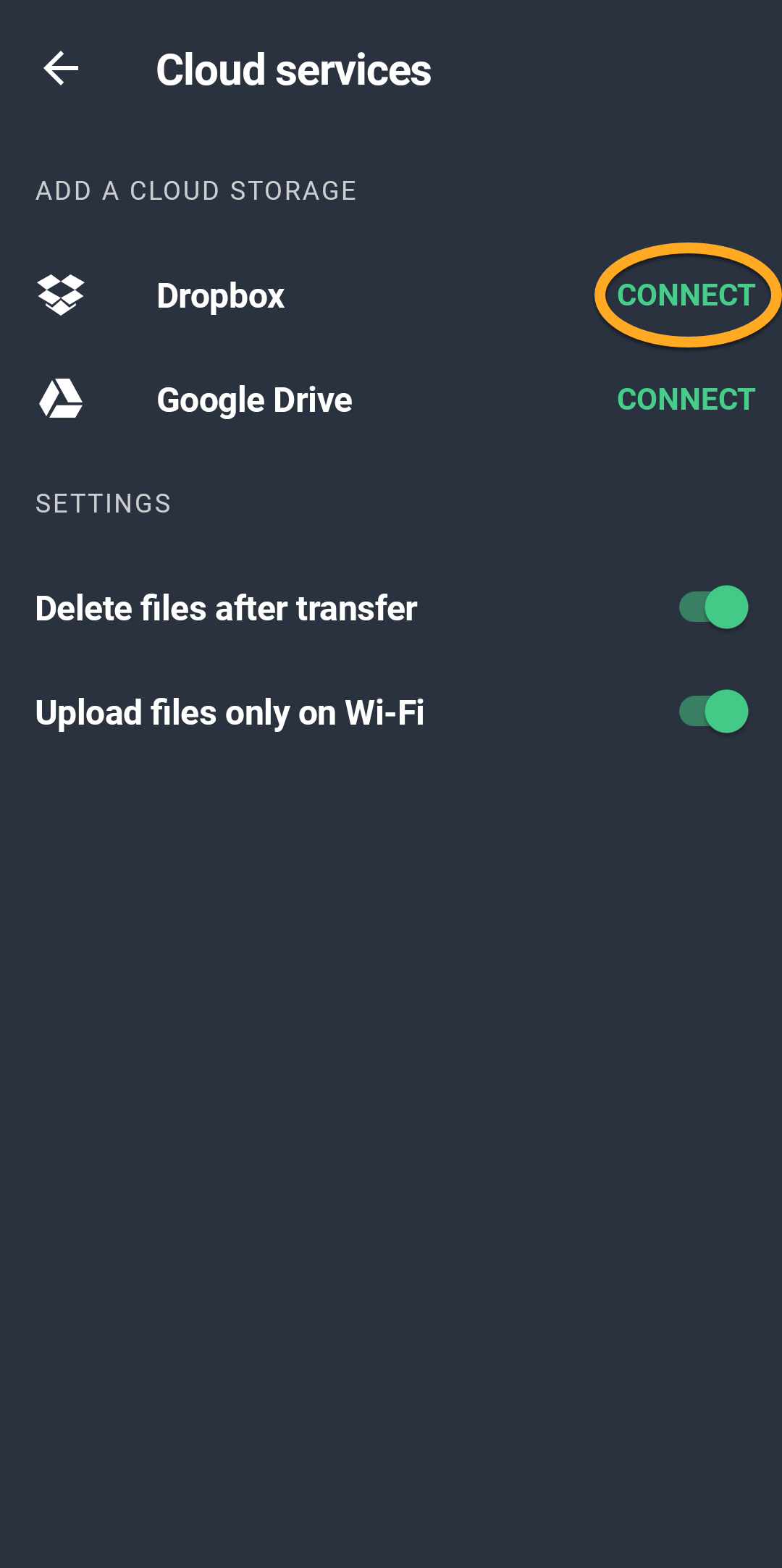
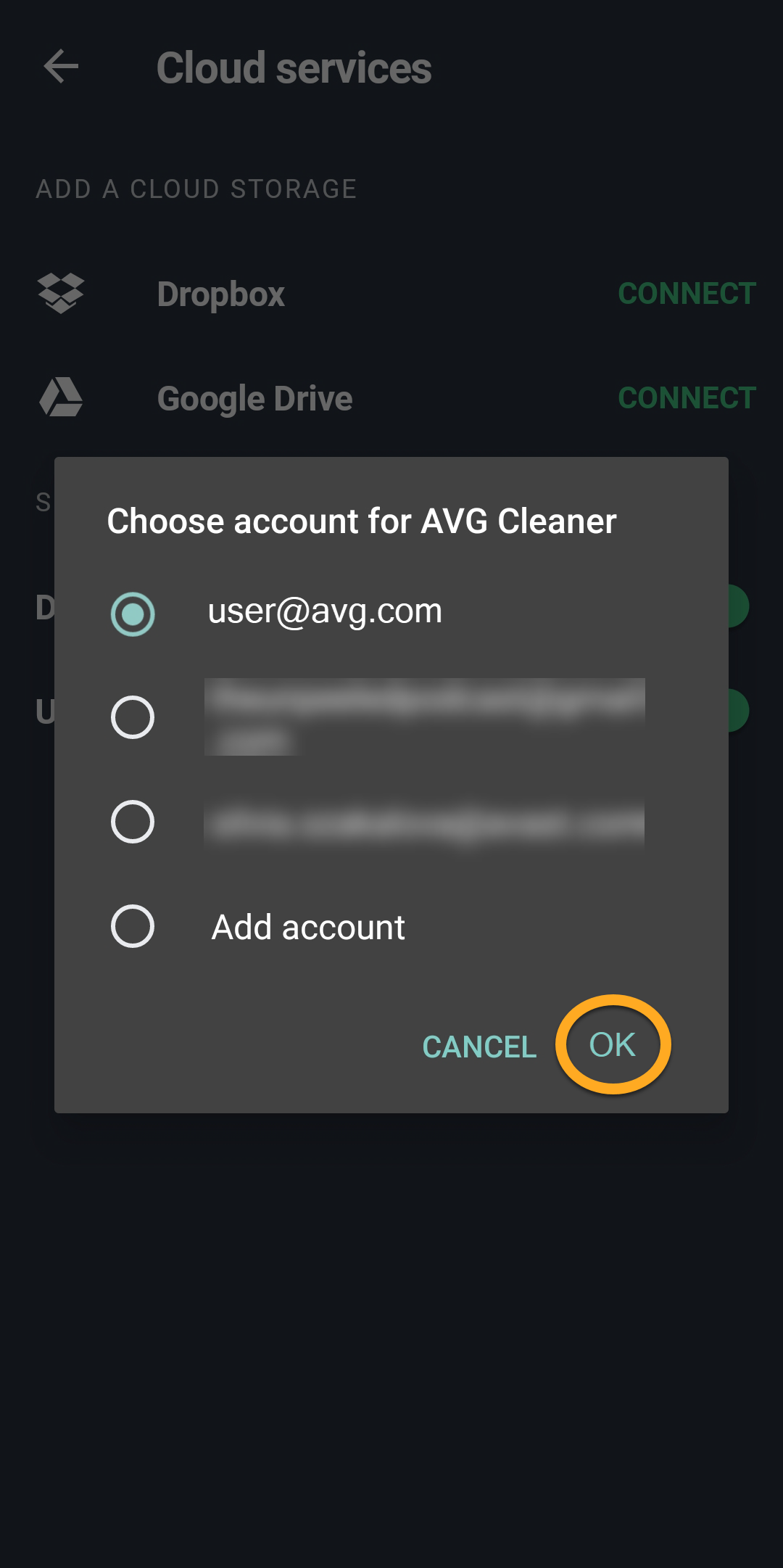
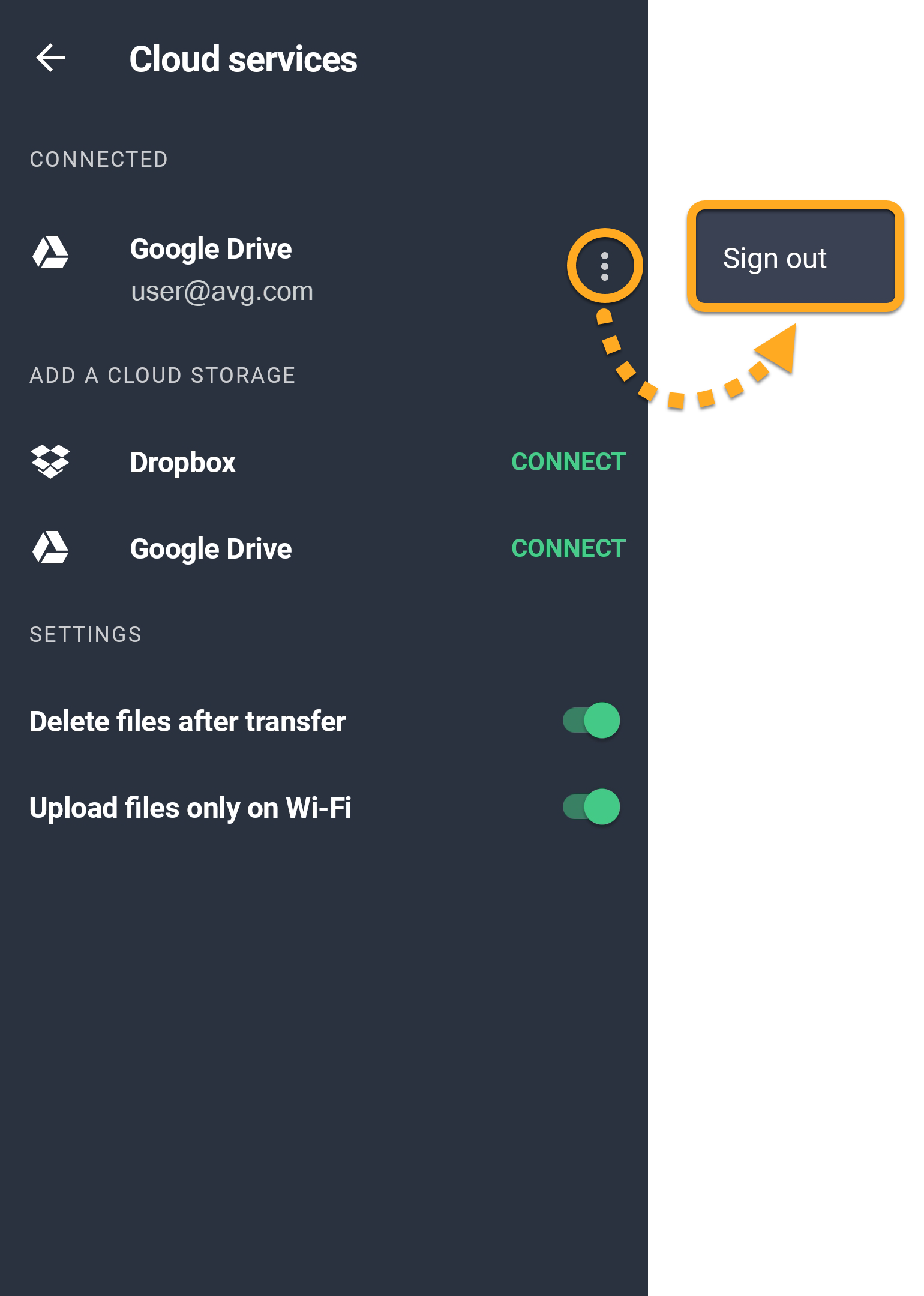
You can be connected to multiple Google Drive accounts and one Dropbox account at the same time. If you are connected to multiple accounts simultaneously, you are prompted to choose an account each time you attempt to transfer data to cloud storage.
Further recommendations
For more information about AVG Cleaner Premium, refer to the following article:
- AVG Cleaner
- Android