AVG AntiTrack is an advanced privacy app designed to keep your identity safe from the latest online tracking techniques. It is a paid app that requires a subscription to use. This article explains how to install the app and either activate an existing subscription or purchase a new one.
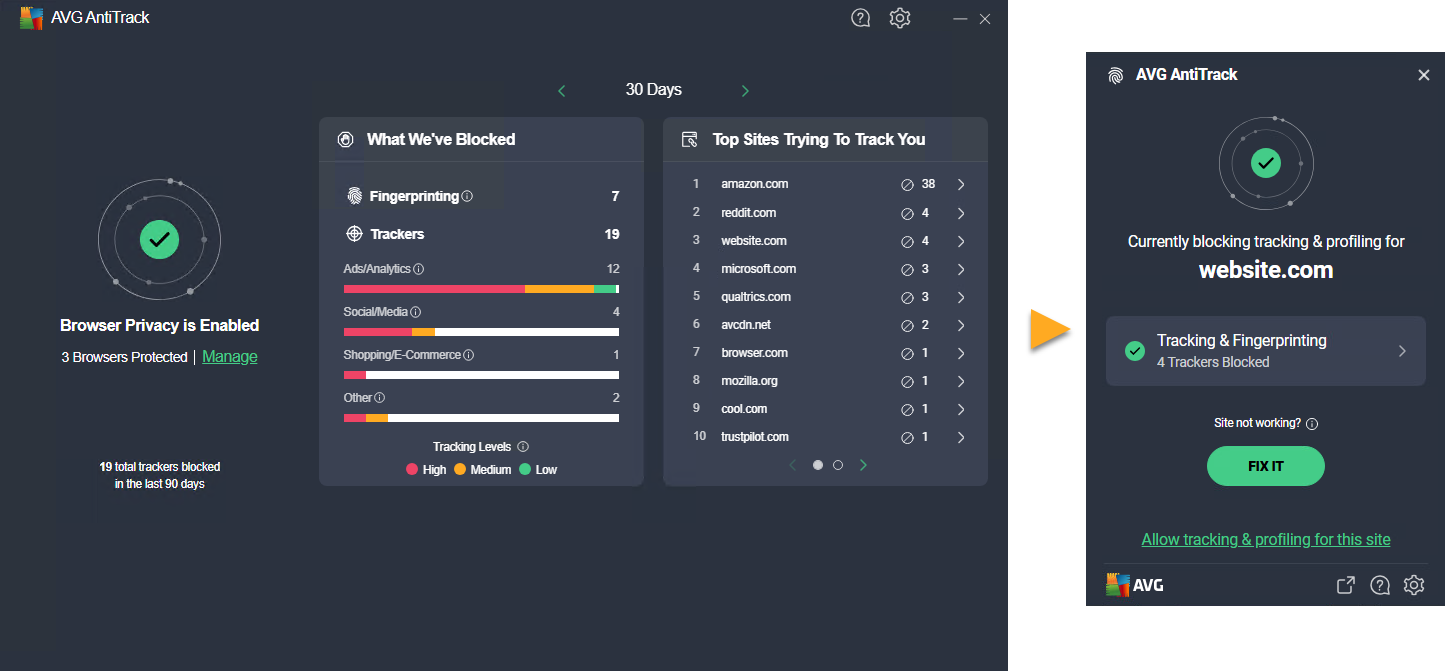
Install AVG AntiTrack
- Click the button below to download the AVG AntiTrack setup file, and save it to a familiar location on your PC (by default, downloaded files are saved to your Downloads folder). Download AVG AntiTrack for Windows
- Right-click the downloaded setup file
avg_antitrack_online_setup.exeand select Run as administrator from the context menu. If you are unable to authorize installation of AVG AntiTrack, refer to the following article for advice: Managing administrative accounts on your Windows PC.
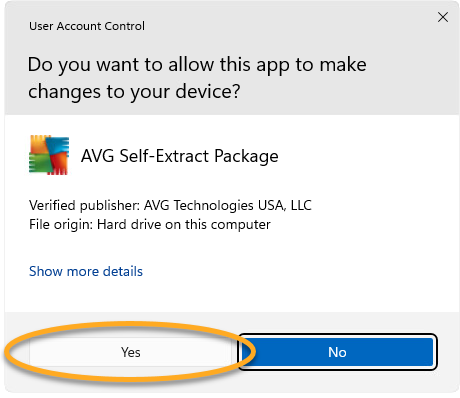
 - If prompted for permission by the User Account Control dialog, click Yes.
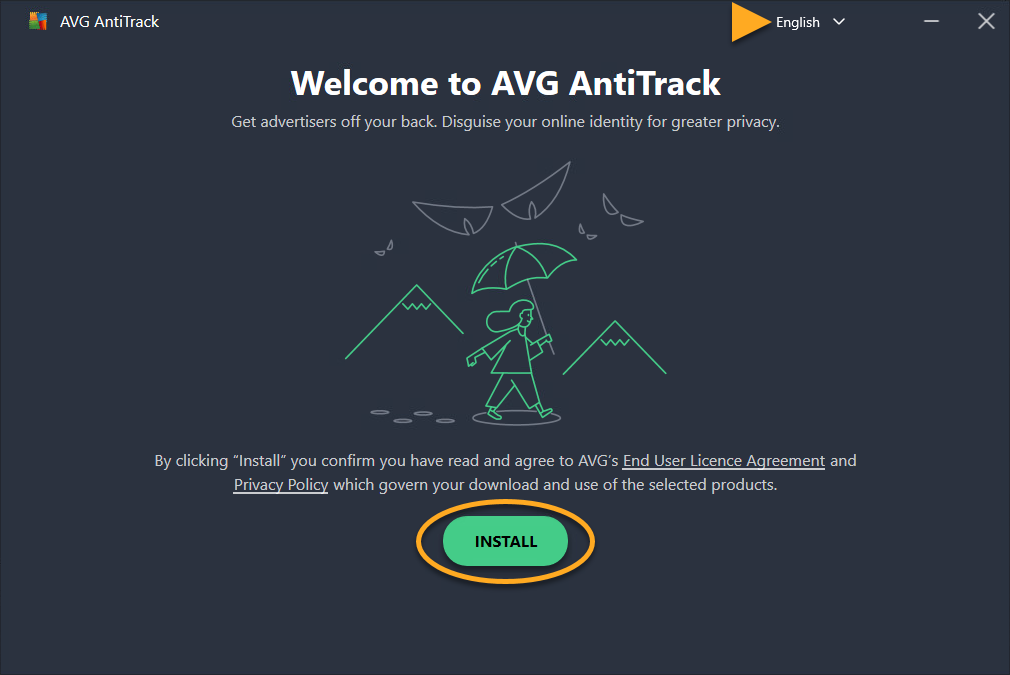
- To change the default setup language, click the current language in the top-right corner of the screen and select your preferred language. Then, click Install.
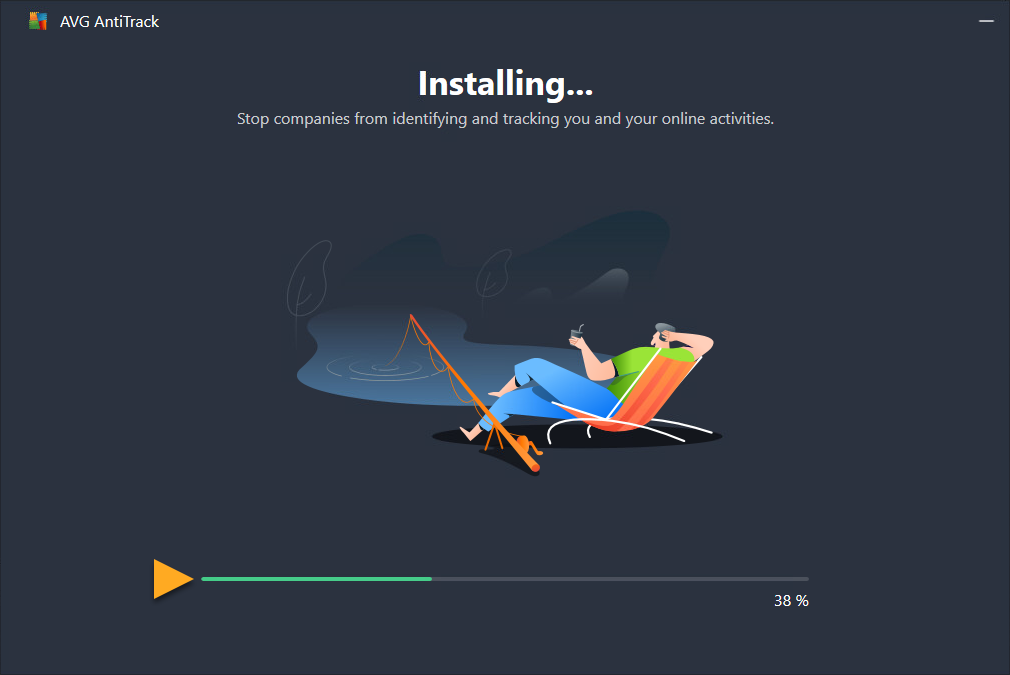
- Wait while setup installs AVG AntiTrack on your PC.
- Select one of the options below:
- See subscription options: Purchase an AVG AntiTrack subscription.
- Try for free: Activate a free trial subscription.
- Already purchased?: If you subscribed to AVG AntiTrack before installation, activate your app by entering the activation code from your order confirmation email.

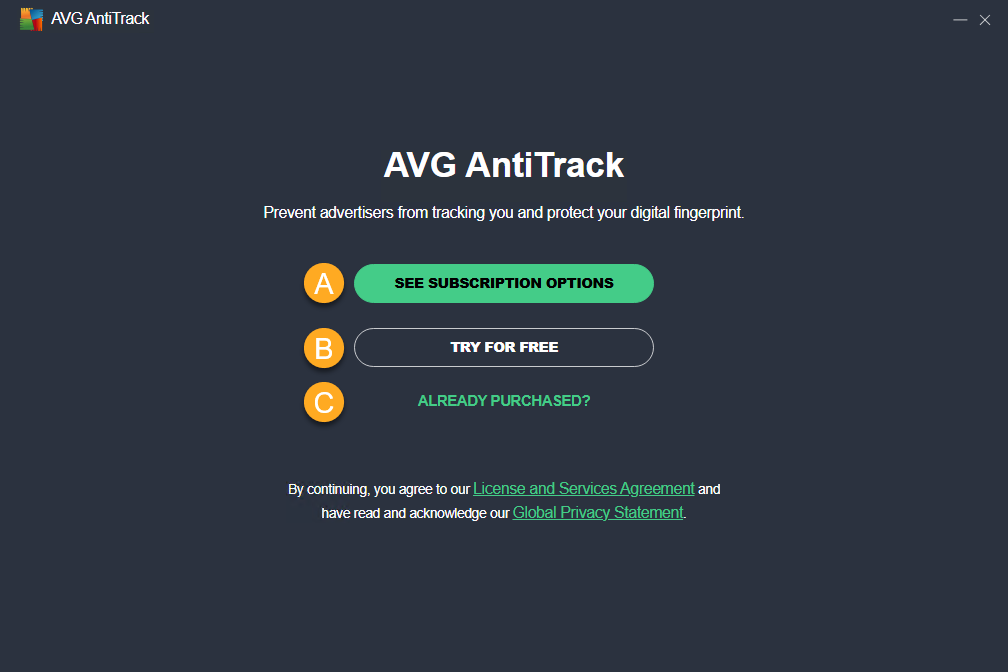
AVG AntiTrack is now installed on your PC.
Troubleshooting
If you experience any installation issues:
- Ensure your PC meets the minimum system requirements specified in the following article:
- Check that the downloaded setup file is not corrupted. For instructions, refer to the following article:
- If you use third-party antivirus software, try temporarily disabling your protection (this applies only if you do not use AVG Antivirus). For more information, refer to the following article:
- Restart your PC, then try to install AVG AntiTrack again by following the exact steps in this article.
If the issue persists, contact AVG Support.
Further recommendations
To learn more about AVG AntiTrack, refer to the following articles:
For instructions on installing AVG AntiTrack browser extensions, refer to the following article:
AVG AntiTrack is an advanced privacy app designed to keep your identity safe from the latest online tracking techniques. It is a paid app that requires a subscription to use. This article explains how to install the app and activate an existing subscription.
Install AVG AntiTrack
- Click the button below to download the AVG AntiTrack setup file, and save it to a familiar location on your Mac (by default, downloaded files are saved to your Downloads folder). Download AVG AntiTrack for Mac
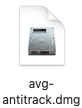
- Double-click the downloaded setup file
avg-antitrack.dmg.
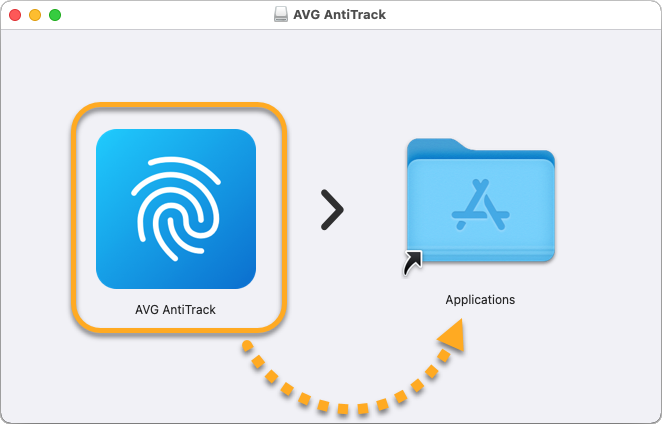
- Click the AVG AntiTrack icon and drag it to the Applications folder.
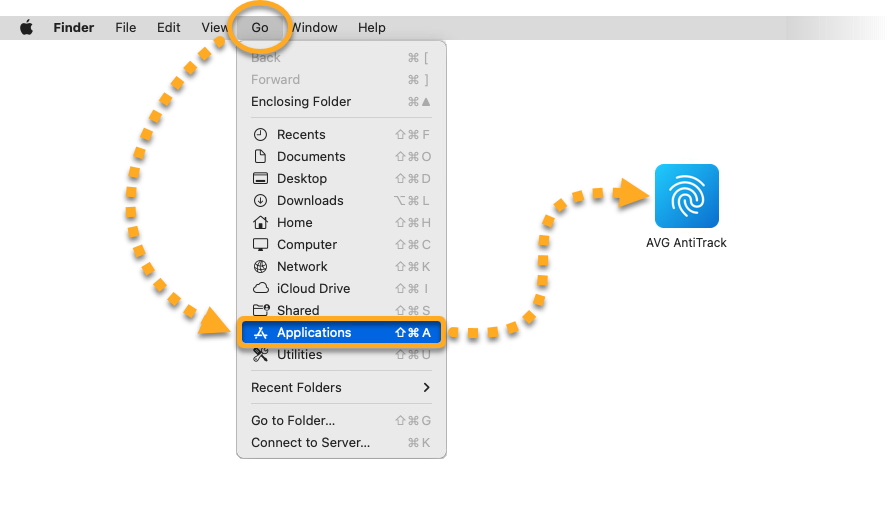
- Click Go ▸ Applications in the Apple menu bar, then double-click the AVG AntiTrack icon to open the application.
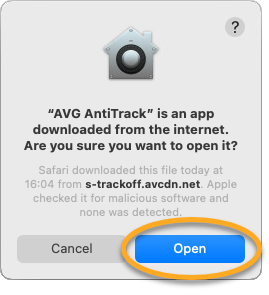
- Click Open.
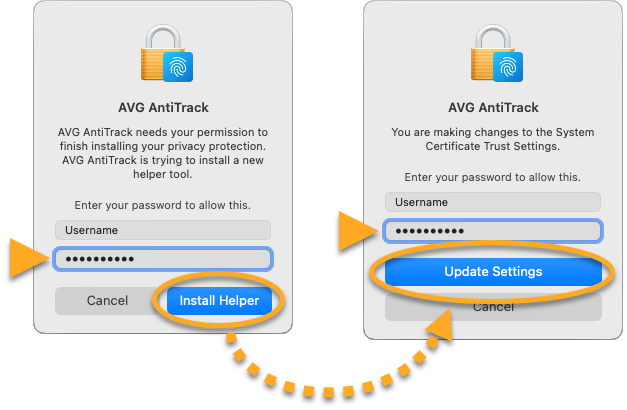
- Enter the password that you use when you start your Mac, then click Install Helper. If prompted, enter this password again and click Update Settings.
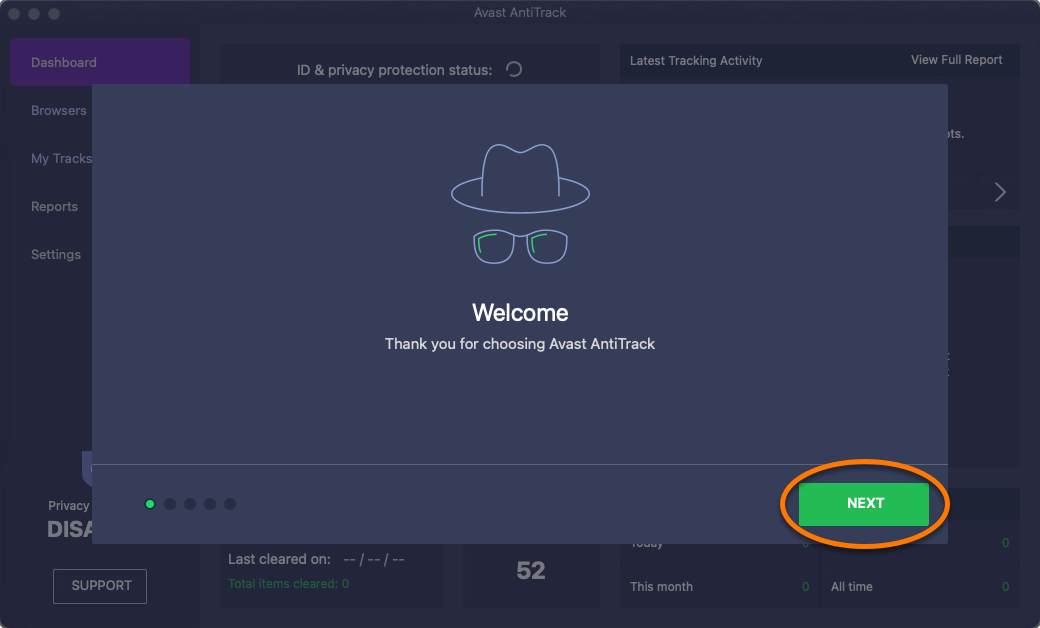
- When the Welcome screen appears, review the welcome tutorial by clicking Next.
AVG AntiTrack is now installed on your Mac. You can now activate your AVG AntiTrack app by entering the activation code from your order confirmation email.
Troubleshooting
If you experience any installation issues:
- Ensure your Mac meets the minimum system requirements specified in the following article:
- Restart your Mac, then try to install AVG AntiTrack again by following the exact steps in this article.
If the issue persists, contact AVG Support.
Further recommendations
To learn more about AVG AntiTrack, refer to the following articles:
- AVG AntiTrack
- Windows and macOS