AVG Internet Security for WindowsAVG Internet Security for Mac is a comprehensive security application that helps block viruses, spyware, and other malicious threats. Additionally, it helps protect you and your data against dangerous fake websites, ransomware, and hackers while you are online. This article explains how to download and install the application.
Install AVG Internet Security
- Click the button below to download the AVG Internet Security setup file, and save it to a familiar location on your PC (by default, downloaded files are saved to your Downloads folder). Download AVG Internet Security for Windows
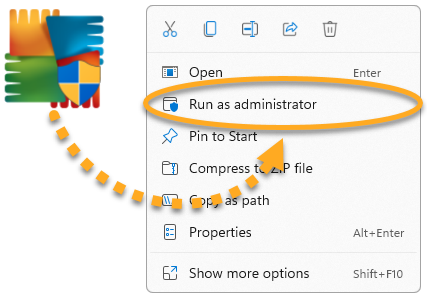
- Right-click the downloaded setup file
avg_internet_security_setup.exeand select Run as administrator from the context menu. If you are unable to authorize installation of AVG Internet Security, refer to the following article for advice: Managing administrative accounts on your Windows PC.
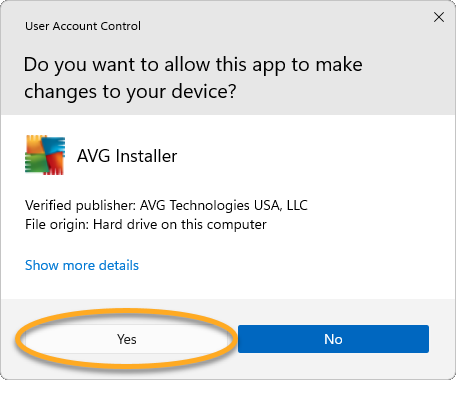
 - If prompted for permission by the User Account Control dialog, click Yes.
- To change the default setup language, choose your preferred language in the top-right corner of the screen. Then, click Install.
- Wait while setup installs AVG Internet Security on your PC.

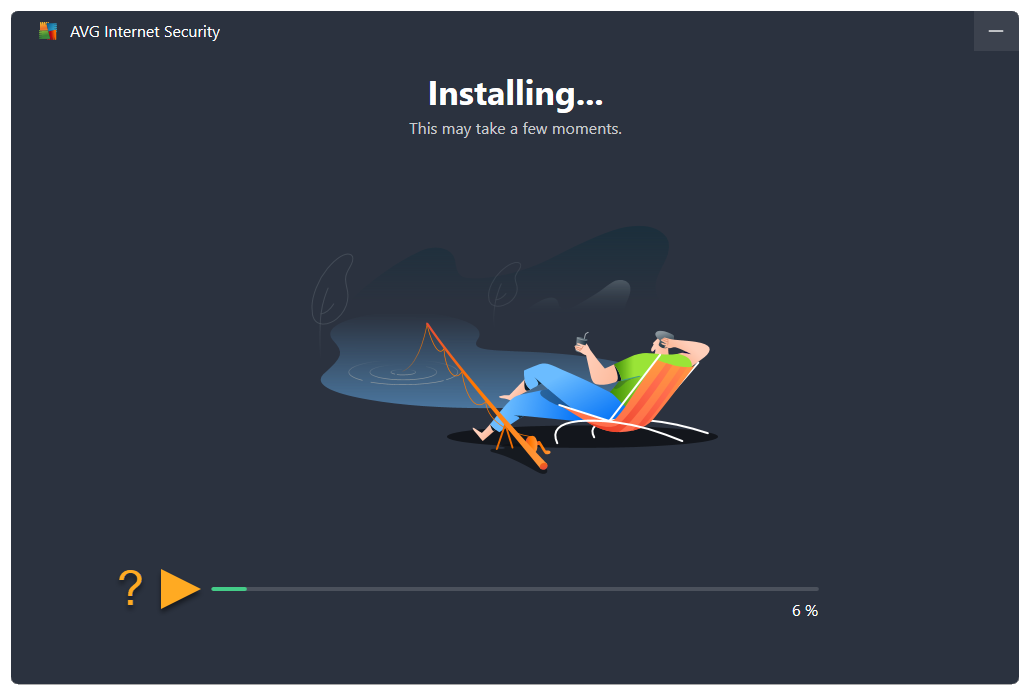
AVG Internet Security is now installed, but some components may not fully function until you restart your PC.
- Click the button below to download the AVG AntiVirus setup file, and save it to a familiar location on your Mac (by default, downloaded files are saved to your Downloads folder). Download AVG Internet Security for Mac
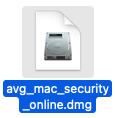
- Double-click the downloaded setup file
avg_mac_security_online.dmg.
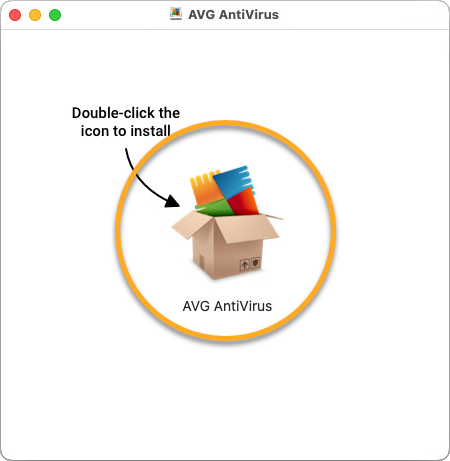
- Double-click the Install AVG AntiVirus icon.
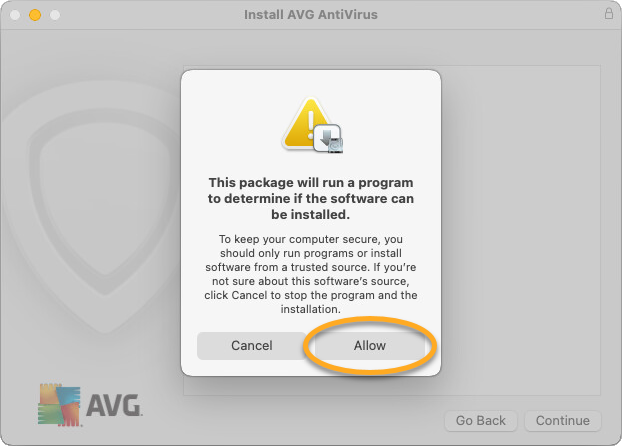
- Click Allow.
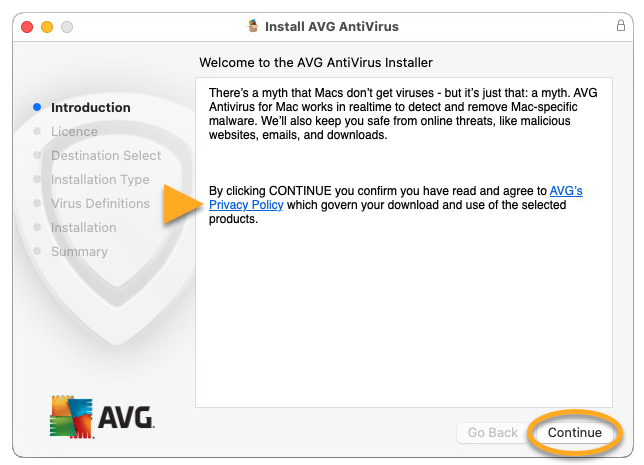
- Review the AVG Privacy Policy, then click Continue.
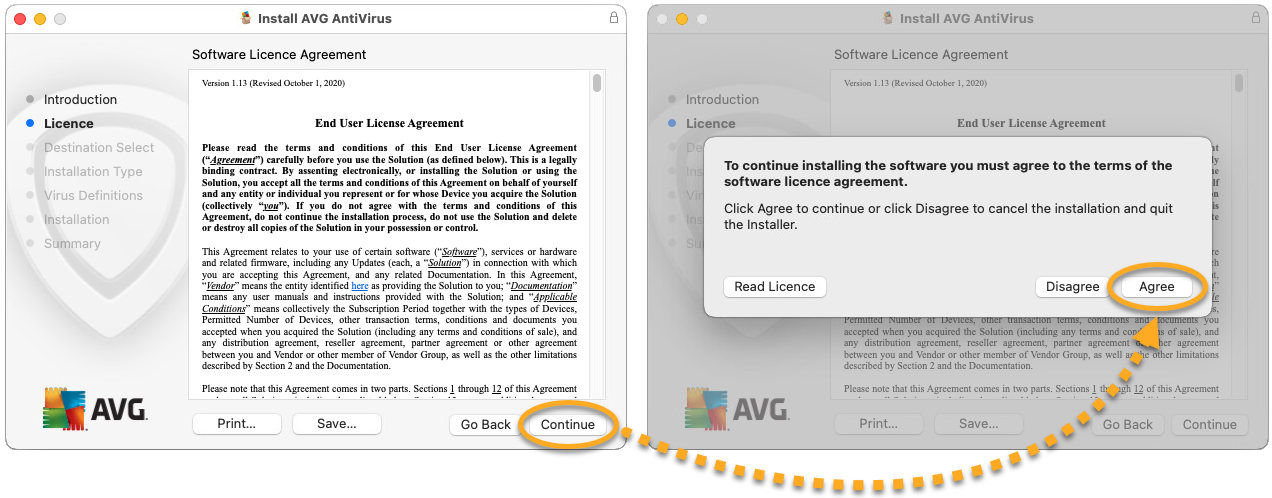
- Click Continue to confirm that you have read the End User License Agreement, then click Agree to confirm that you accept the terms.
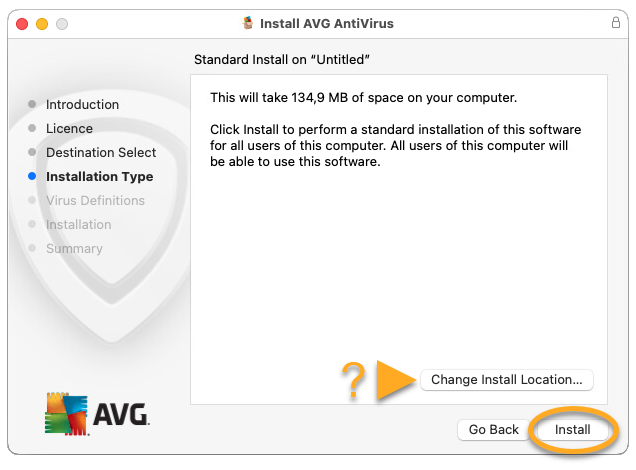
- Click Install to proceed with default installation, or click Change Install Location... if you want to make changes to the default setup.
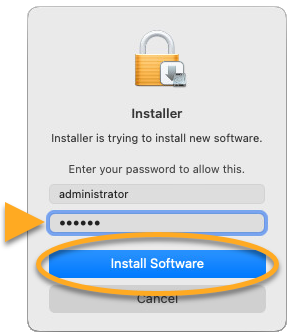
- If prompted, use your Touch ID to grant permission for the installation, or click Use Password..., then enter the password that you use when you start your Mac and click Install Software.
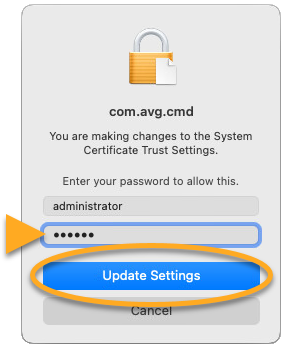
- If prompted, use your Touch ID to allow AVG Internet Security to make changes to the System Certificate Trust Settings, or enter the password that you use when you start your Mac and click Update Settings.
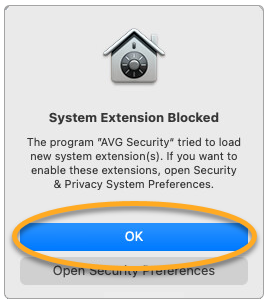
- When the System Extension Blocked notification appears, click OK.
- Click Close ▸ Move to Bin.
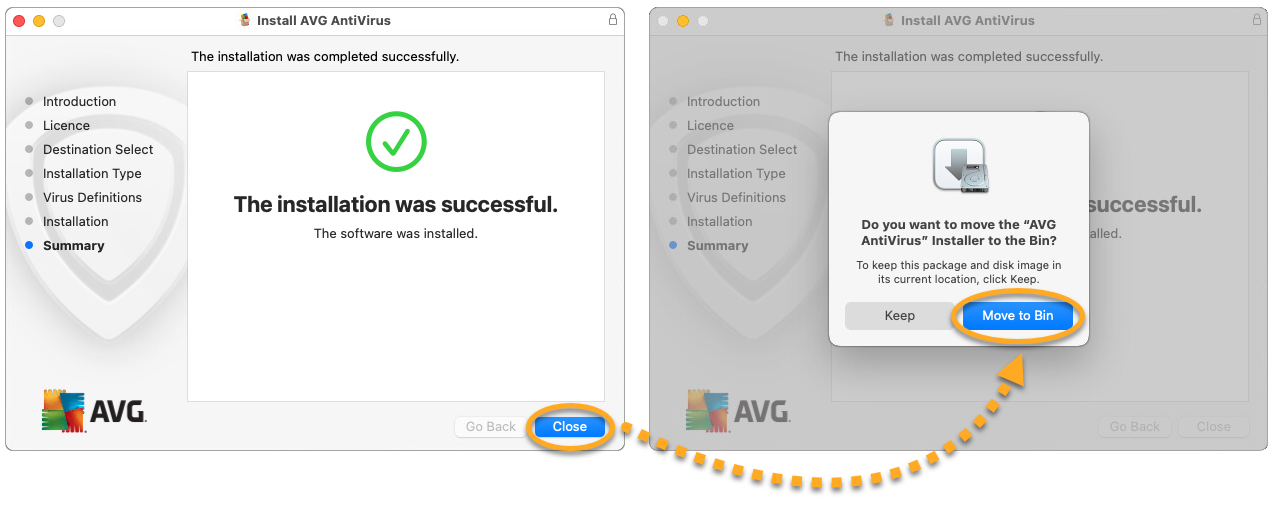
AVG Internet Security is now installed, but some components may not fully function until you restart your Mac. To complete the initial setup, follow the on-screen instructions to allow permissions for the app. For detailed instructions, refer to the following article:
Still need help?
If you experience any installation issues:
- Ensure your PC meets the minimum system requirements and is up to date. For information about the requirements for your device, refer to the following article:
- Check that the downloaded setup file is not corrupted. For instructions, refer to the following article:
- Uninstall any previous antivirus software from your PC. For instructions, refer to the following articles:
- Restart your PC and try to install AVG Internet Security again by following exact steps in this article.
If the issue persists, contact AVG Support and provide installation log files. For instructions, refer to the following article:
- Ensure your Mac meets the minimum system requirements and is up to date. For information about the requirements for your device, refer to the following article:
- Uninstall any previous antivirus software from your Mac. For instructions, refer to the following article:
- Restart your Mac, then try to install AVG Internet Security again by following the exact steps in this article.
If the issue persists, contact AVG Support.
Further recommendations
To learn more about AVG Internet Security, refer to the following article:
- AVG Internet Security
- Windows and macOS