Core Shields - File Shield, Web Shield, and Email Shield - in AVG AntiVirus Free and AVG Internet Security for Mac provide real-time protection against malware.
Although it is generally not recommended, you can exclude certain files, programs, mail servers, or websites from being scanned by the Core Shields. Exclusions can be useful to speed up scans or to prevent false positive detections.
This article contains instructions to manage settings and set exclusions for File Shield, Web Shield, and Email Shield.
Manage settings
To manage File Shield settings:
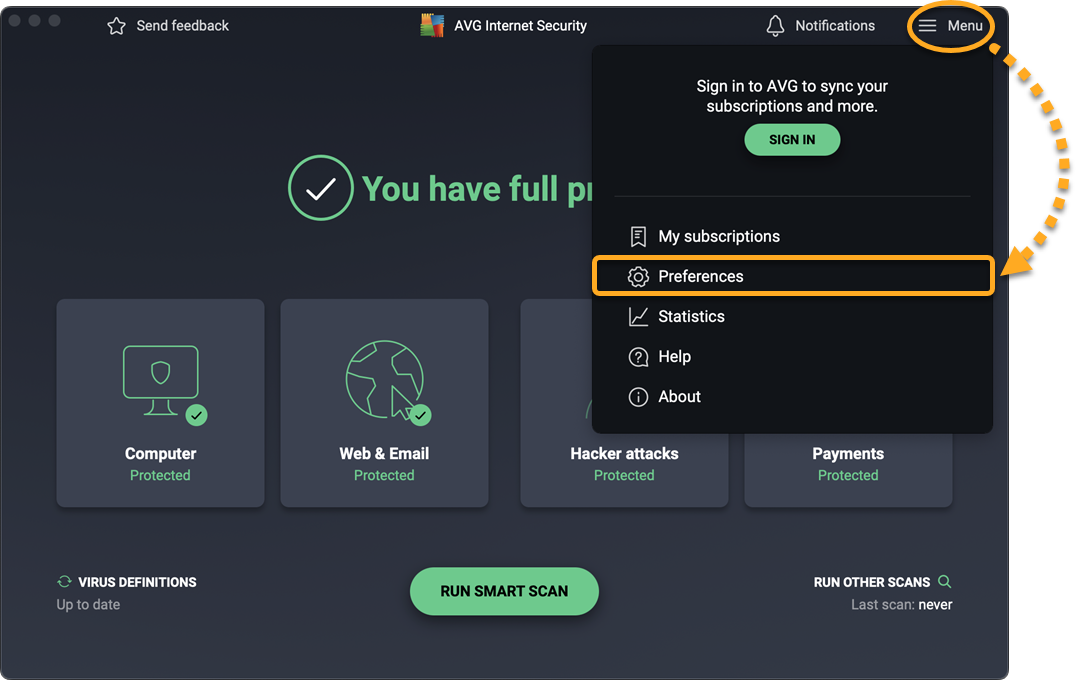
- Open AVG AntiVirus and select
☰Menu ▸ Preferences.
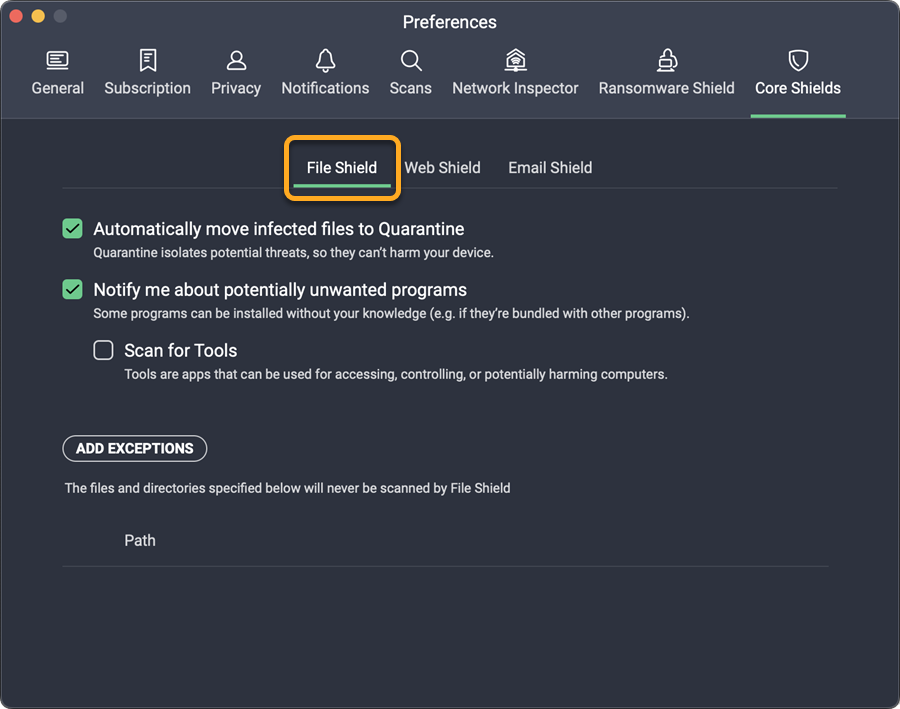
- Select the Core Shields tab.
- Select the File Shield tab.
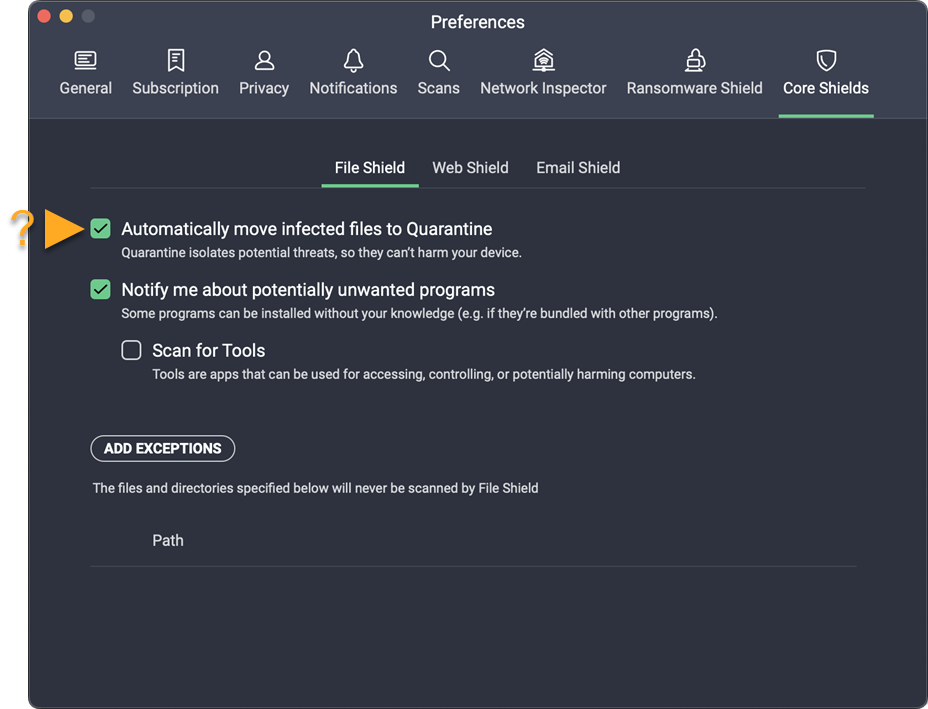
- Click the check box next to a setting to disable (uncheck) it. The following options are available:
- Automatically move infected files to Quarantine: If malware is detected, the file, program, or application is immediately moved to Quarantine and you are notified with an alert message.
- Notify me about potentially unwanted programs: When potentially unwanted programs (PUP) are detected, you are notified with an alert message.
- Scan for Tools: Tools are apps that can be used for accessing, controlling, or potentially harming computers.
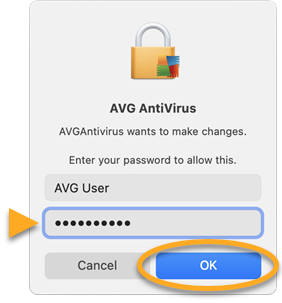
- If prompted, enter the password that you use when you start your Mac, then click OK to authorize the change.

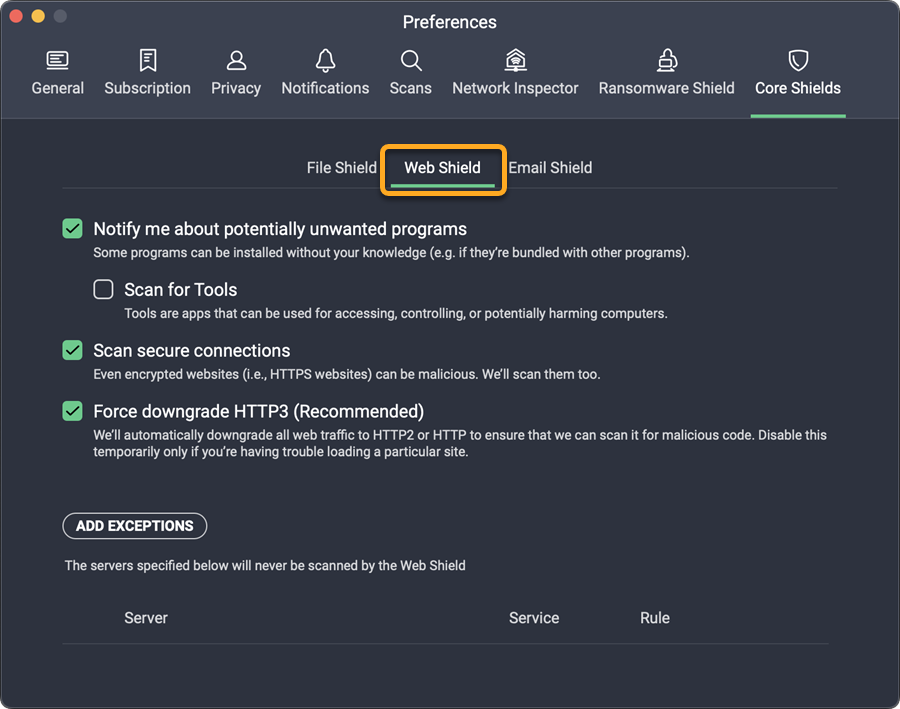
To manage Web Shield settings:
- Open AVG AntiVirus and select
☰Menu ▸ Preferences.
- Select the Core Shields tab.
- Select the Web Shield tab.
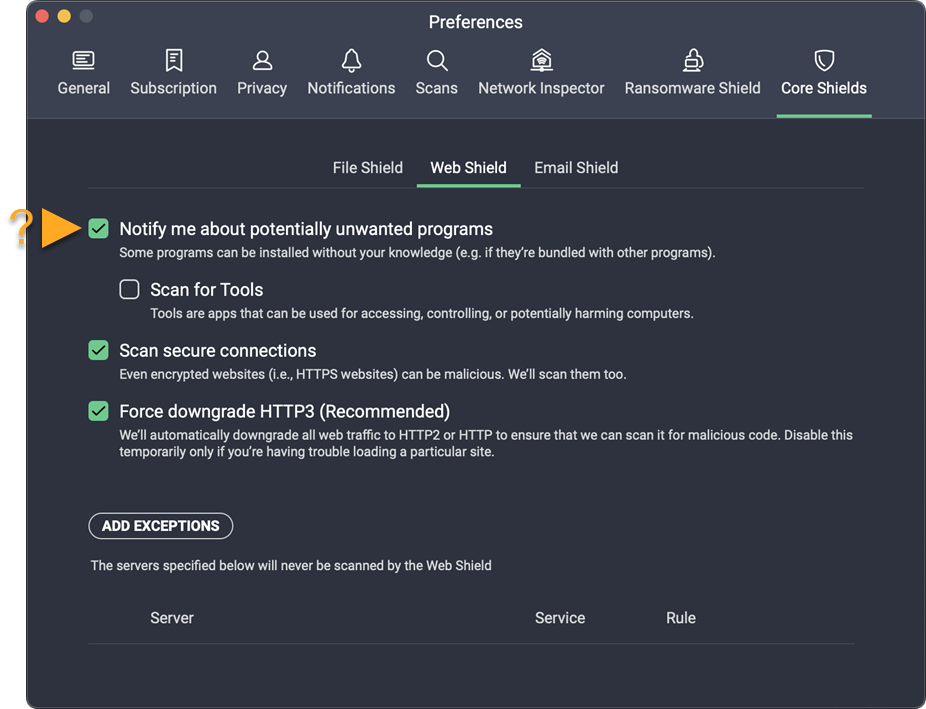
- Click the check box next to a setting to disable (uncheck) it. The following options are available:
- Notify me about potentially unwanted programs: When potentially unwanted programs (PUP) are detected, you are notified with an alert message.
- Scan for Tools: Tools are apps that can be used for accessing, controlling, or potentially harming computers.
- Scan secure connections: HTTPS (secured) sites are scanned for malware as well as HTTP sites.
- Force downgrade HTTP3 (Recommended): Automatically downgrades all web traffic to HTTP2 or HTTP to scan for malicious code.
- If prompted, enter the password that you use when you start your Mac, then click OK to authorize the change.
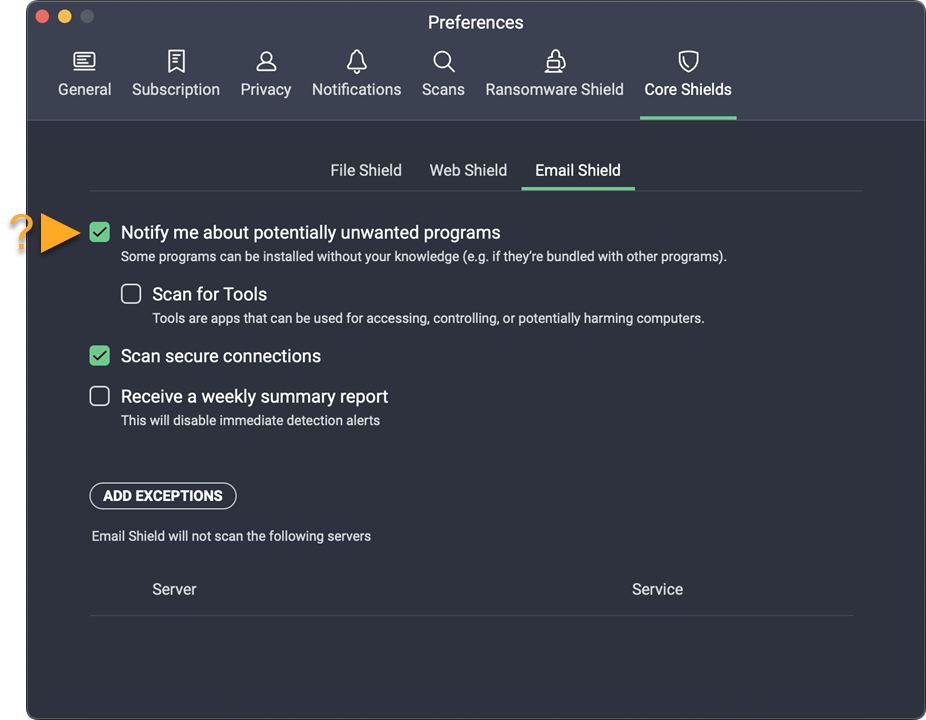
To manage Email Shield settings:
- Open AVG AntiVirus and select
☰Menu ▸ Preferences.
- Select the Core Shields tab.
- Select the Email Shield tab.
- Click the check box next to a setting to disable (uncheck) it. The following options are available:
- Notify me about potentially unwanted programs: When potentially unwanted programs (PUP) are detected, you are notified with an alert message.
- Scan for Tools: Tools are apps that can be used for accessing, controlling, or potentially harming computers.
- Scan secure connections: HTTPS (secured) sites are scanned for malware as well as HTTP sites.
- Receive weekly summary report: Disables immediate detection reports.
- If prompted, enter the password that you use when you start your Mac, then click OK to authorize the change.

Set exclusions
To exclude files, folders, or applications from being scanned by File Shield:
- Open AVG AntiVirus and select
☰Menu ▸ Preferences.
- Select the Core Shields tab.
- Select the File Shield tab.
- Click Add exceptions.
- Select the file, folder, or application you want to exclude from scanning, then click Open.
- If prompted, enter the password that you use when you start your Mac, then click OK to authorize the change.
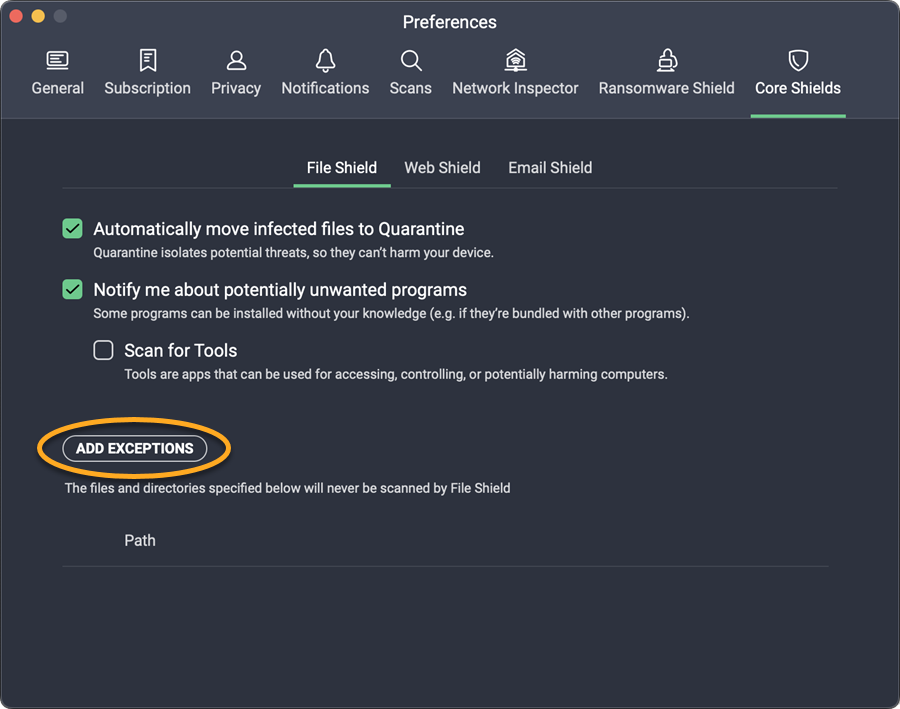
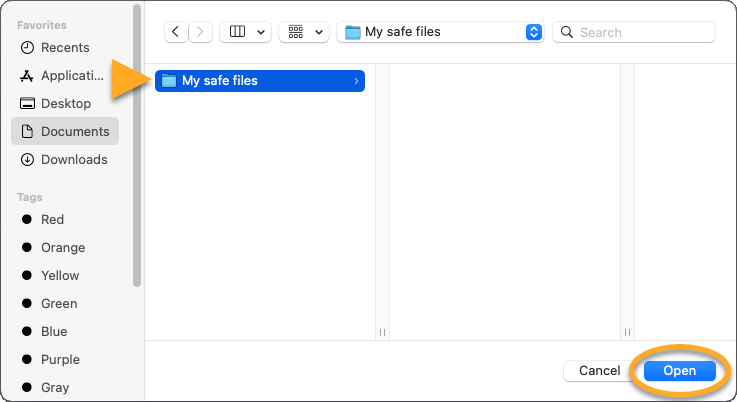
The file path is added to the exceptions list. To remove an excluded item, hover your cursor over the file path panel in the exceptions list, then click the trash can icon.
To exclude websites or domains from being scanned by Web Shield:
- Open AVG AntiVirus and select
☰Menu ▸ Preferences.
- Select the Core Shields tab.
- Select the Web Shield tab.
- Click Add exceptions.
- Enter the URL of the website you want to exclude from scanning and select the service type, then click Add.
- If prompted, enter the password that you use when you start your Mac, then click OK to authorize the change.
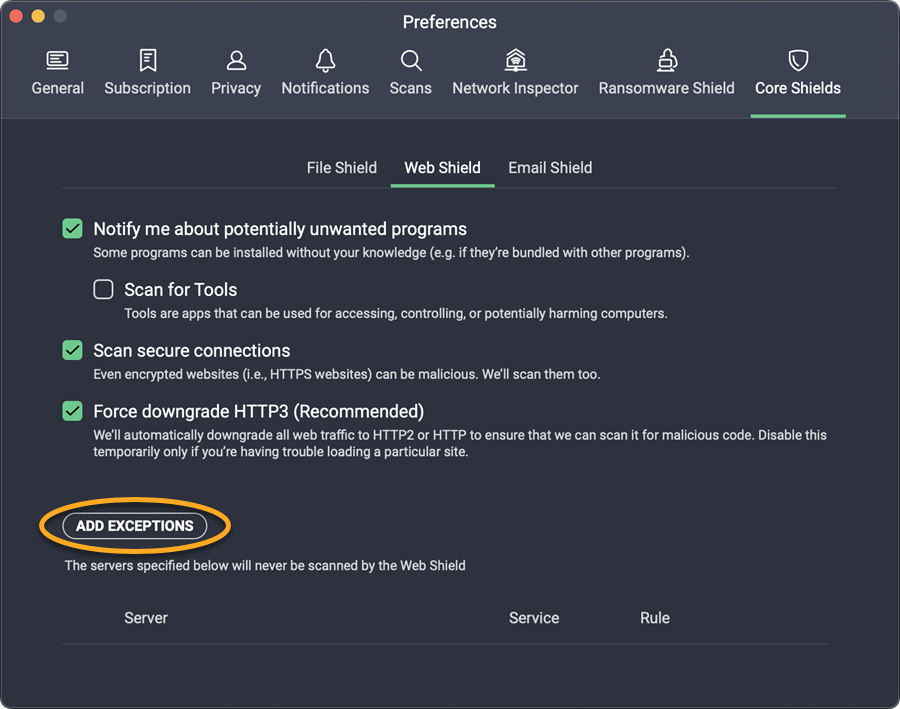

The website is added to the exceptions list. To remove an excluded website, click the URL in the exceptions list, then click the trash can icon.
To exclude mail servers from being scanned by Email Shield:
- Open AVG AntiVirus and select
☰Menu ▸ Preferences.
- Select the Core Shields tab.
- Select the Email Shield tab.
- Click Add exceptions.
- Enter the URL of the mail server you want to exclude from scanning and select the service type, then click Add.
- If prompted, enter the password that you use when you start your Mac, then click OK to authorize the change.
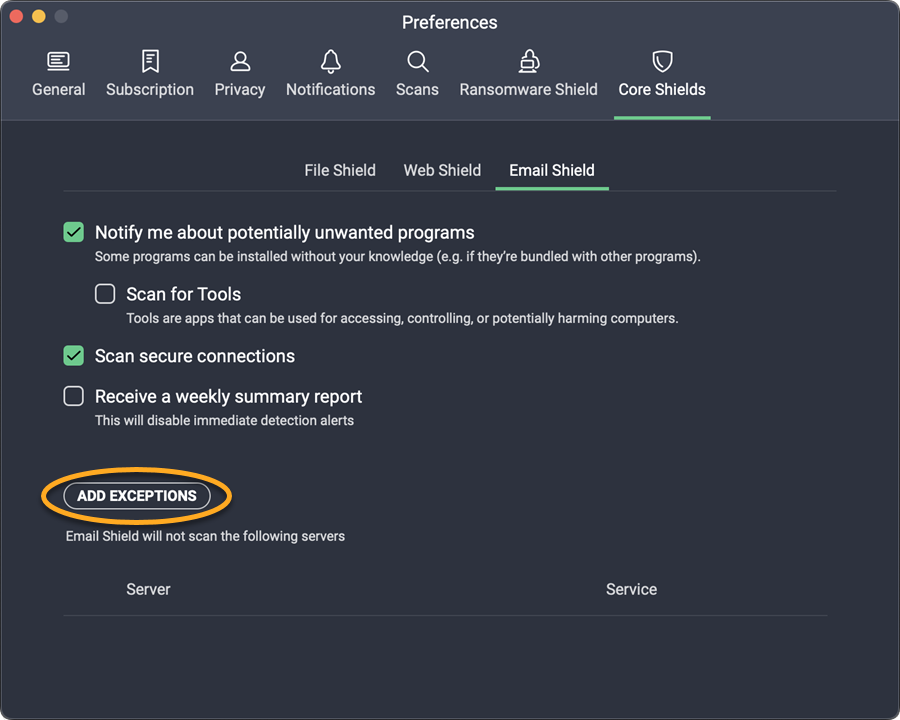
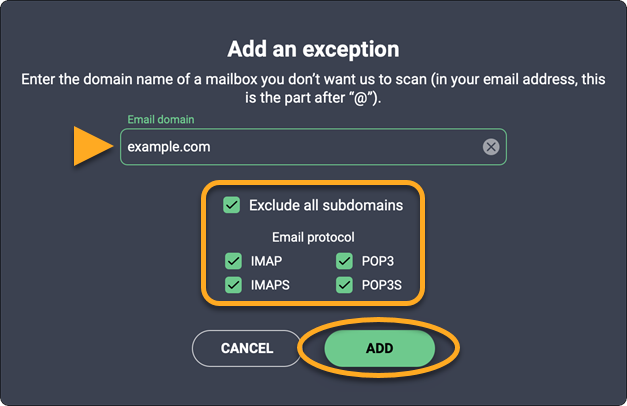
The mail server is added to the exceptions list. To remove an excluded mail server, click the mail server in the exceptions list, then click the trash can icon.
- AVG AntiVirus FREE
- AVG Internet Security
- macOS