AVG AntiTrack is a privacy application designed to keep your identity safe from the latest online tracking techniques.
Clear trackers
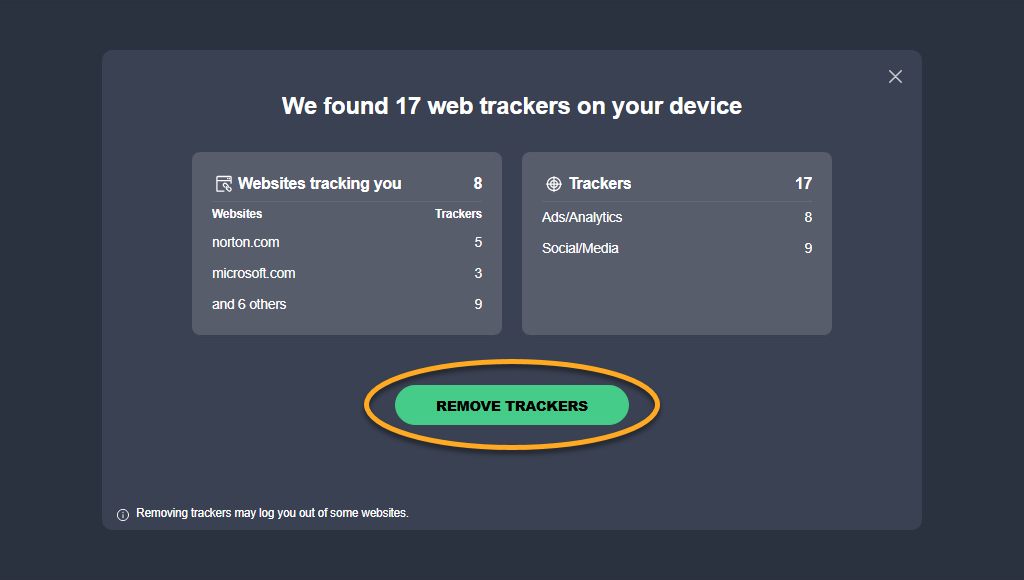
After you install the AVG AntiTrack browser extension and open AVG AntiTrack, it automatically scans your device for trackers. If any trackers are found, AVG AntiTrack prompts you to remove them:
- On the prompt that appears, click Remove trackers.

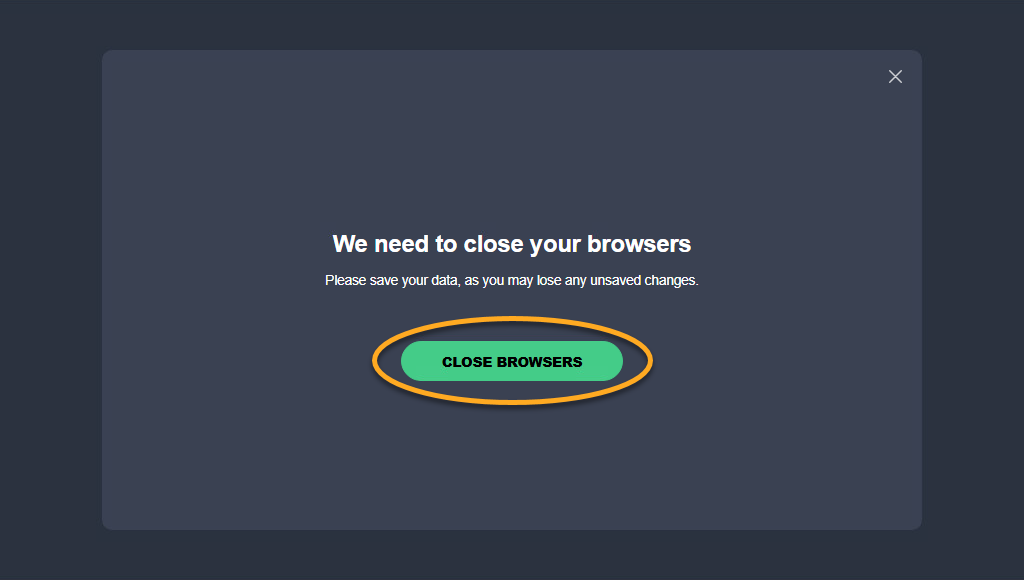
- If any of your browsers are open, click Close browsers to allow AVG AntiTrack to close them automatically.
The trackers are now cleared.
Open AVG AntiTrack
You can open AVG AntiTrack using one of the following methods:
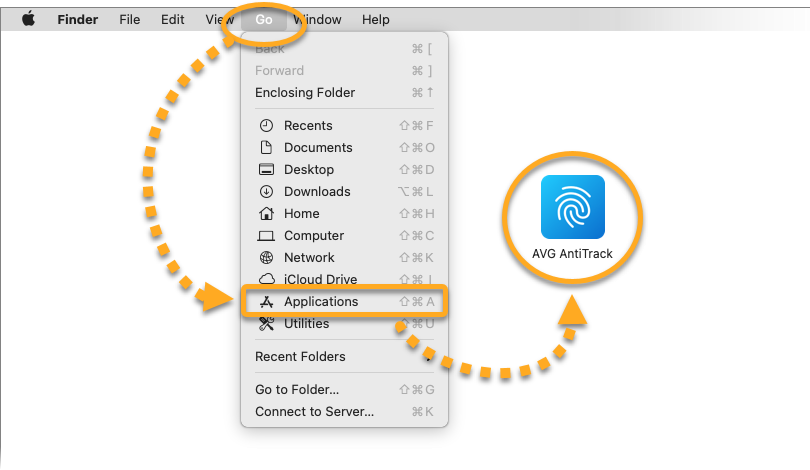
- In the Apple menu bar, click Go ▸ Applications, then double-click the AVG AntiTrack icon.
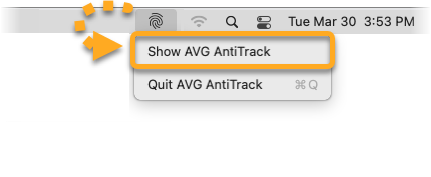
- In the Apple menu bar, click the AVG AntiTrack icon and select Show AVG AntiTrack.
Navigate the dashboard
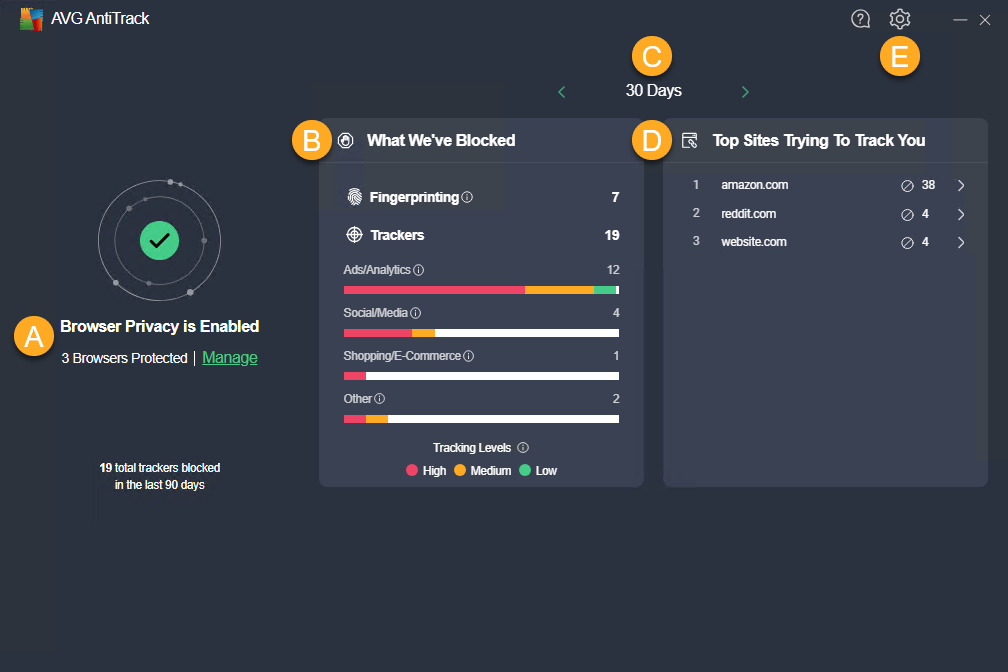
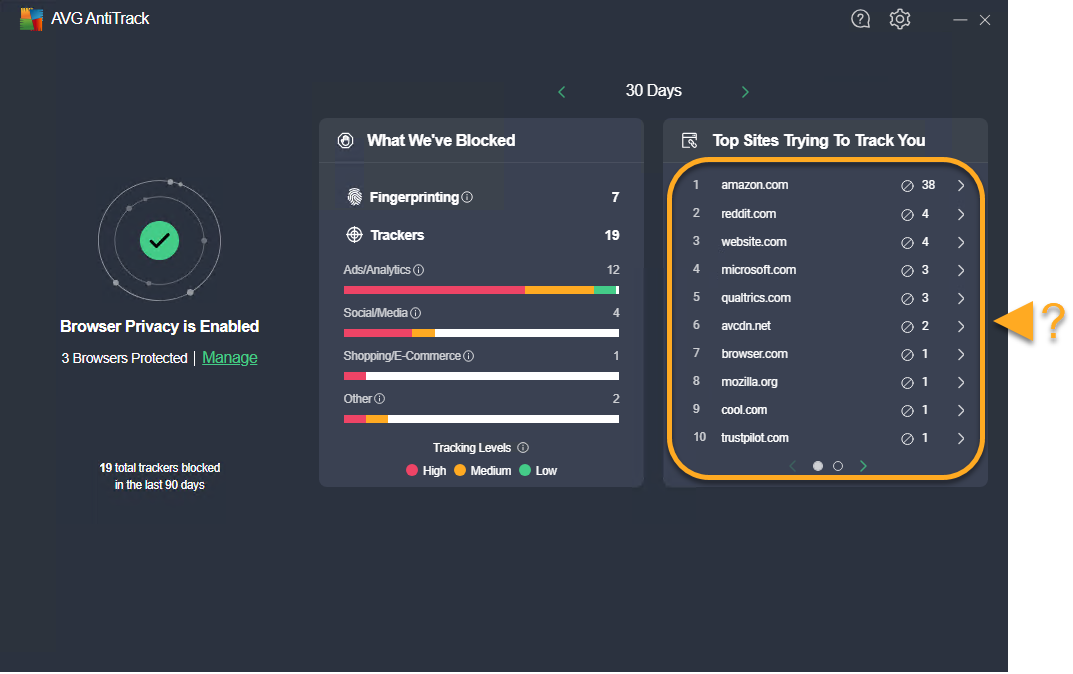
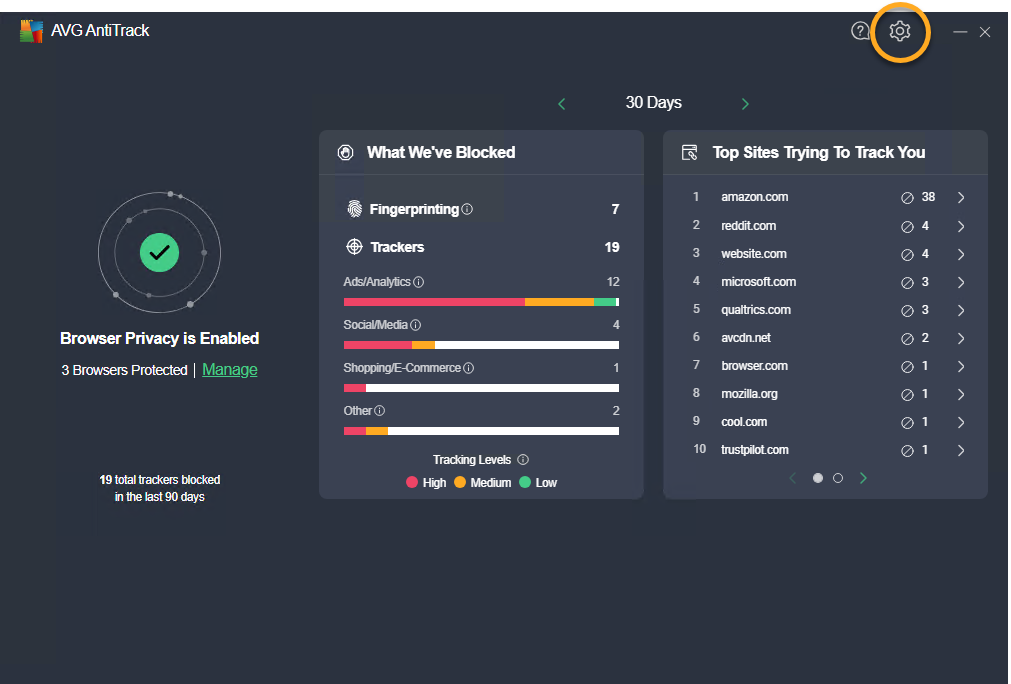
When you open AVG AntiTrack, you see the application dashboard. The following options are available:
- Browser Privacy: Information about the AVG AntiTrack browser extensions added to your browser.
- What We've Blocked: View the total number of fingerprinting attempts and removed trackers for the selected period.
- Use the left and right arrows to view data for today or for the last 30, 60, or 90 days.
- Top Sites Trying to Track You: Information about blocked fingerprinting and tracking for each website.
- Click Settings (the gear icon) for information about your subscription and options related to OS Tracker Blocking, Notifications, and clearing AVG AntiTrack data.
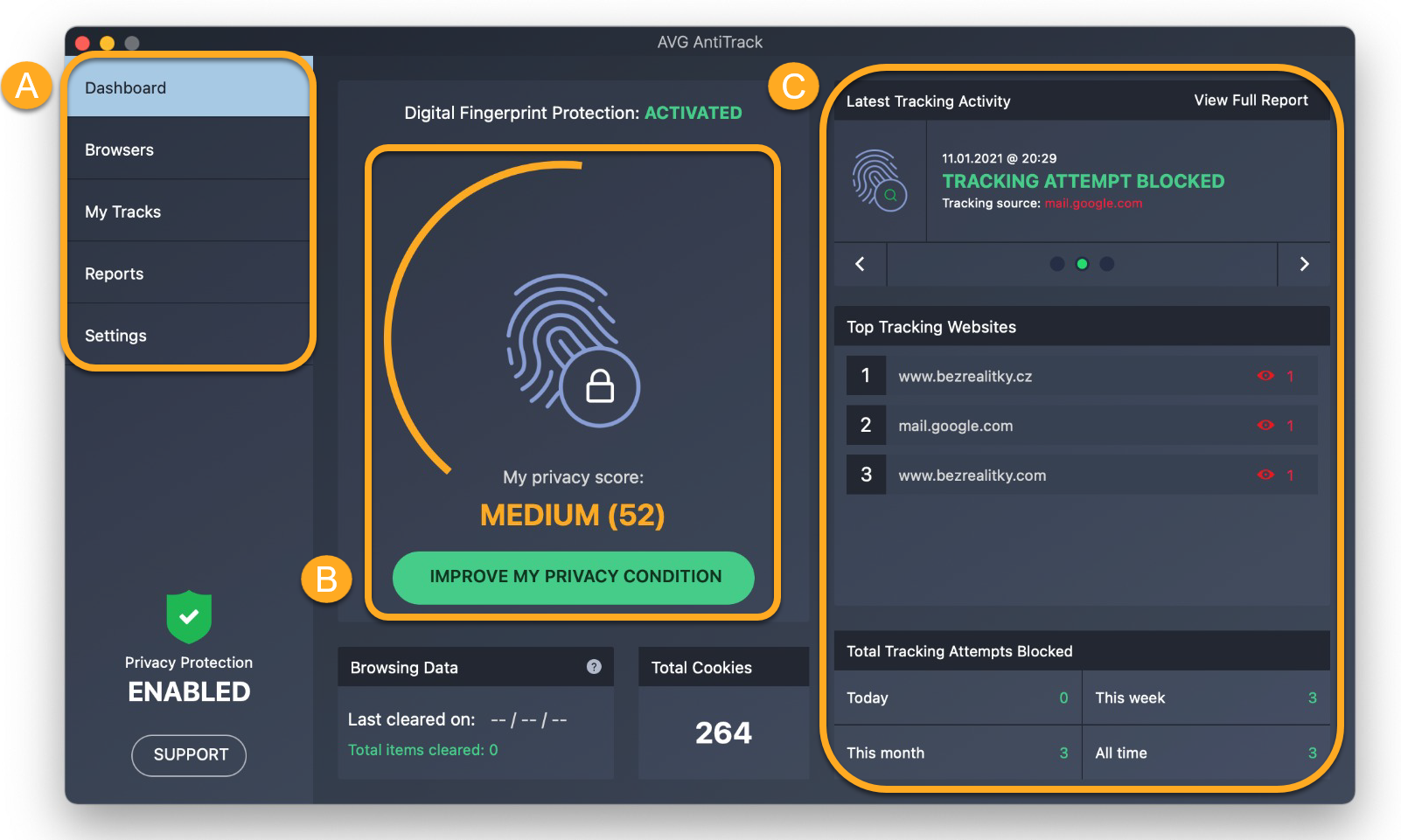
When you open AVG AntiTrack, you see the application dashboard. The following options are available:
- Menu options: Access the application features and settings using the options below:
- Dashboard: Click this option to go to the main app screen.
- Browsers: Enable or disable browser protection for individual browsers.
- My Tracks: Clear cookies and browser data from your web browsers, and add allowed websites that are exempt from cookie clearing.
- Reports: View reports showing when tracking attempts are blocked and which websites are attempting to track you.
- Settings: Configure notification and startup preferences, specify the data you want to share with with AVG and third parties, and view your subscription details.
- My privacy score: Check how effectively the application is configured to protect your privacy. Click Improve my privacy condition to learn how to improve your privacy score.
- Tracking attempts overview: Check recent tracking attempts, learn which websites have attempted to track you most frequently, and see the total number of blocked tracking attempts since you started using AVG AntiTrack.
Check your privacy score
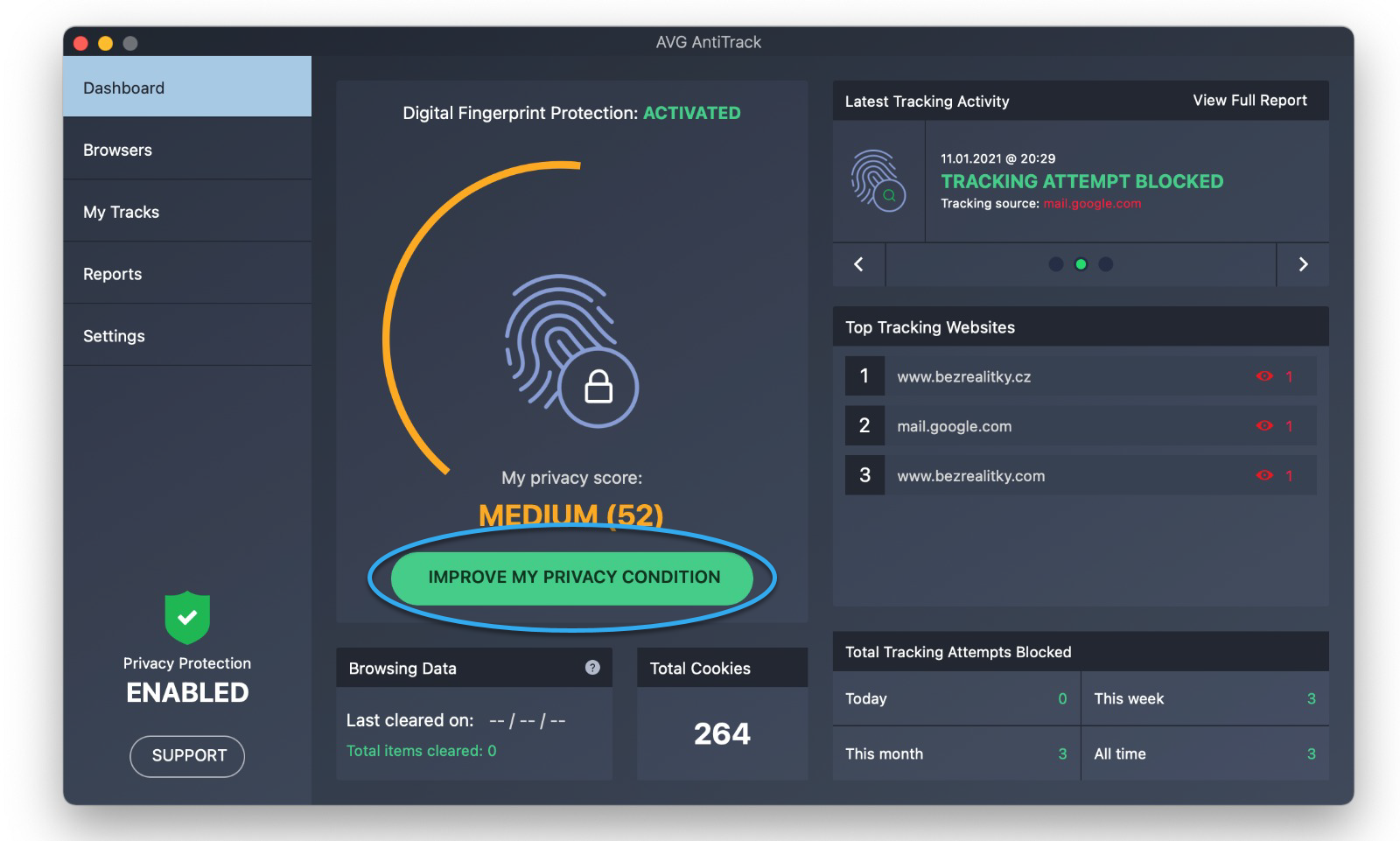
The AVG AntiTrack dashboard shows your privacy score, which indicates how effectively the application is configured to protect your privacy.
To improve your privacy score:
- Click Improve my privacy condition.
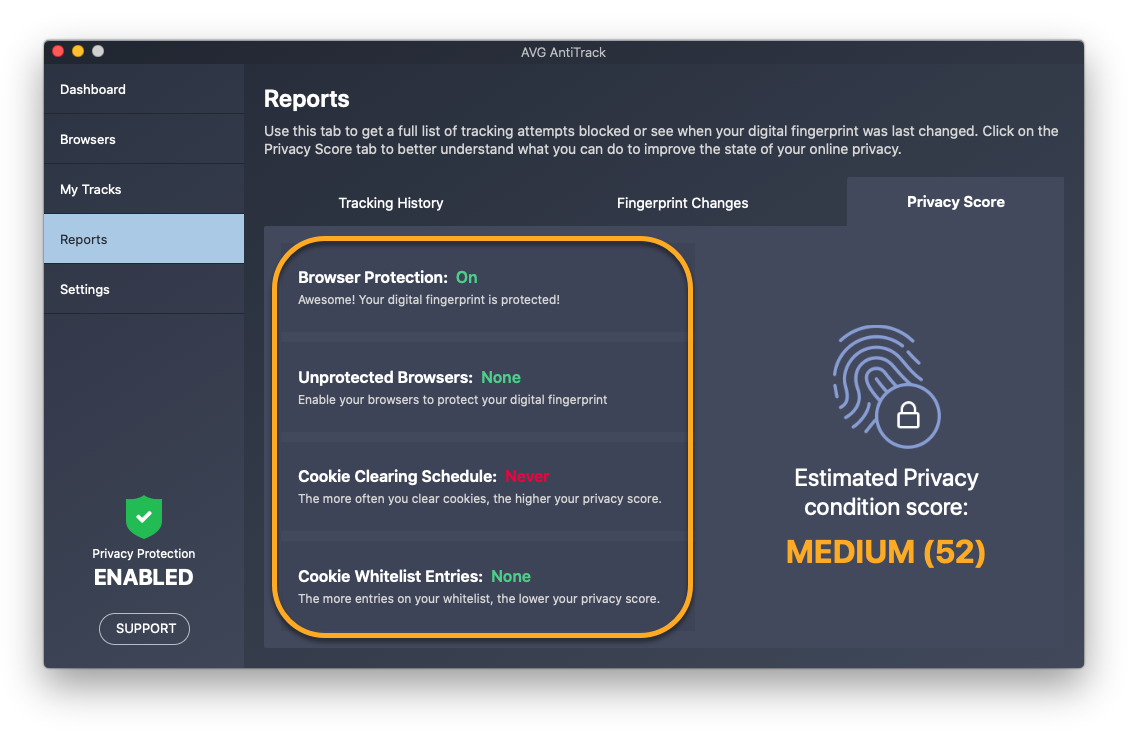
- Review the status of the main application components. Components with a red status are not fully enabled and are preventing AVG AntiTrack from fully protecting your privacy.
- Click a component to configure its settings. For example, ensure browser protection or a regular cookie clearing schedule is enabled for each of your installed web browsers.
Monitor tracking attempts
The main AVG AntiTrack dashboard allows you to see detailed information about blocked fingerprinting and trackers. Click on any listed website for detailed information about blocked fingerprinting and trackers.
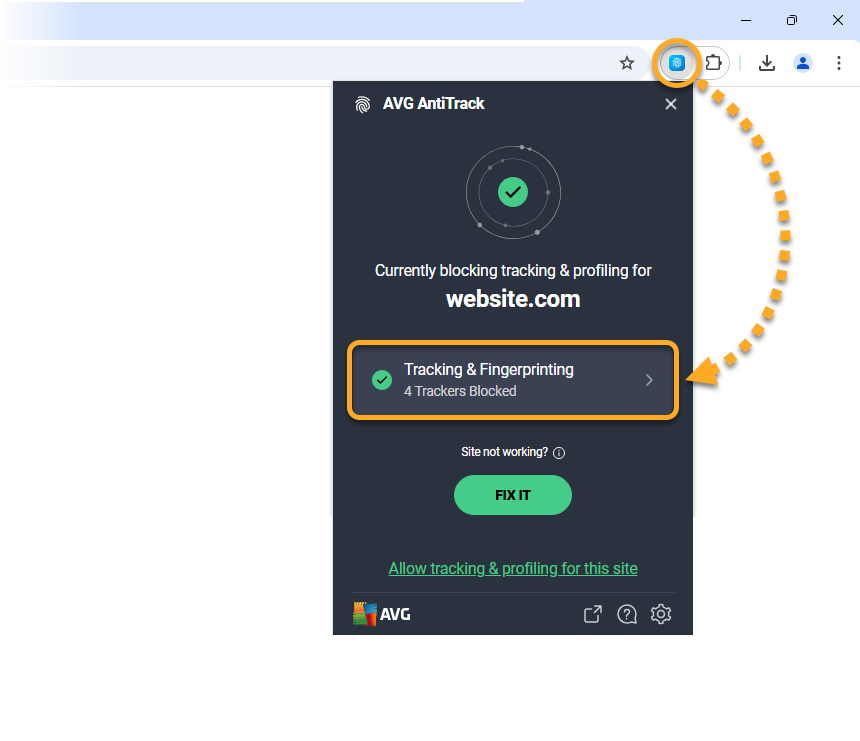
For even more in-depth data on any website, you can use the AVG AntiTrack extension. Open your browser and go to the website you want to investigate. Then, click the AVG AntiTrack extension in the top-right corner, and select the Tracking & Fingerprinting tab to access detailed information.
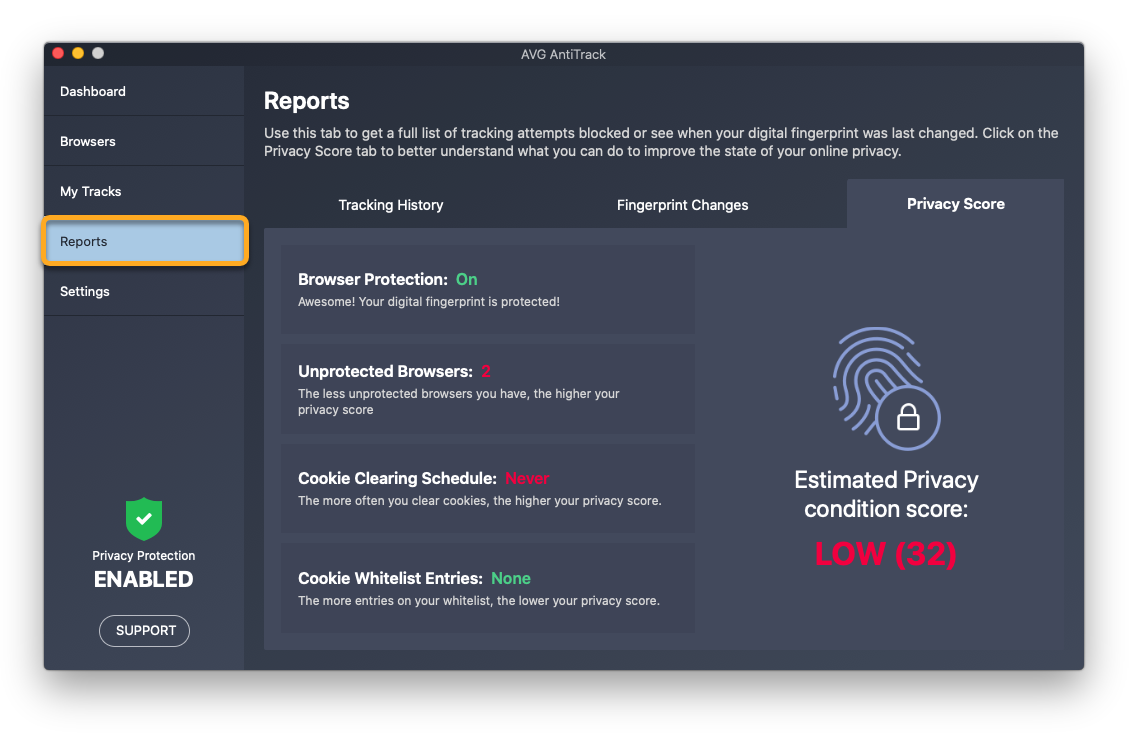
The Reports screen allows you to see when tracking attempts are blocked and which websites are attempting to track you.
To open the Reports screen:
- In the left panel, click Reports.
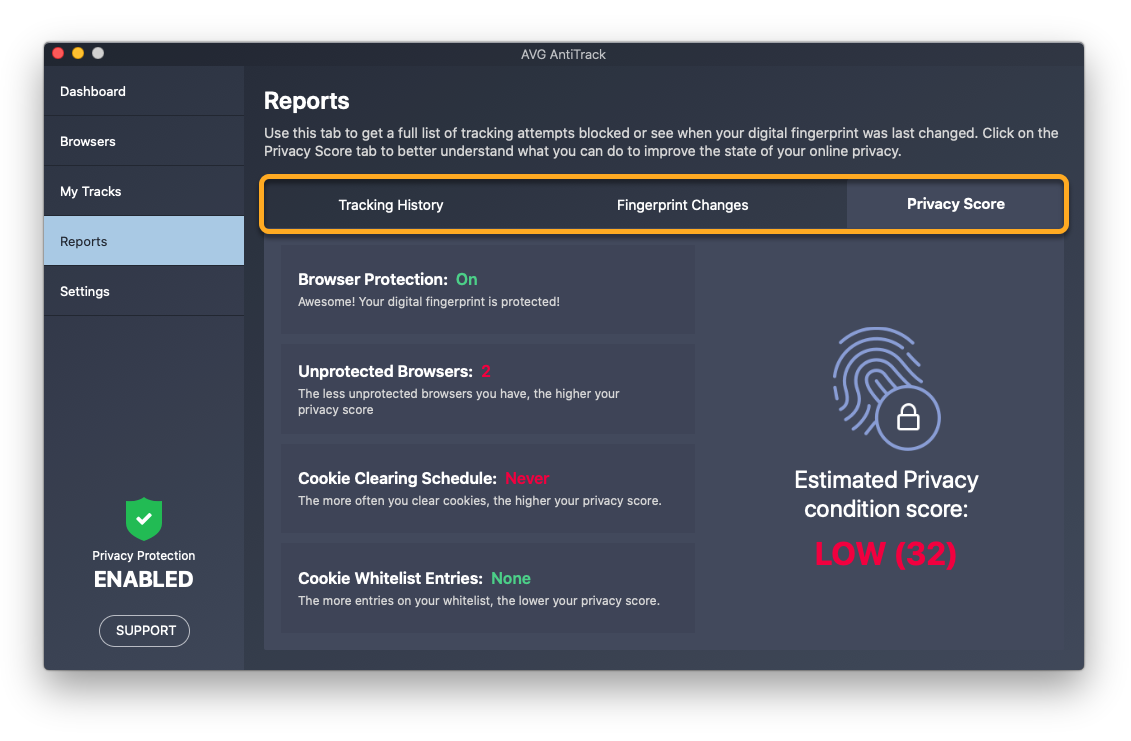
- Select the relevant tab to view the details below:
- Tracking History: Detailed information about each blocked tracking attempt.
- Fingerprint Changes: The most recent changes to your digital fingerprint.
- Privacy Score: An overview of how effectively AVG AntiTrack components are configured to protect your privacy.
Protect your browsers
The Browsers screen allows you to enable or disable browser protection for individual web browsers.
After you install and activate AVG AntiTrack, we recommend ensuring that browser protection is enabled for all the compatible browsers installed on your Mac.
To enable or disable browser protection for an individual browser:
- In the left panel, select Browsers.
- Click the slider next to your chosen browser:
- Enable: Click the red (OFF) slider so that it changes to green (ON).
- Disable: Click the green (ON) slider so that it changes to red (OFF).
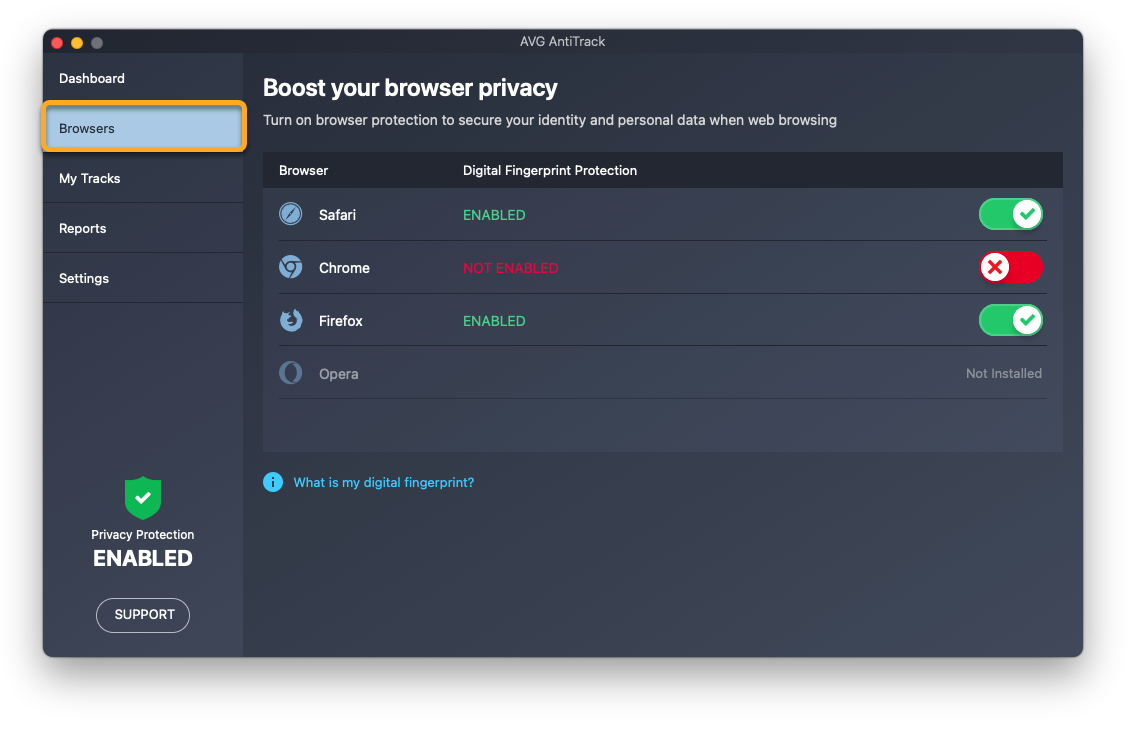
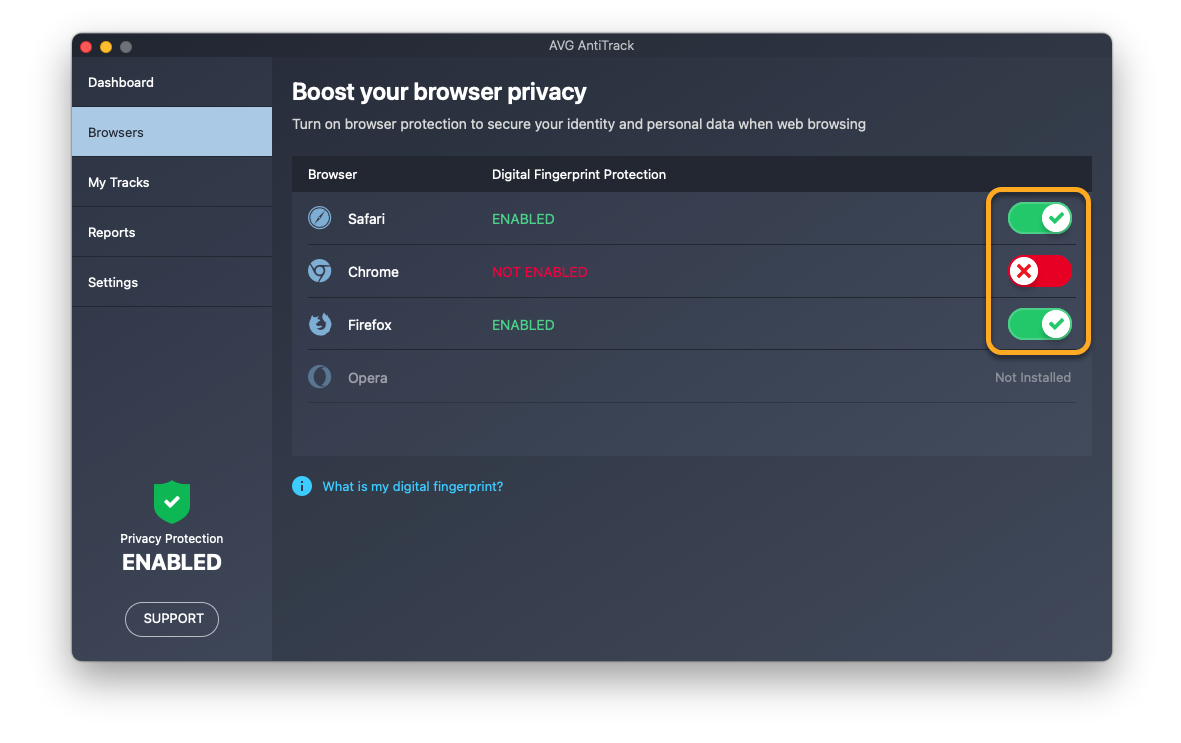
If you disable browser protection for a browser, AVG AntiTrack no longer detects and blocks tracking attempts when you use this browser.
- Google Chrome
- Mozilla Firefox
- Safari
Clear cookies and browser data
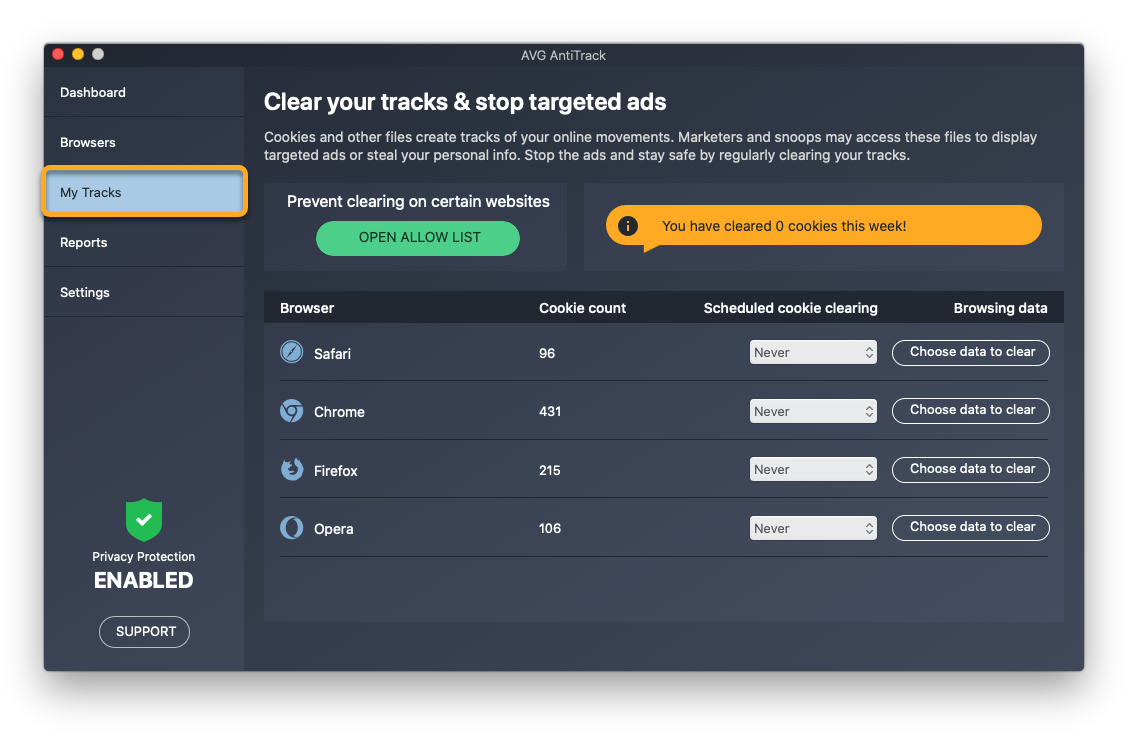
The My Tracks screen allows you to schedule automatic cookie clearing on your browsers, and instantly clear stored browser data.
Schedule cookie clearing
Cookies are files that websites, trackers, and third parties leave on your browser that allow them to view your online activity.
To schedule regular cookie clearing for each of your browsers:
- In the left panel, click My Tracks.
- Click the drop-down menu next to a browser to select how regularly cookies are cleared.
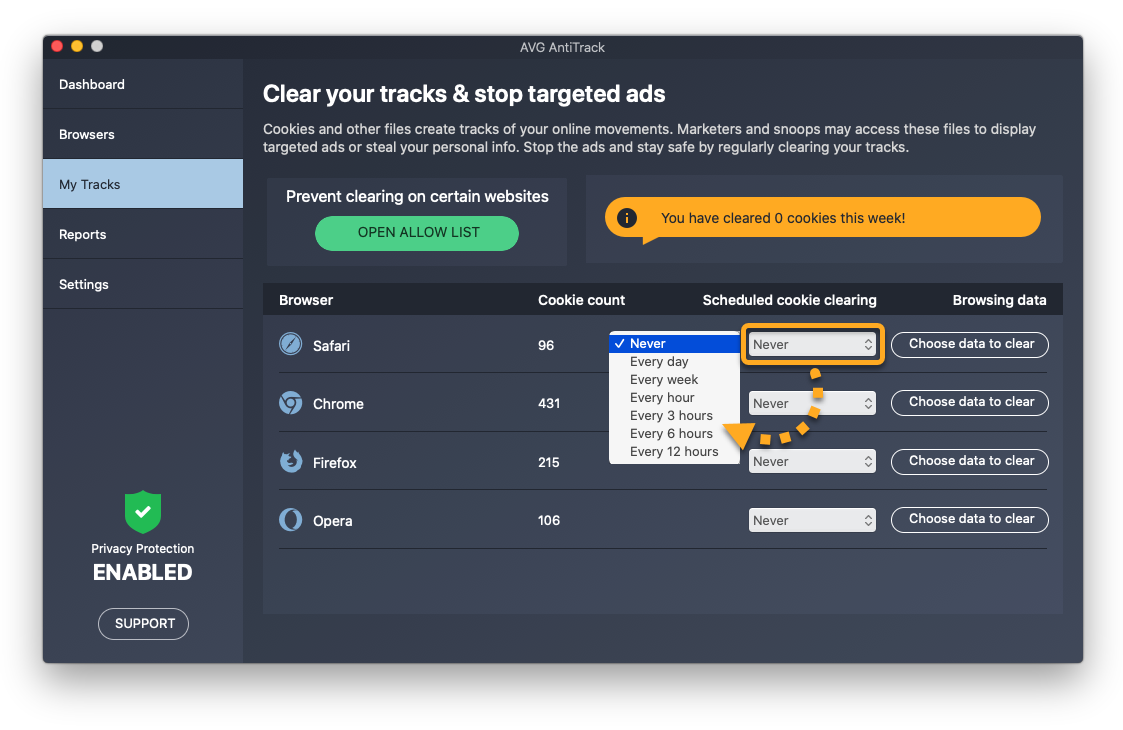
For detailed instructions, refer to the following article:
Cookies are now automatically cleared from the selected browser according to your defined schedule. You can add allowed websites to prevent cookie clearing on specified websites.
Clear browser data
Browser data is information that is often stored in your browser when you visit websites.
To clear browser data from your browsers:
- For optimal results, ensure that each browser you want to clear data for is closed.
- Click Choose data to clear next to your chosen browser.
- Tick the boxes next to the types of data you want to remove, then click Clear selected data.
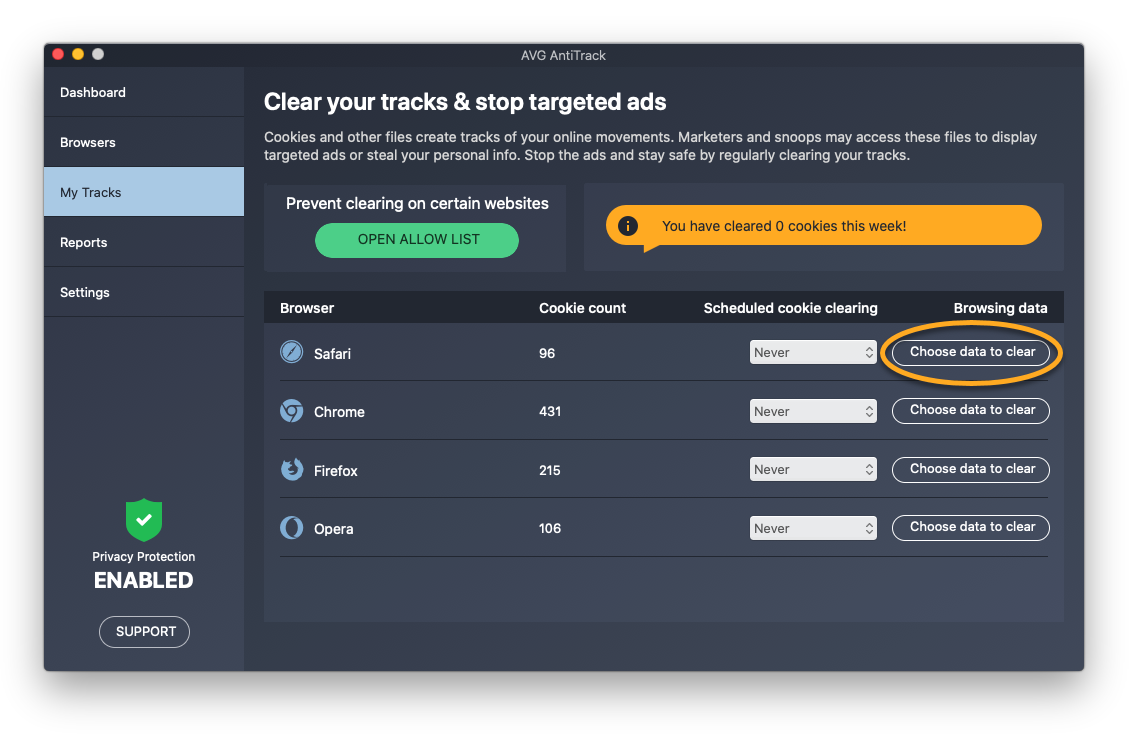
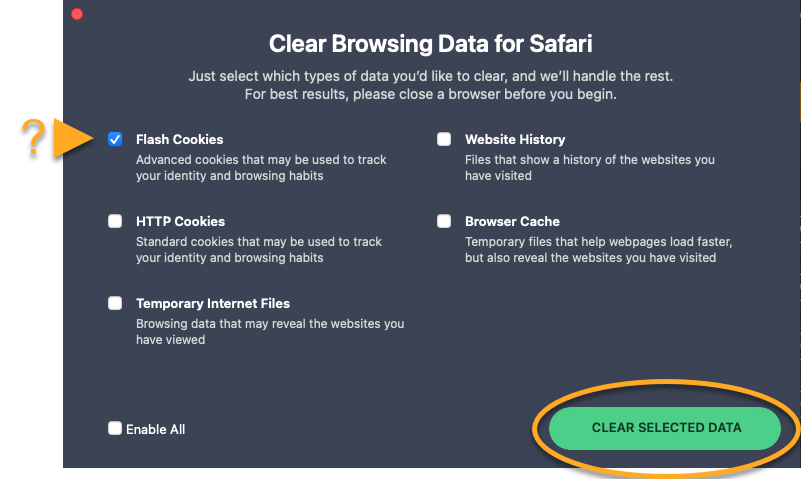
The selected browser data is now cleared.
Create an exception
You can stop AVG AntiTrack from clearing cookies on certain websites by adding them to the Exceptions List.
For information about adding an allowed website, refer to the following article:
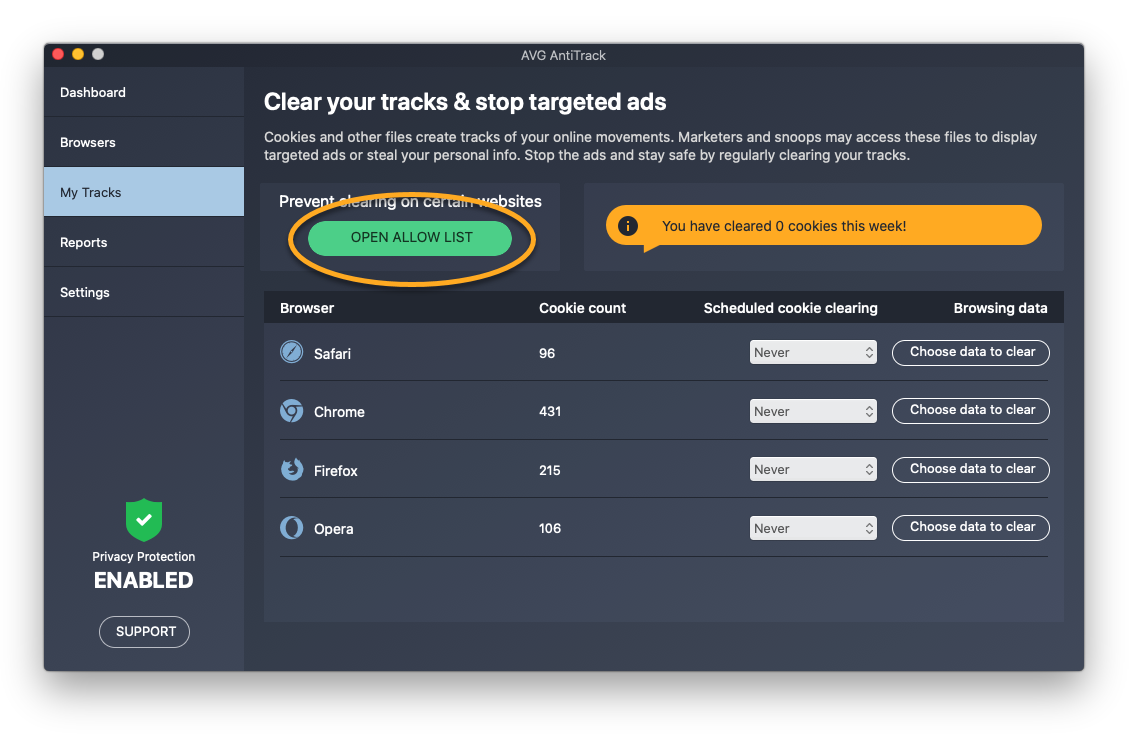
You can put websites on your Cookie Allow List, which stops AVG AntiTrack from clearing cookies on that website.
- In the left panel, click My Tracks.
- Click Open allow list.
- Add a website using either method below:
- Select a website from the Choose from popular options drop-down menu, then click Add.
- Enter a website (for example, example.com) into the left text box, then click Add.
- Select a website from the Choose from popular options drop-down menu, then click Add.
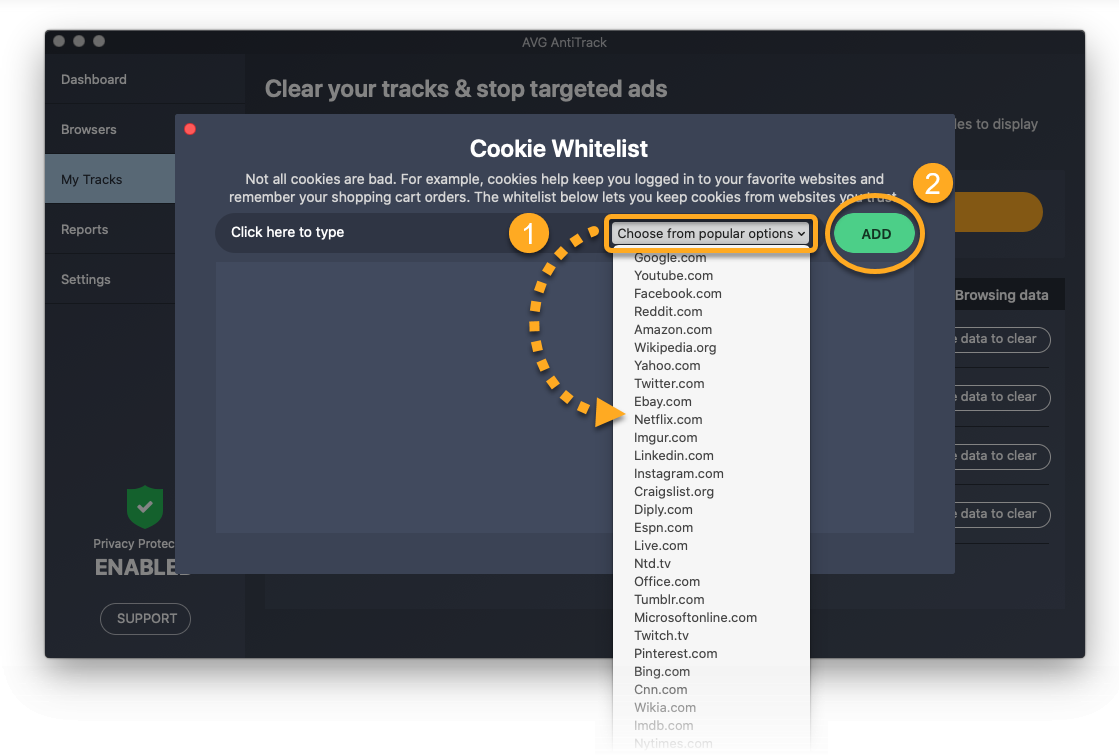
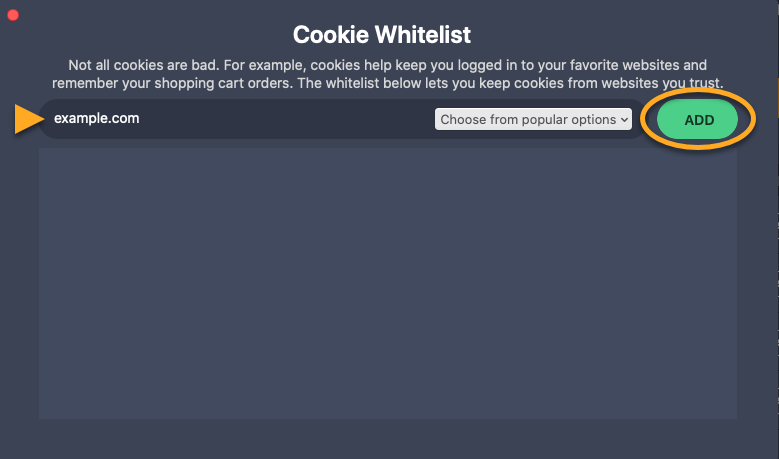
The selected website is now excluded from cookie clearing. To remove a website from the list, click the trash icon in the relevant website's panel.
Manage Windows tracker blocking
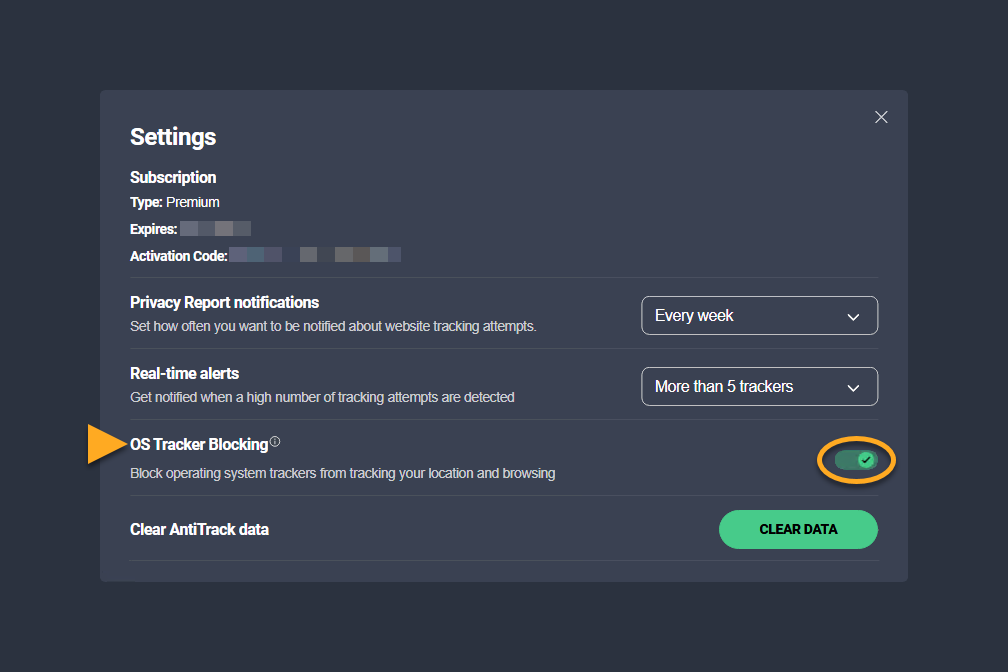
AVG AntiTrack allows you to block tracking activities and targeted advertisements by the Windows operating system:
- Open AVG AntiTrack and go to Settings (the gear icon).
- Switch the OS Tracker Blocking slider ON or OFF, to enable or disable Windows tracker blocking.
Manage notifications
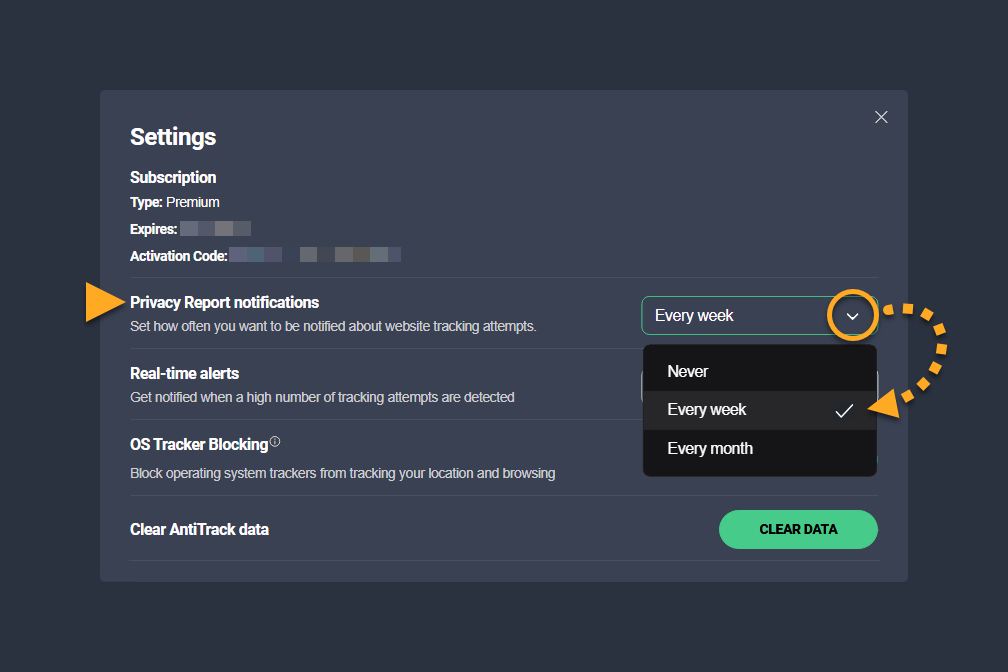
Follow the steps below to block AVG AntiTrack from showing non-critical alerts:
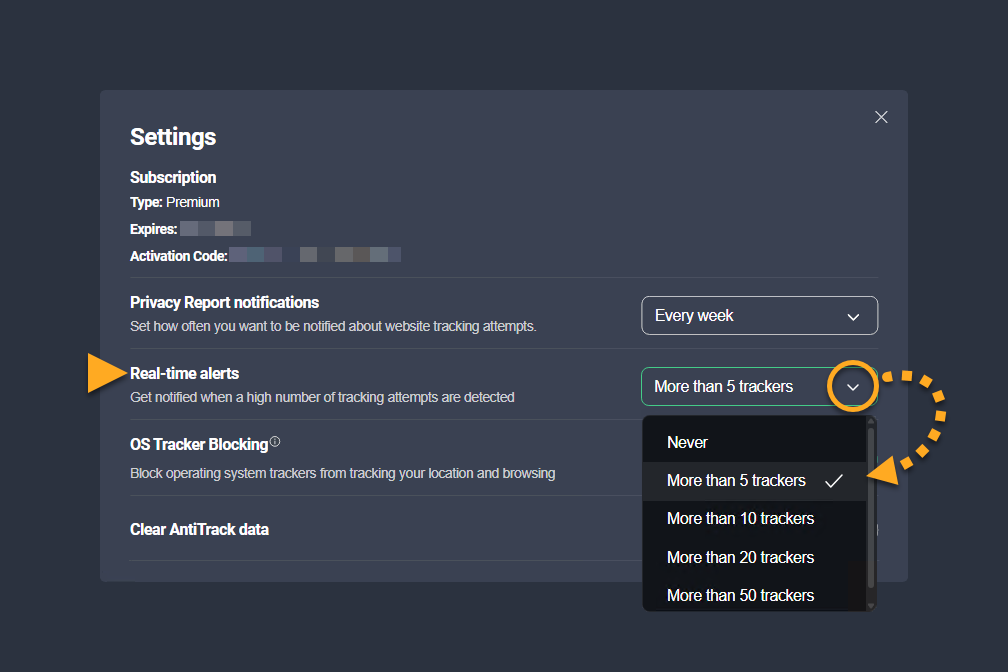
- Open AVG AntiTrack and go to Settings (the gear icon).
- Next to Privacy Report notifications, select the required option from the drop-down list.
- Next to Real-time alerts, choose the number of tracking attempts after which you want to be notified.
Clear AVG AntiTrack data
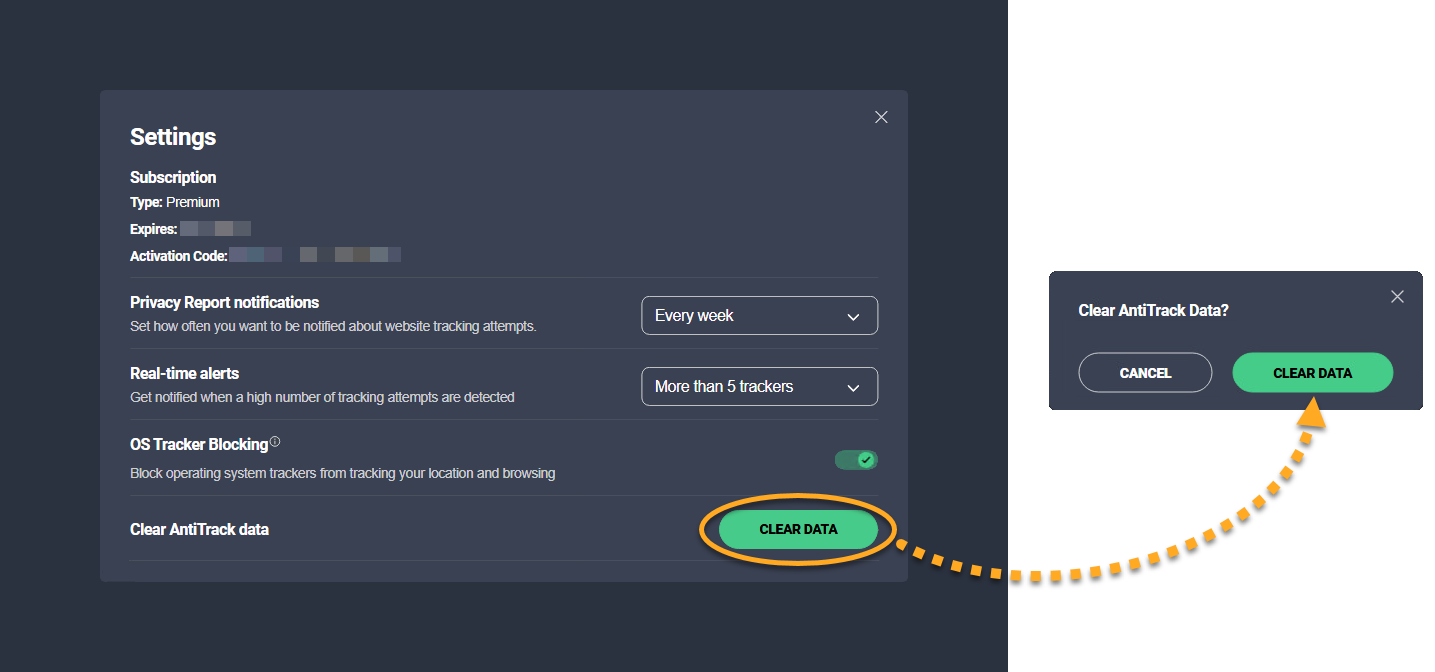
Follow the steps below to delete all information about the tracking attempts from AVG AntiTrack:
- Open AVG AntiTrack and go to Settings (the gear icon).
- Click Clear data, then click Clear data again.
Further recommendations
For more information about AVG AntiTrack, refer to the following article:
- AVG AntiTrack
- Windows and MacOS