AVG Secure VPN is a virtual private network that secures your internet connection using an encrypted tunnel to disguise your real location.
AVG Secure VPN is a paid product that requires a subscription to use. This article explains how to install the application and then either start a free-trial period, purchase a subscription, or activate an existing subscription.
Install AVG Secure VPN
- Click the button below to download the AVG Secure VPN setup file, and save it to a familiar location on your PC (by default, downloaded files are saved to your Downloads folder). Download AVG Secure VPN for Windows
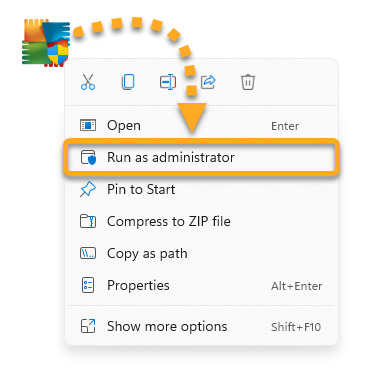
- Right-click the downloaded setup file
avg_vpn_online_setup.exe, and select Run as administrator from the context menu. If you are unable to authorize installation of AVG Secure VPN, refer to the following article for advice: Managing administrative accounts on your Windows PC.
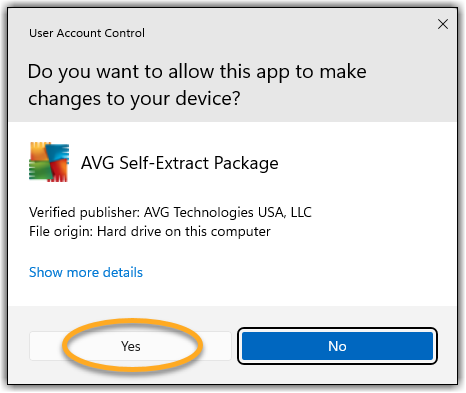
 - If prompted for permission by the User Account Control dialog, click Yes.
- To change the default setup language, click the current language in the top-right corner of the screen. Then, click Install.
- Wait while setup installs AVG Secure VPN on your PC. AVG Secure VPN opens automatically after installation.
- Click Get Started and follow the on-screen instructions.
- Click the Connect icon to connect to AVG Secure VPN servers.
AVG Secure VPN is now installed on your PC.
- Click the button below to download the AVG Secure VPN setup file, and save it to a familiar location on your Mac (by default, downloaded files are saved to your Downloads folder). Download AVG Secure VPN for Mac
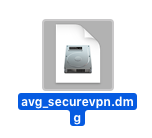
- Double-click the downloaded setup file
avg_securevpn.dmg. - Double-click the AVG Secure VPN icon.
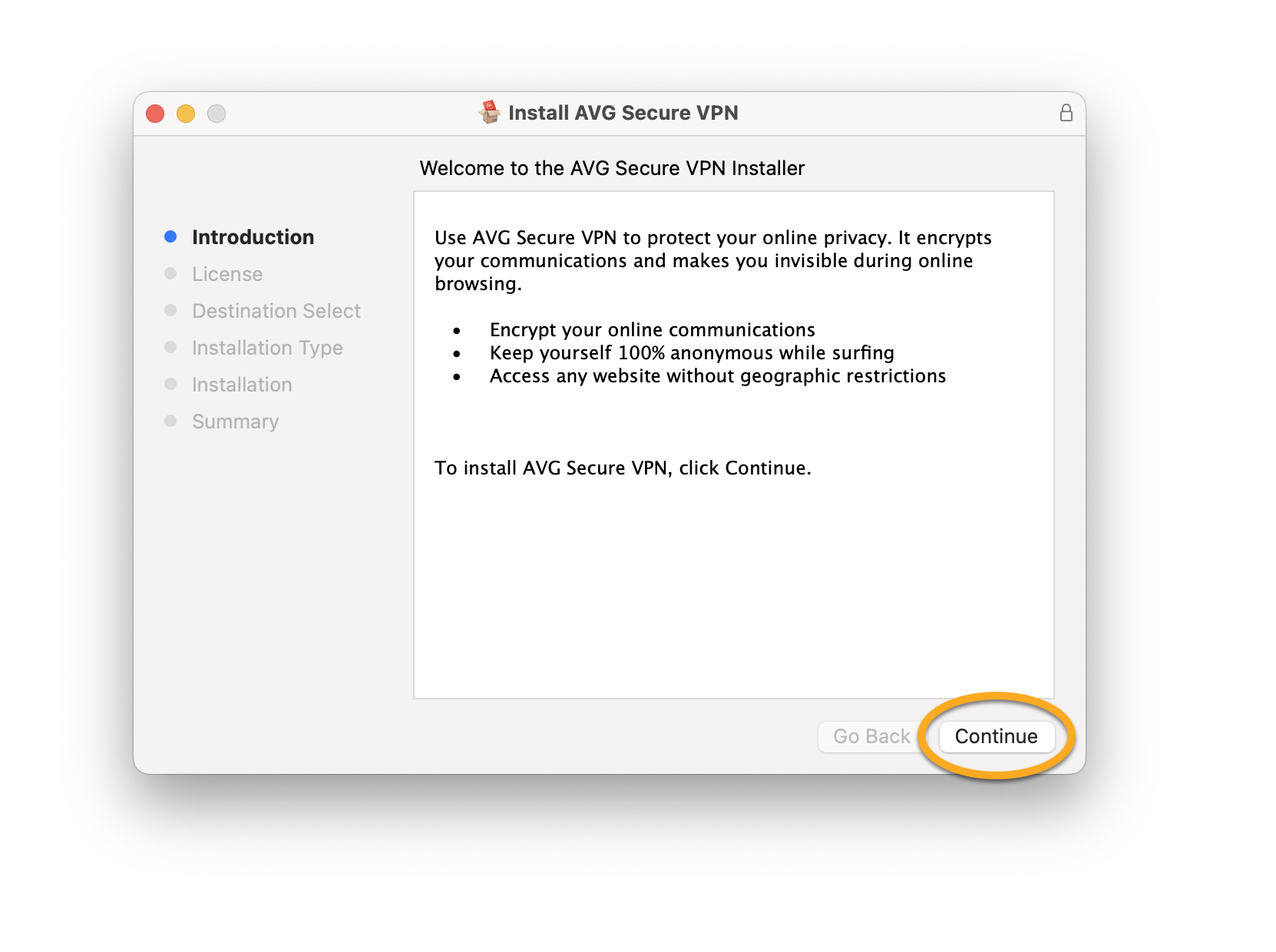
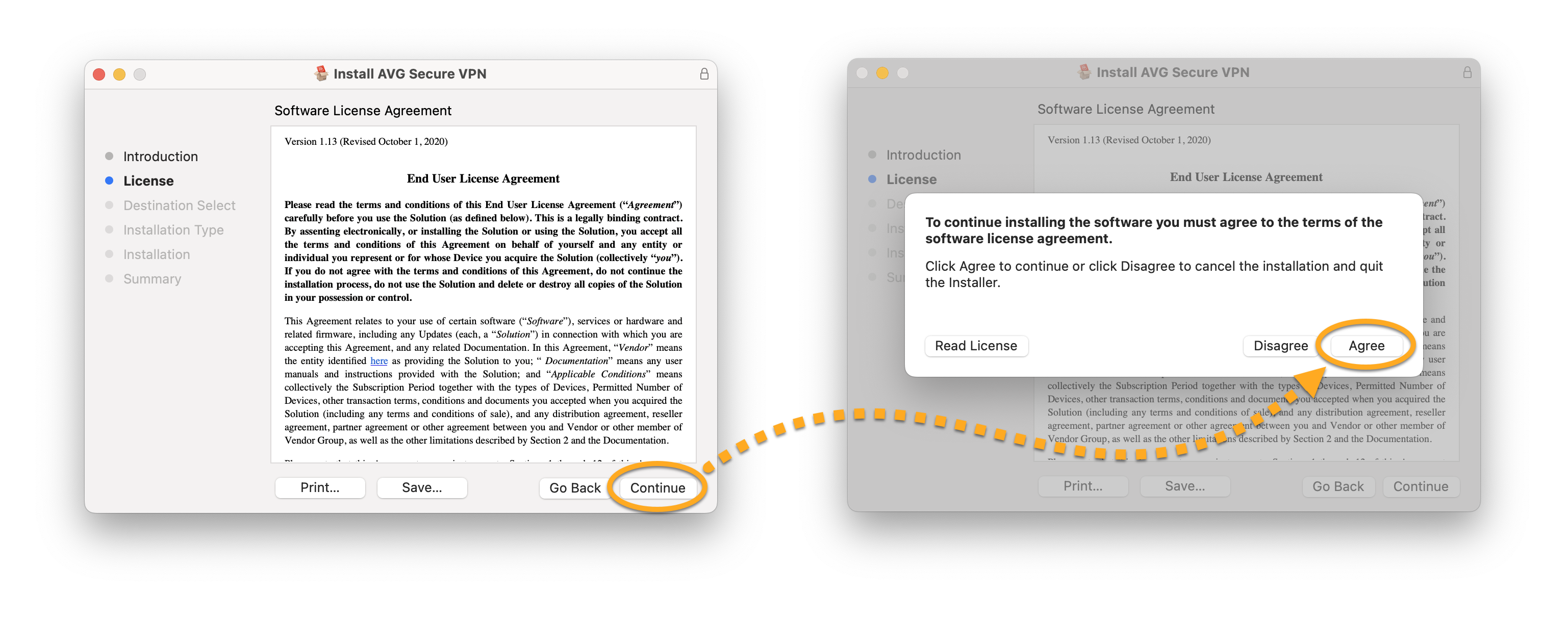
- Click Continue.
- Click Continue to confirm that you have read the Software License Agreement, then click Agree to confirm that you accept the terms.
- Click Continue in the Destination Select option.
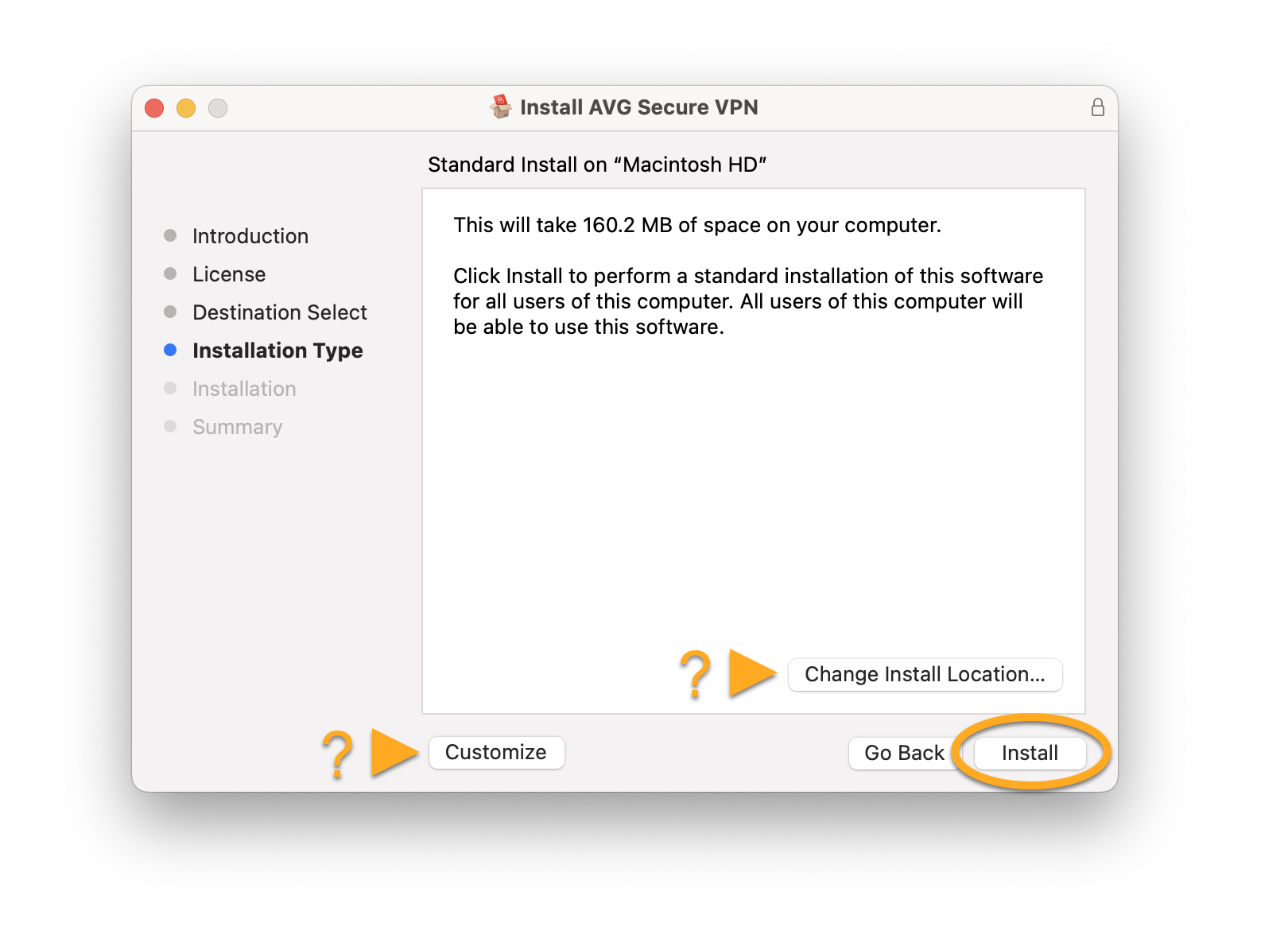
- Click Install to proceed with the default installation, or click Change Install Location... or Customize if you want to make changes to the default setup.
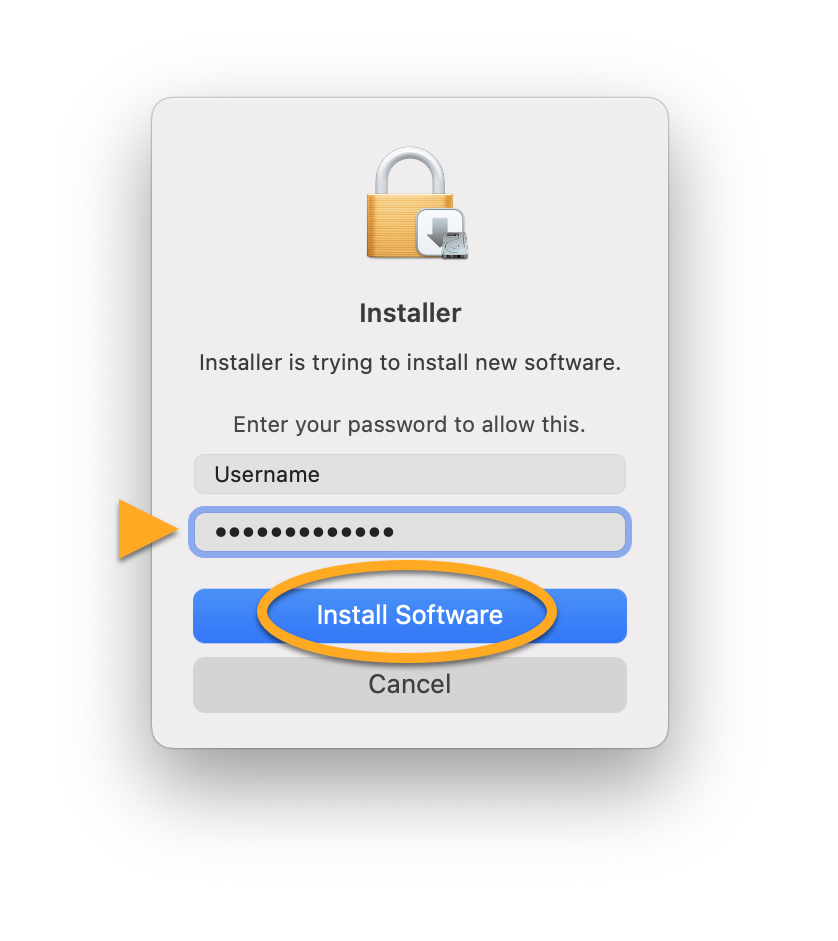
- Enter the password that you use when you start your Mac, then click Install Software.
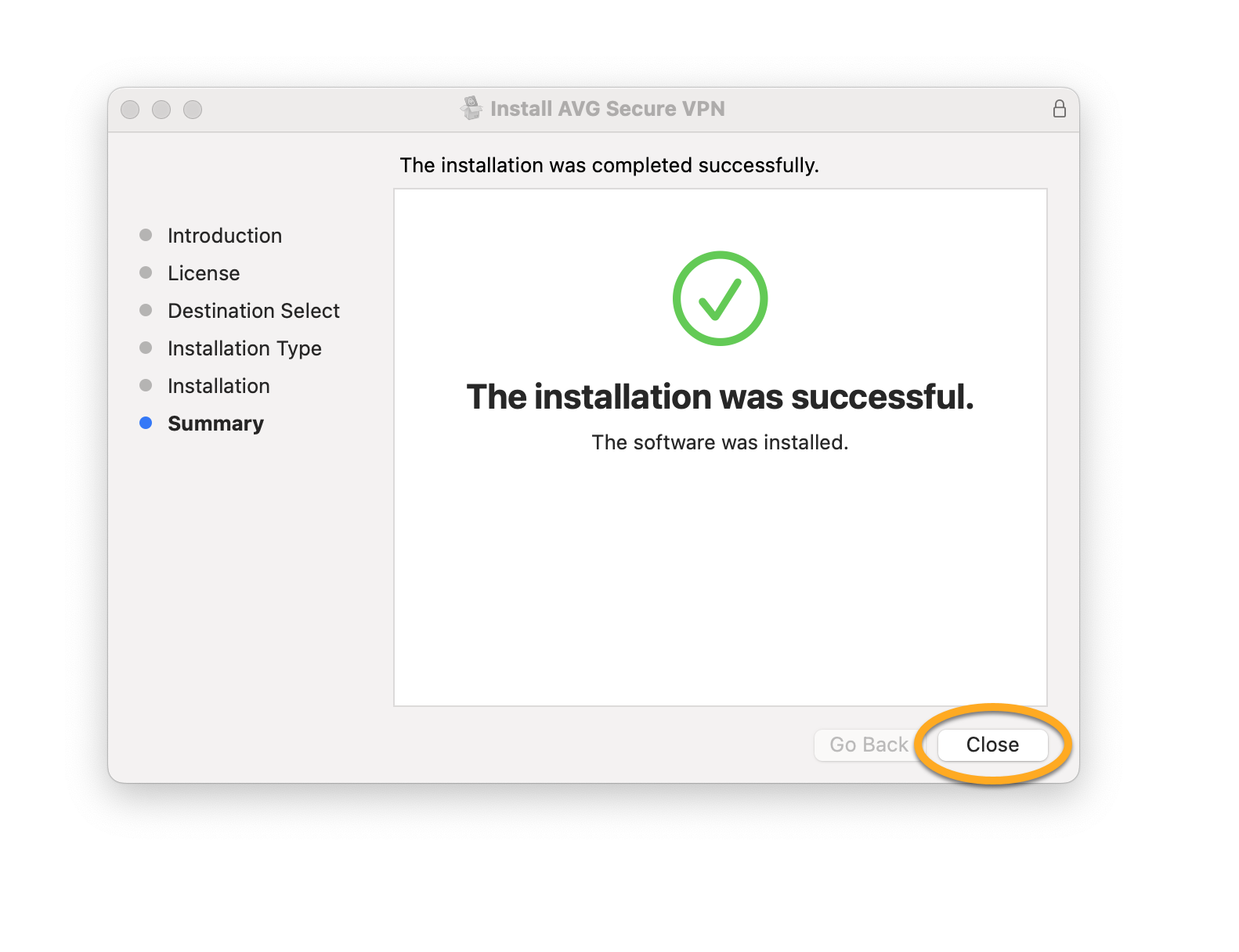
- Wait while setup installs AVG Secure VPN on your Mac, then click Close. AVG Secure VPN opens automatically after installation.
- Click the red (OFF) slider to connect to AVG Secure VPN servers.
AVG Secure VPN is now installed on your Mac.
- On your Android device, tap the button below to open the AVG Secure VPN product page in Google Play Store. Go to Google Play Store
- Tap Install to download and install the app. When installation is complete, tap Open.
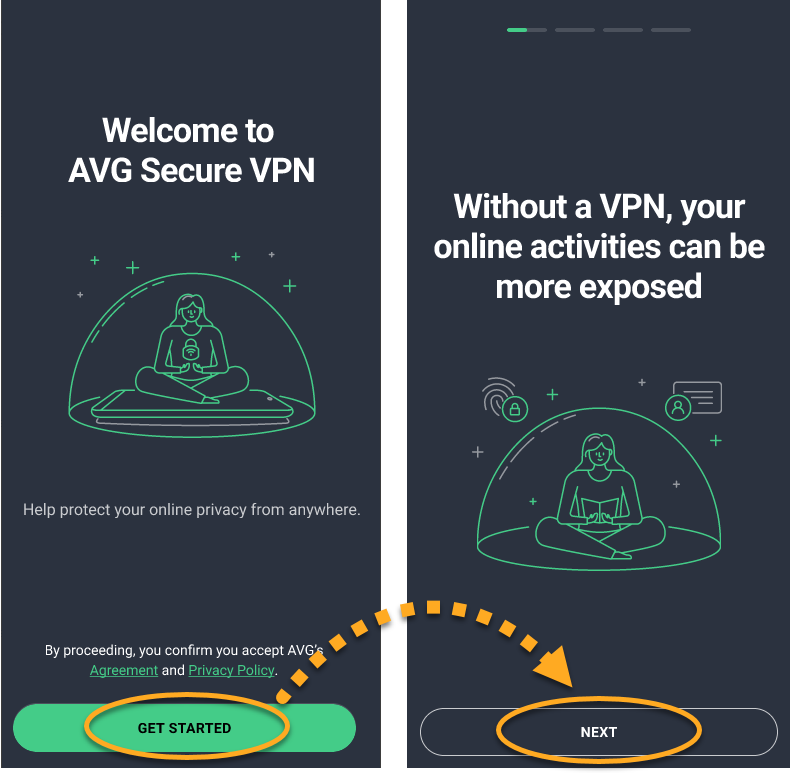
- Tap Get started to confirm that you accept AVG's License Agreement and Privacy Policy, then tap Next to go through the tutorial.
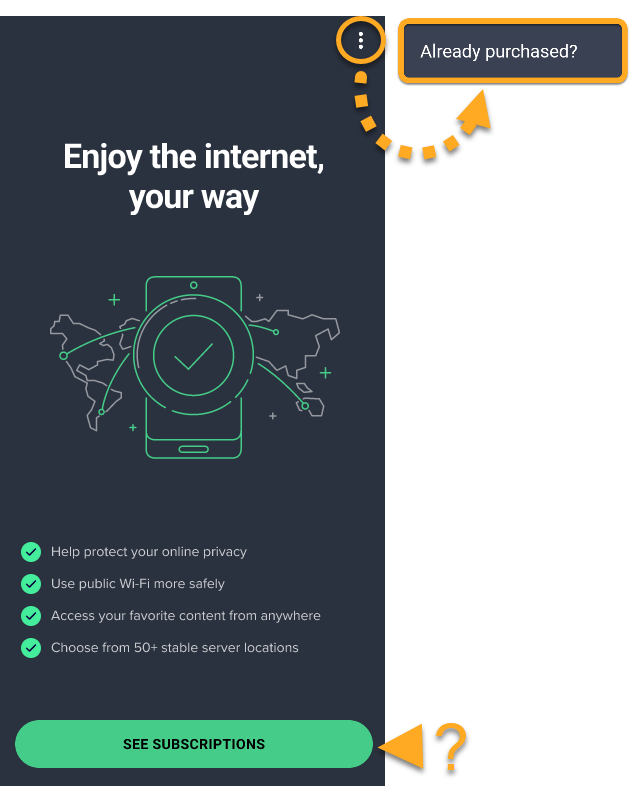
- Select one of the following options:
- Activate: If you already purchased AVG Secure VPN before installation, tap
⋮Options (three dots) ▸ Already purchased?. For detailed activation instructions, refer to the following article: Activating an AVG Secure VPN subscription. - Purchase: Tap See subscriptions to view subscription plans and follow the on-screen instructions to complete the purchase.
- Activate: If you already purchased AVG Secure VPN before installation, tap
AVG Secure VPN is now installed on your Android device.
- On your iOS device, tap the button below to open the AVG Secure VPN product page in the App Store. Go to the App Store
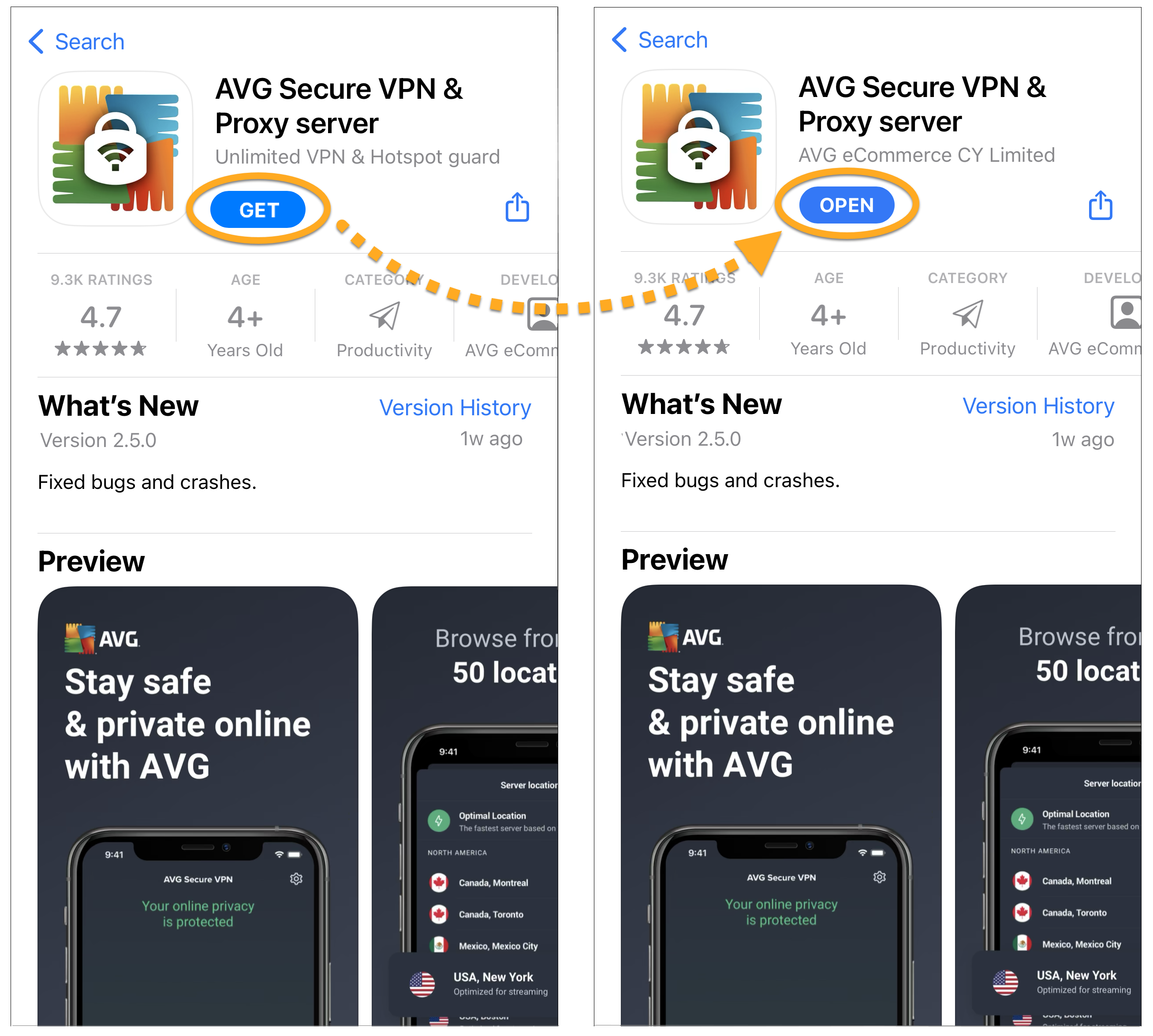
- Tap Get or the Cloud icon to download and install the app. When installation is complete, tap Open.
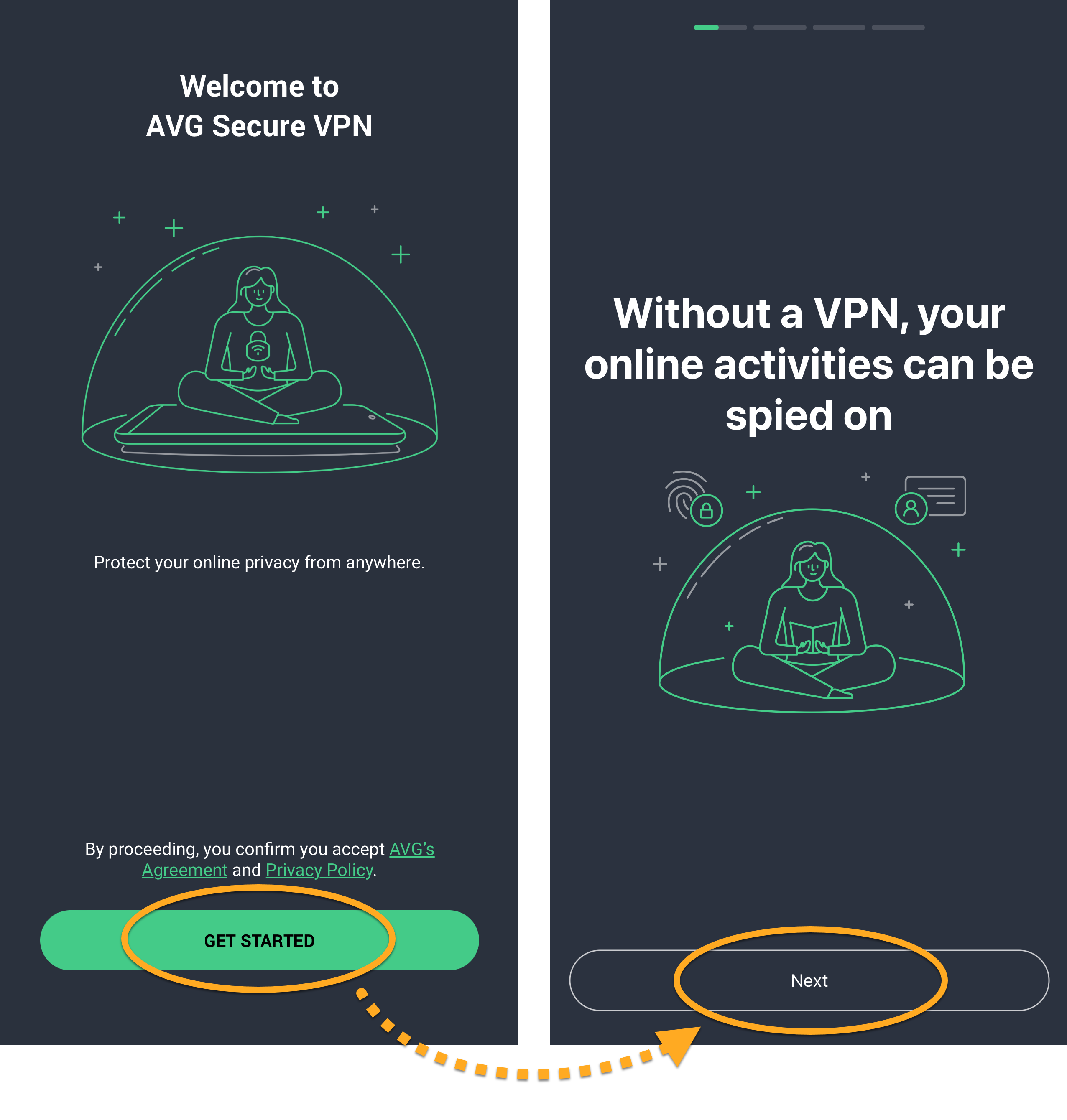
- Tap Get started to confirm that you accept AVG's License Agreement and Privacy Policy, then tap Next to go through the tutorial.
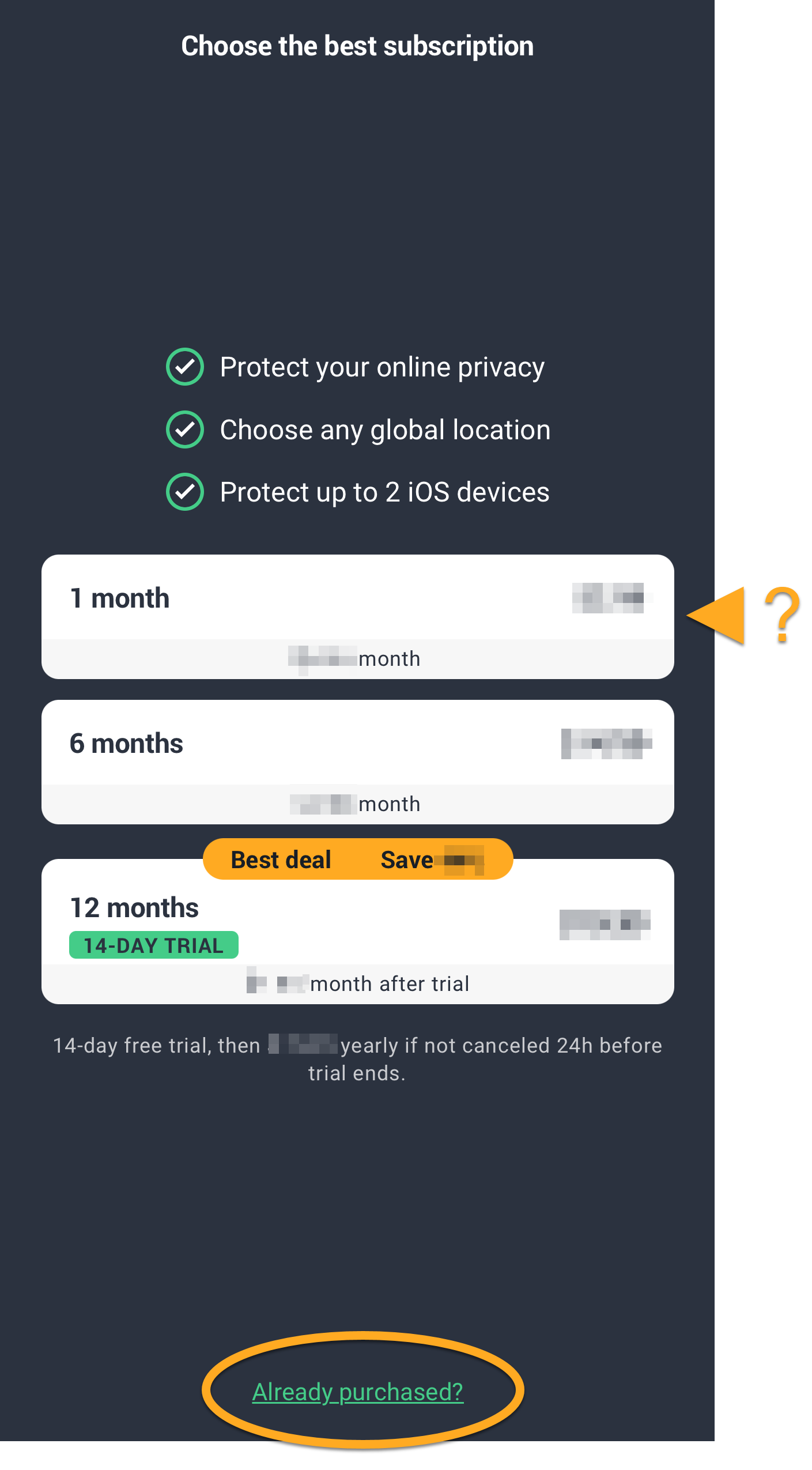
- Select one of the following options:
- Purchase: Select a subscription plan and follow the on-screen instructions to complete the purchase.
- Activate: If you already purchased AVG Secure VPN before installation, tap Already purchased?. For detailed activation instructions, refer to the following article: Activating an AVG Secure VPN subscription.
AVG Secure VPN is now installed on your iOS device.
Troubleshooting
If you experience any installation issues:
- Ensure your PC meets the minimum system requirements and is up to date. For information about the requirements for your device, refer to the following article:
- Check that the downloaded setup file is not corrupted. For instructions, refer to the following article: Troubleshooting installation errors caused by corrupted setup files.
- If you use third-party antivirus software, try temporarily disabling your protection (this applies only if you do not use AVG AntiVirus). For more information, refer to the following article: Temporarily disabling other antivirus software.
- Restart your PC, then try to install AVG Secure VPN again by following the exact steps in this article.
If the issue persists, contact AVG Support.
If you experience any installation issues:
- Ensure your Mac meets the minimum system requirements and is up to date. For information about the requirements for your device, refer to the following article:
- Restart your Mac, then try to install AVG Secure VPN again by following the exact steps in this article.
If the issue persists, contact AVG Support.
If you experience any installation issues, ensure your Android device meets the minimum system requirements and is up to date. For information about the requirements for your device, refer to the following article:
If the issue persists, contact AVG Support.
If you experience any installation issues, ensure your iOS device meets the minimum system requirements and is up to date. For information about the requirements for your device, refer to the following article:
If the issue persists, contact AVG Support.
Further recommendations
To learn more about AVG Secure VPN, refer to the following articles:
- AVG Secure VPN
- Windows, macOS, Android, and iOS