AVG Mobile Security for iOS is a security app designed to protect your privacy online, securely store your photos, block dangerous websites, and alert you if your online accounts or email addresses have been leaked online.
AVG Mobile Security is available as both a free and a paid app. To install AVG Mobile Security, choose your version:
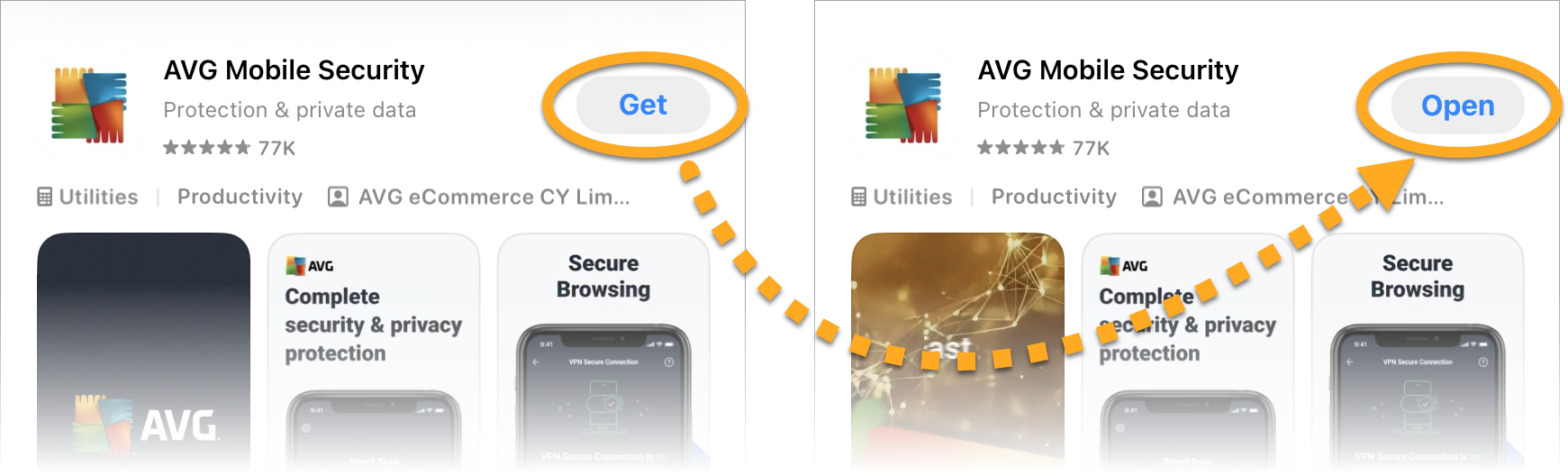
- On your iOS device, tap the button below to open the AVG Mobile Security app page in the App Store.
Go to the App Store - Tap the Download button to download and install the app. When installation is complete, tap Open.

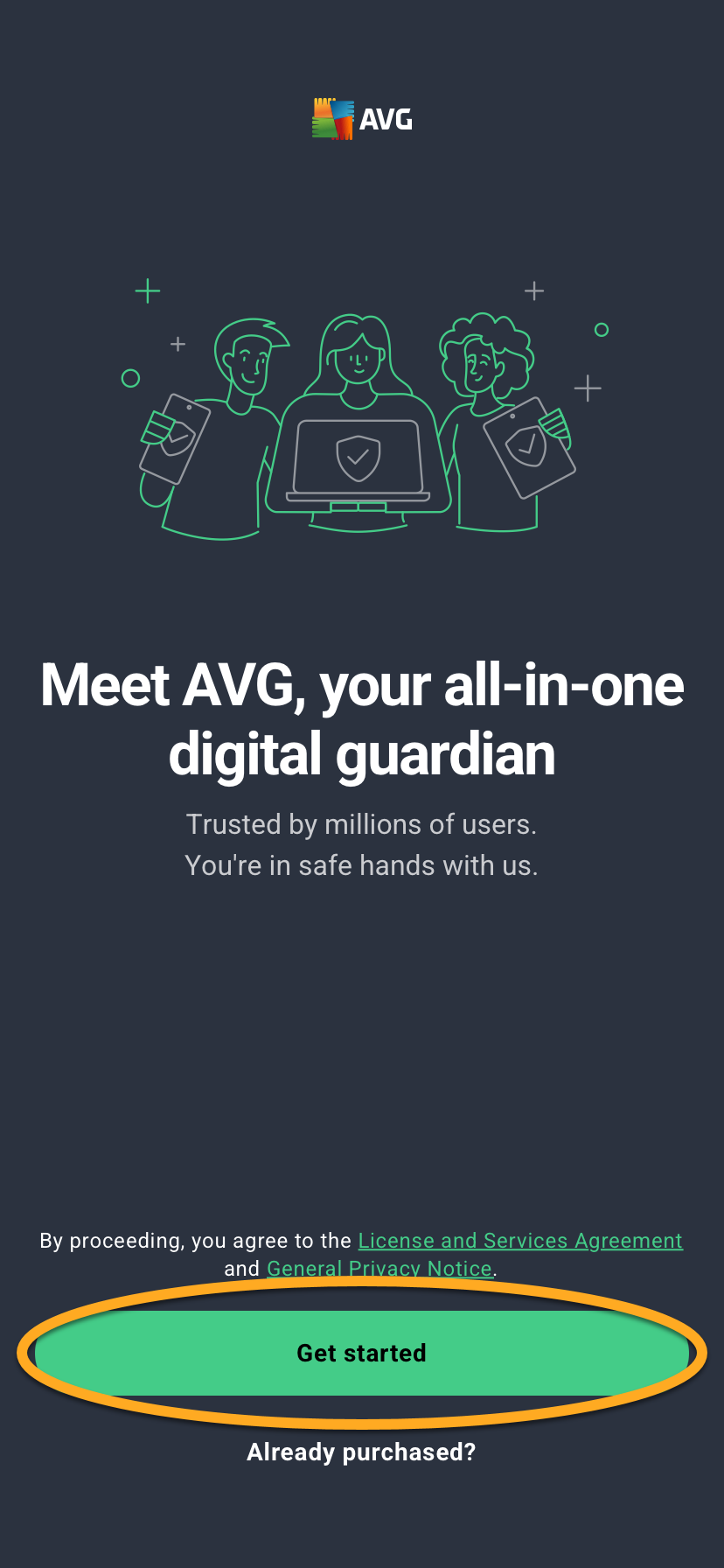
- Tap Get started.
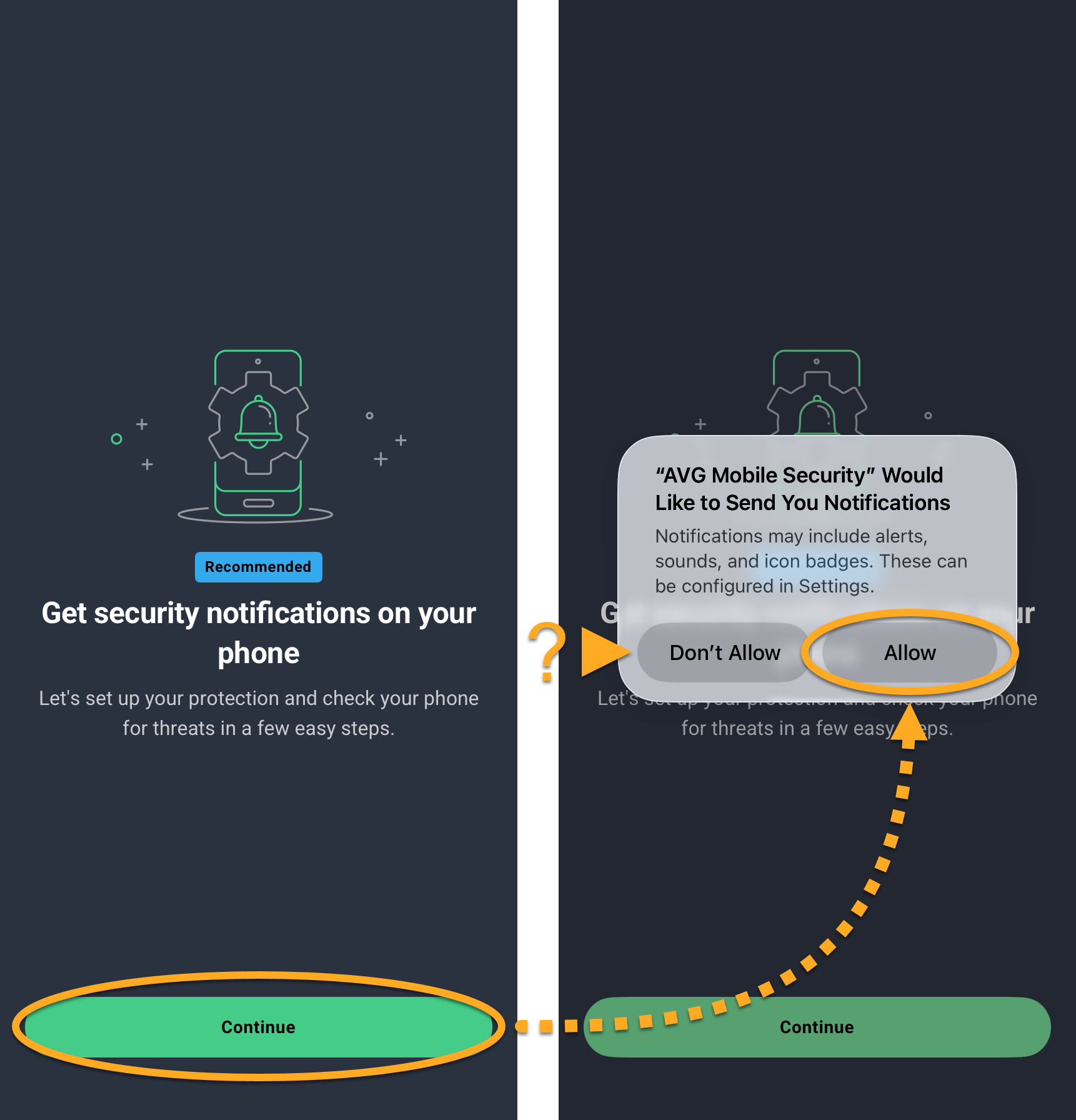
- Go through the welcome screens, then tap Continue ▸ Allow to let AVG Mobile Security to send you notifications. Alternatively, tap Don’t Allow.
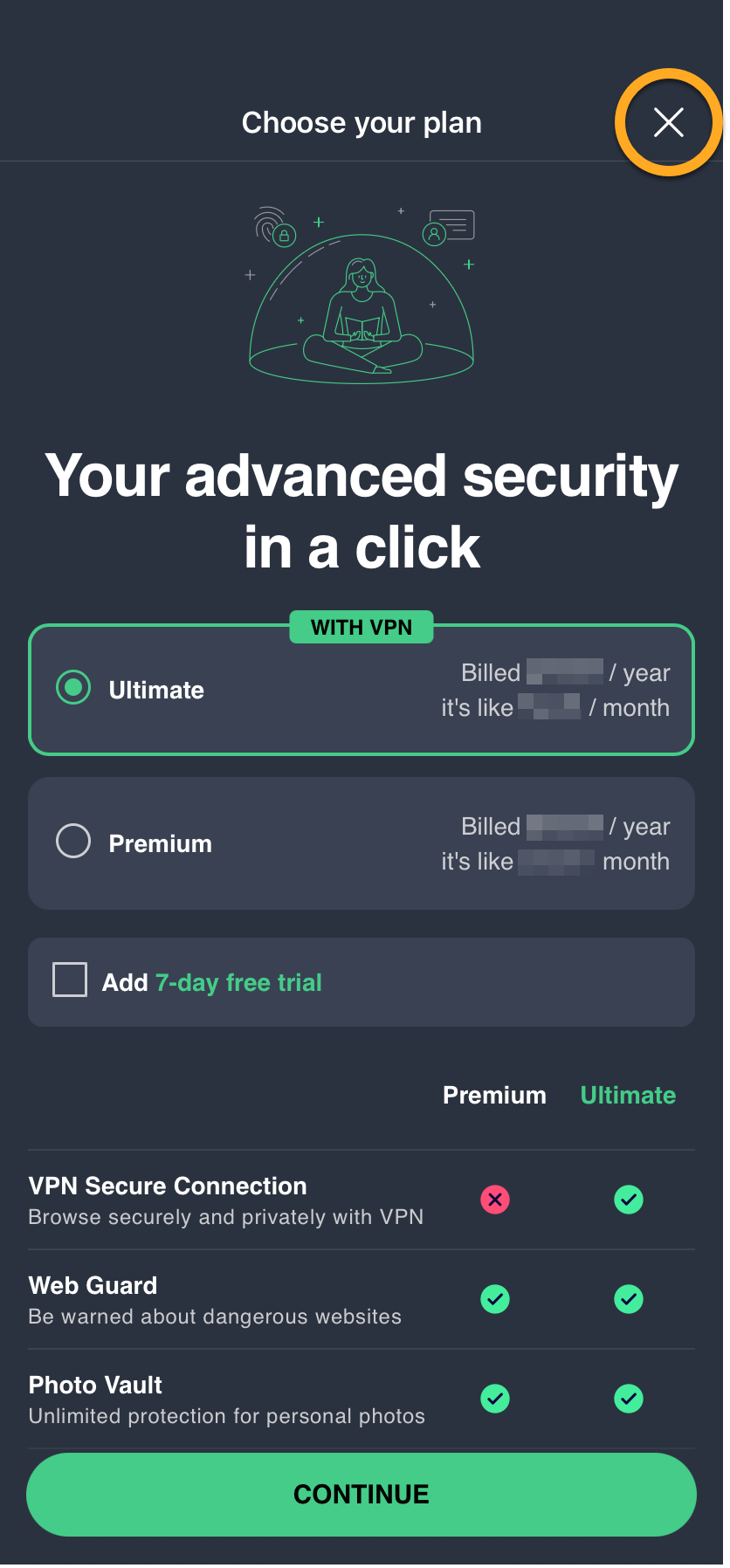
- On the purchase screen, tap
Xto continue with the free version.
- Tap Get Started, then follow the on-screen instructions to complete your first scan.
AVG requests permission to collect limited data and to add VPN configurations. To grant these permissions, tap Allow in the data usage dialog. If you prefer not to grant them, tap Ask App Not to Track or Don't Allow.

The free version of AVG Mobile Security is now installed on your iOS device.
Upgrade to the paid version of AVG Mobile Security
You can subscribe to the paid version of AVG Mobile Security by tapping Upgrade in the top-right corner of the app screen. Follow the on-screen instructions to complete the transaction via the App Store.
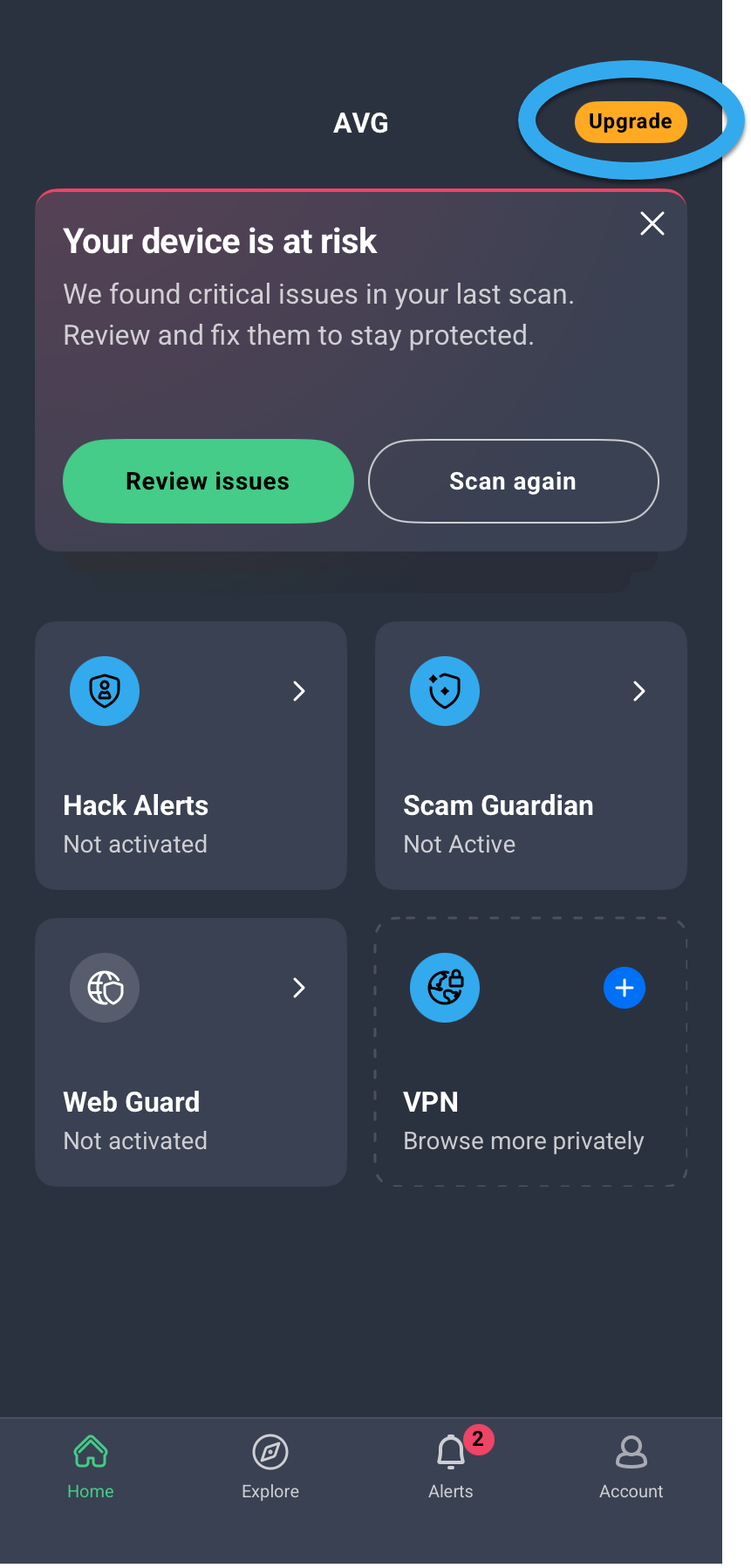
Your application activates automatically. If you already subscribed to the paid version of AVG Mobile Security before installation, you need to manually activate the app. For instructions, refer to the following article:
- On your iOS device, tap the button below to open the AVG Mobile Security app page in the App Store.
Go to the App Store - Tap the Download button to download and install the app. When installation is complete, tap Open.
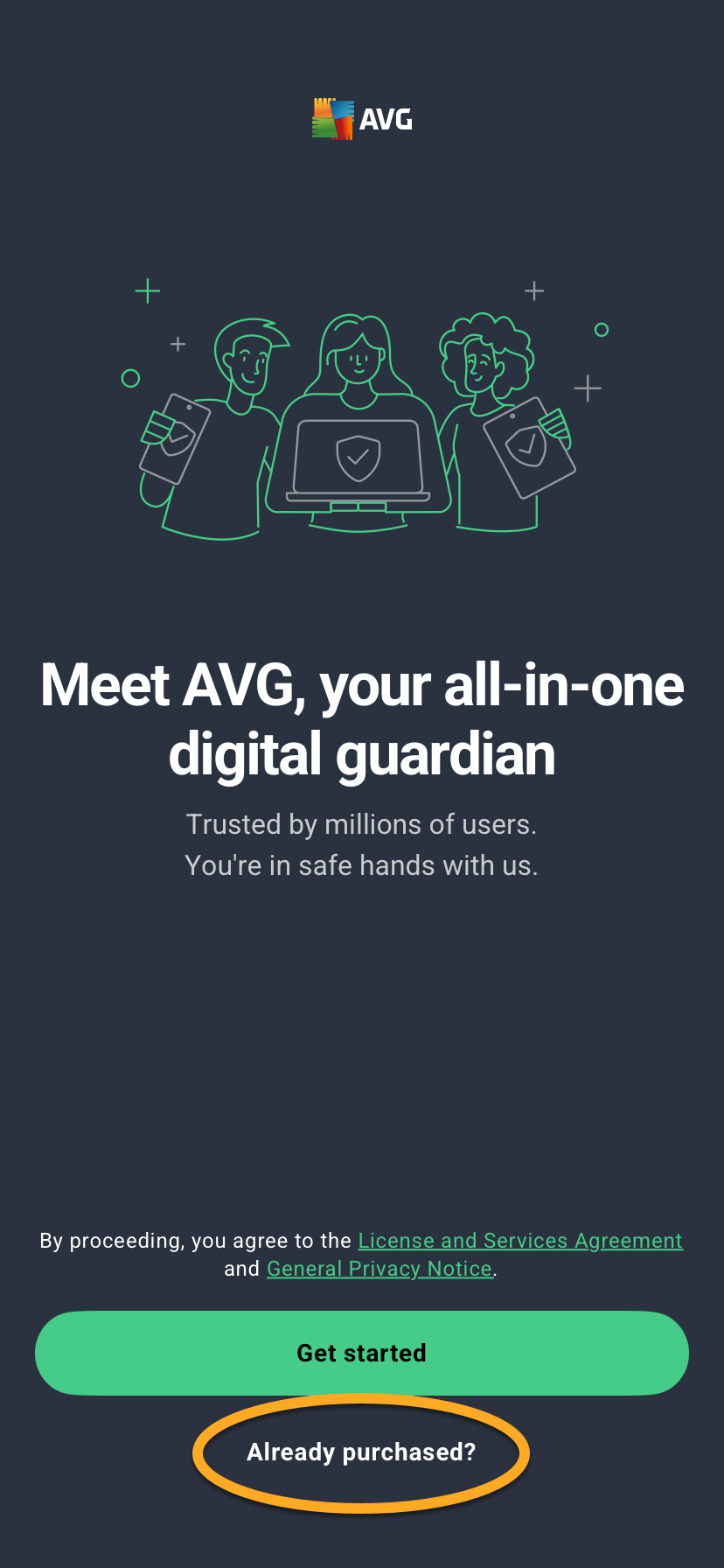
- Tap Already purchased?. Alternatively, if you have not purchased a subscription yet, tap Get started, then follow the on-screen instructions to choose a plan and complete the purchase. If you purchase a subscription this way, AVG Mobile Security activates automatically.
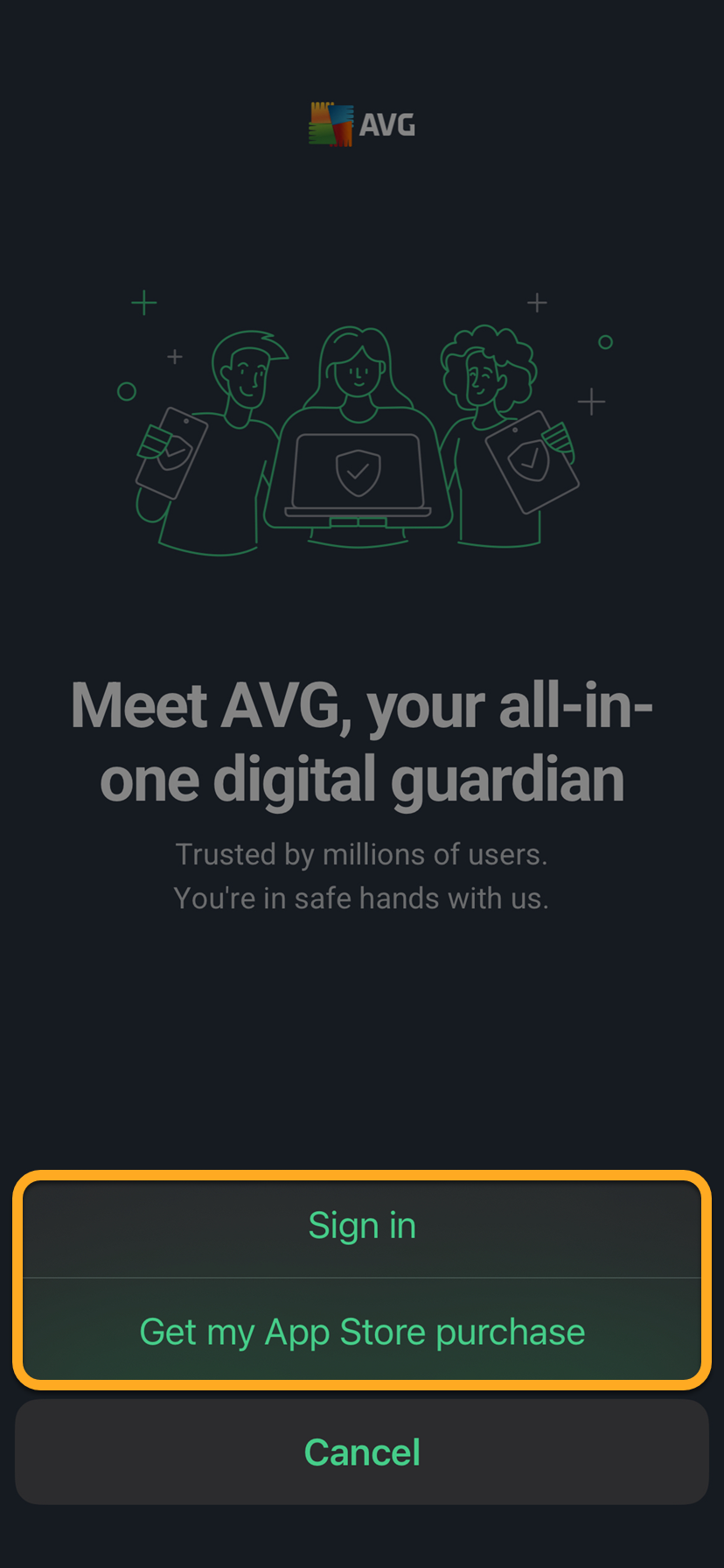
- Select the relevant option to activate your paid subscription:
- Sign in: Connect your subscription using your AVG Account credentials.
- Get my App Store purchase: If you purchased a paid version of AVG Mobile Security through the App Store, you can follow the on screen instructions to restore your subscription. Ensure you are signed in to the App Store with the same account that you used to purchase a paid version of AVG Mobile Security.
For detailed activation instructions, refer to the article: Activating AVG Mobile Security on iOS. - Tap Get Started, then follow the on-screen instructions to complete your first scan.
AVG requests permission to collect limited data and to add VPN configurations. To grant these permissions, tap Allow in the data usage dialog. If you prefer not to grant them, tap Ask App Not to Track or Don't Allow.
AVG Mobile Security is now installed on your iOS device.
Further recommendations
For more information about the features available in AVG Mobile Security, refer to the following article:
For instructions on how to use AVG Mobile Security, refer to the following article:
- AVG Mobile Security
- iOS