AVG TuneUp for Windows is a paid app that requires a subscription to use. After installing AVG TuneUp, you may need to manually activate the app using a valid activation code or your AVG Account.
Enter activation code
To activate AVG TuneUp using an activation code:
- Locate your activation code. This is included in your order confirmation email. For detailed instructions, refer to the following article:
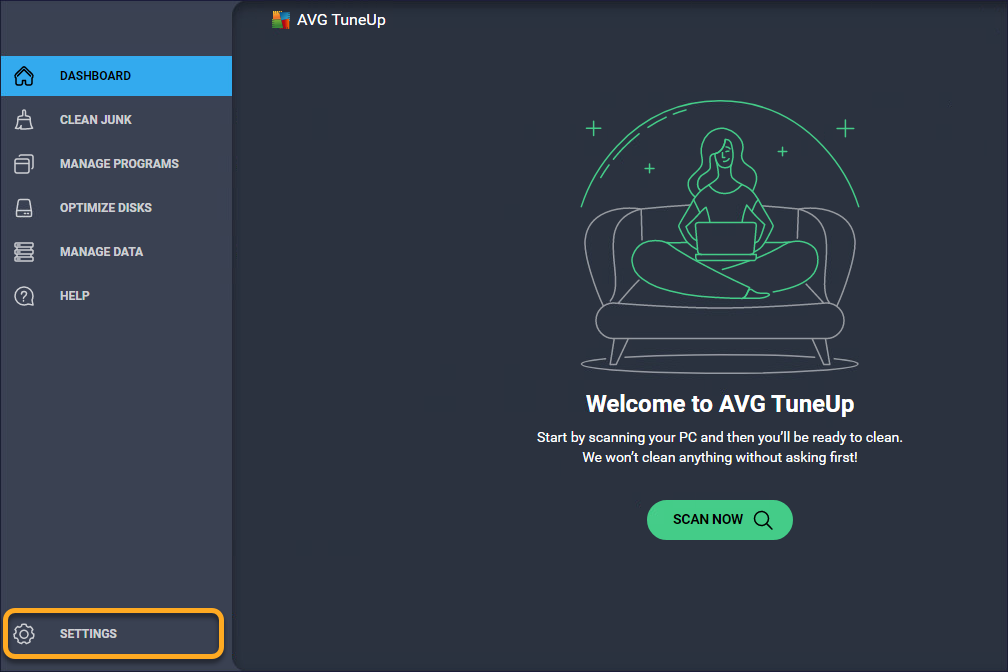
- Open AVG TuneUp and hover your mouse over the side menu, then click Settings.

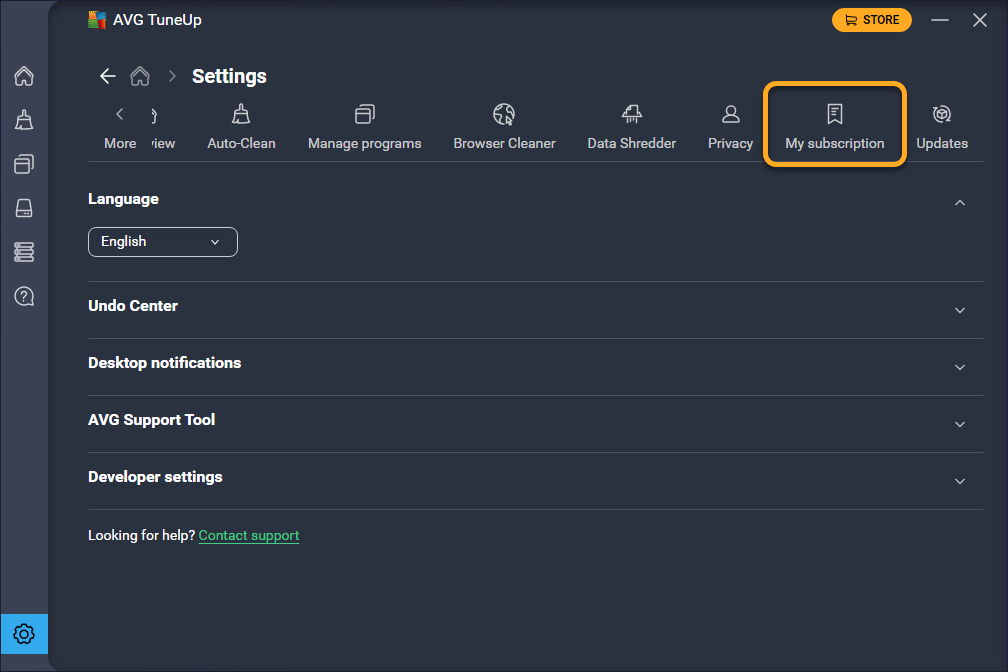
- Select the My subscription tab.
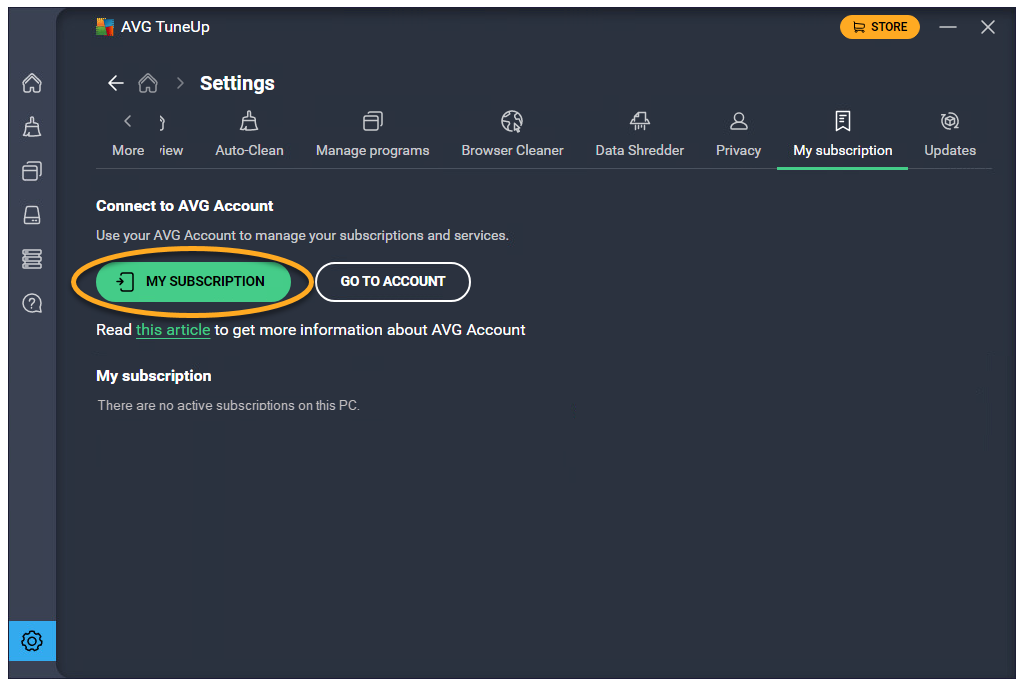
- Click My subscription.
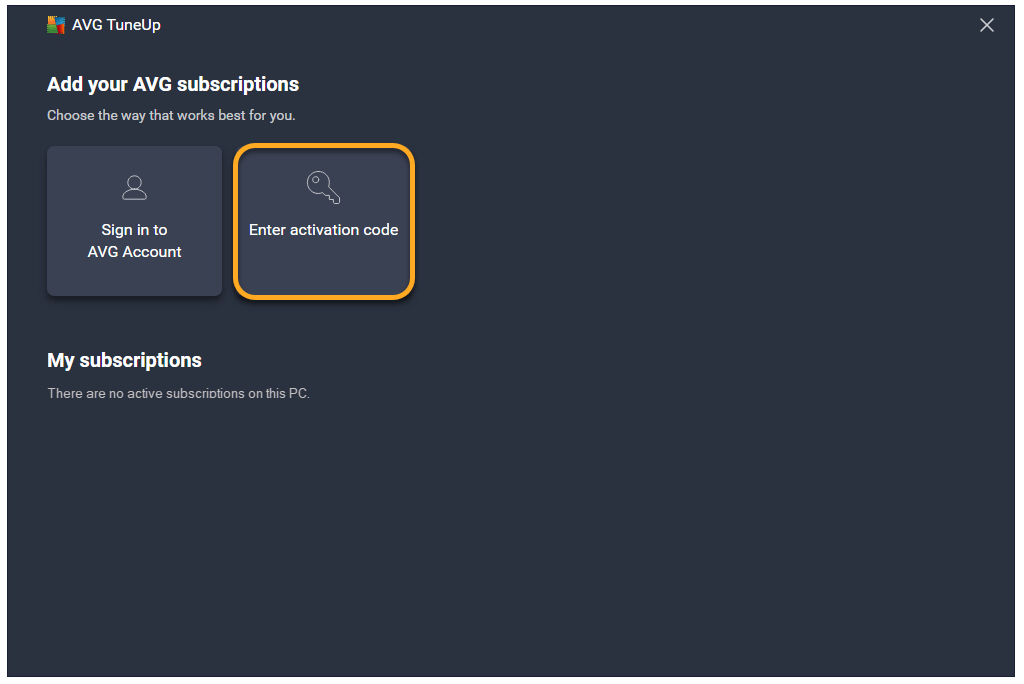
- Select Enter activation code.
- Type or paste your activation code (including hyphens) into the text box, then click Enter.
- If more than one app is associated with your activation code, ensure the apps you want to use are selected, then click Activate & install.
The apps you selected are installed and activated automatically.
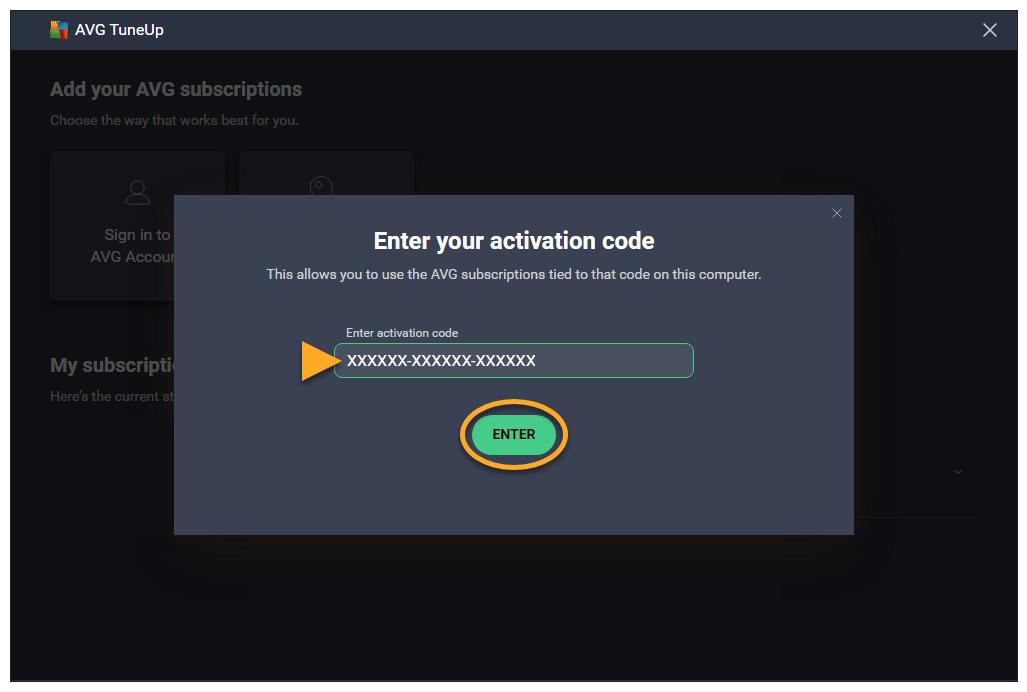
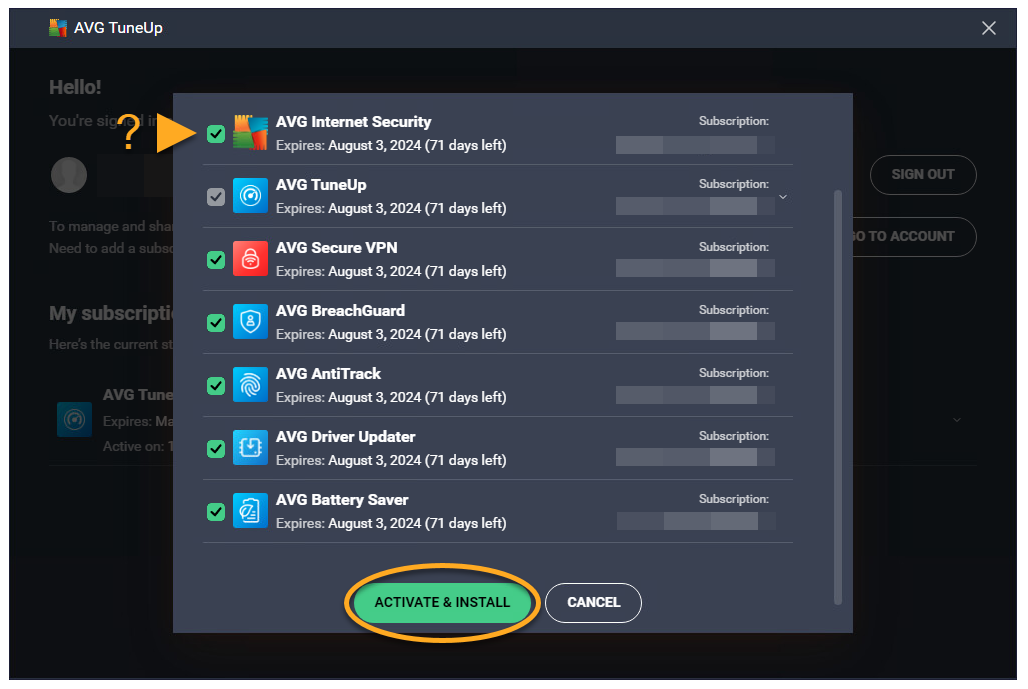
AVG TuneUp is now activated. If activation is unsuccessful, refer to the Still need help? section below.
To learn how to activate your multi-device subscription on Android, refer to the following article: Activating a paid version of AVG Cleaner on Android
To confirm which subscription you purchased, check your order confirmation email or the AVG Account that contains your AVG TuneUp subscription.
Sign in to AVG Account
To activate AVG TuneUp using your AVG Account:
- Open AVG TuneUp and hover your mouse over the side menu, then click Settings.
- Select the My subscription tab.
- Select Go to Account.
- Follow the relevant step below (option A or option B) in your browser:
- Option A: Check that the listed AVG Account is the one that contains your AVG TuneUp subscription, then click Yes, continue. Alternatively, click Sign in as someone else.
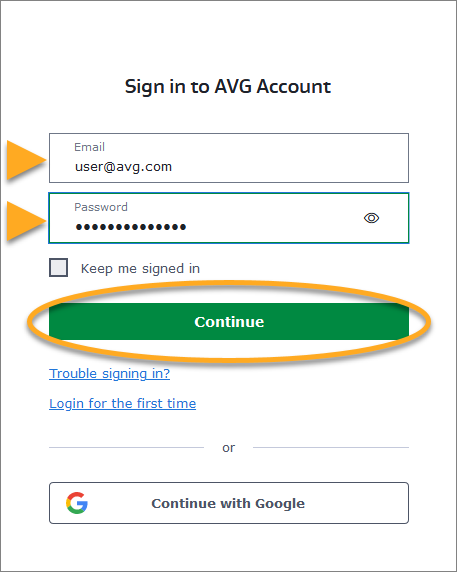
- Option B: Enter the credentials for the AVG Account that contains your AVG TuneUp subscription, then click Continue.
- Option A: Check that the listed AVG Account is the one that contains your AVG TuneUp subscription, then click Yes, continue. Alternatively, click Sign in as someone else.
- When prompted by your browser, follow the on-screen instructions to re-open AVG TuneUp.
- If your AVG Account contains more valid subscriptions, ensure the apps you want to use are selected, then click Activate & install.
The apps you selected are installed and activated automatically.
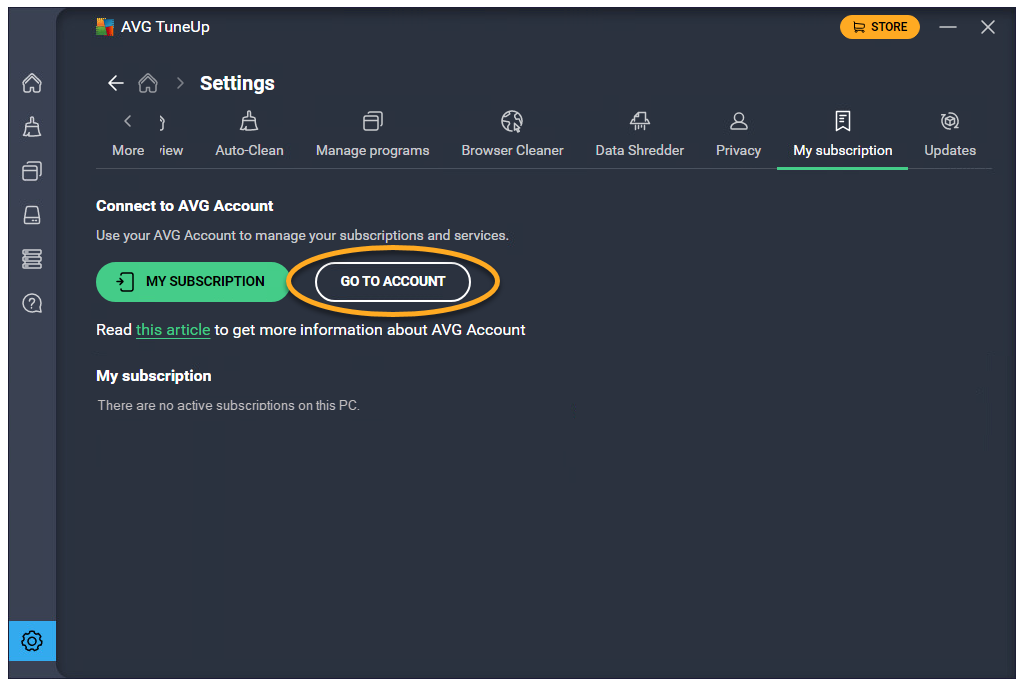
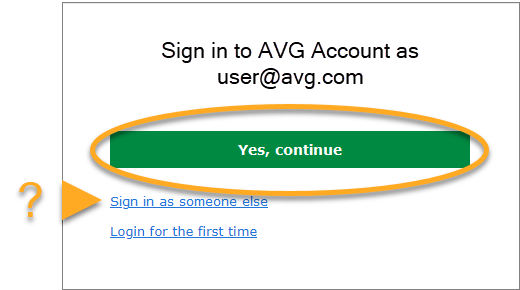
AVG TuneUp is now activated. If activation is unsuccessful, refer to the Activate via sign-in key section below.
Activate via sign-in key
If activation via AVG Account fails, you can activate AVG TuneUp using the sign-in key from your web browser. To use this alternative activation method, follow the steps below:
- Open AVG TuneUp and hover your mouse over the side menu, then click Settings.
- Select the My subscription tab.
- Click My subscription.
- Select Sign in to AVG Account.
- Follow the relevant step below (option A or option B) in your browser:
- Option A: Check that the listed AVG Account is the one that contains your AVG TuneUp subscription, then click Yes, continue. Alternatively, click Sign in as someone else.
- Option B: Enter the credentials for the AVG Account that contains your AVG TuneUp subscription, then click Continue.
- Option A: Check that the listed AVG Account is the one that contains your AVG TuneUp subscription, then click Yes, continue. Alternatively, click Sign in as someone else.
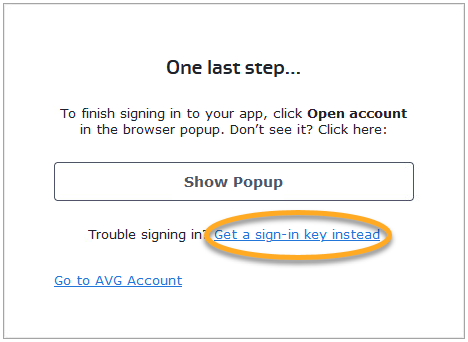
- Click Get a sign-in key instead.
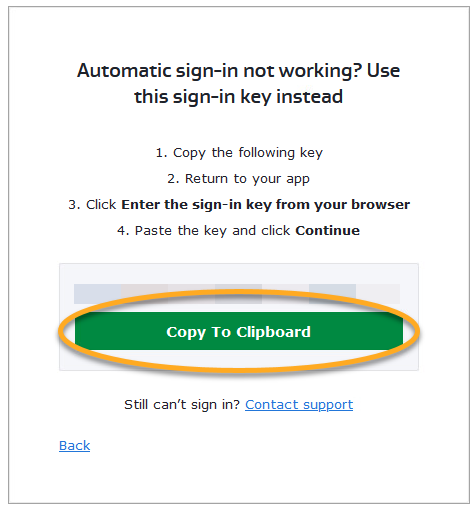
- Click Copy To Clipboard.
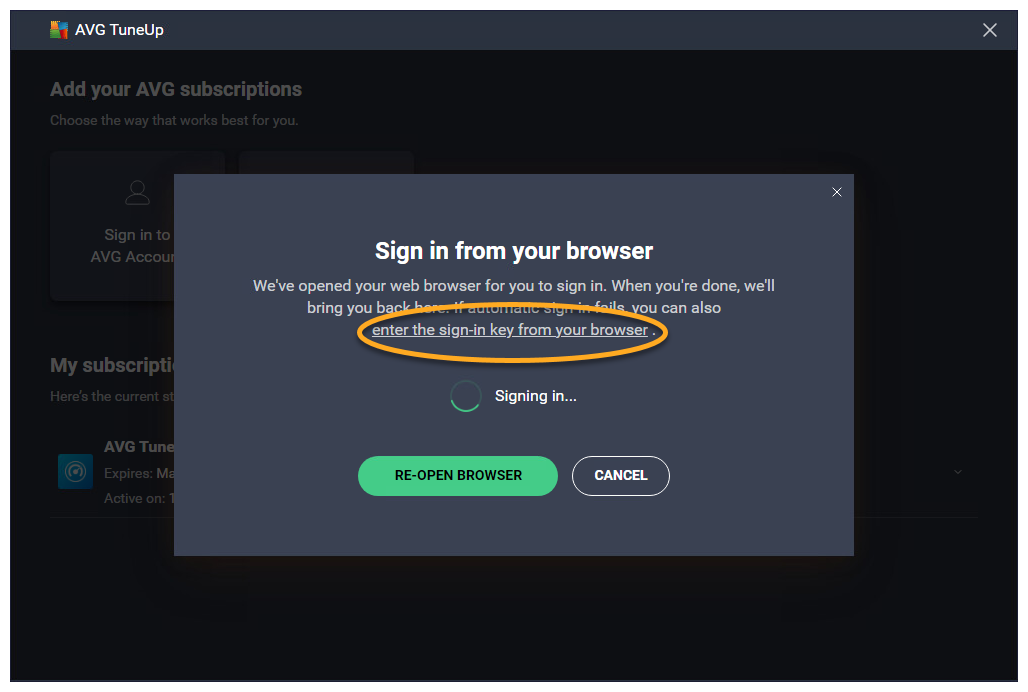
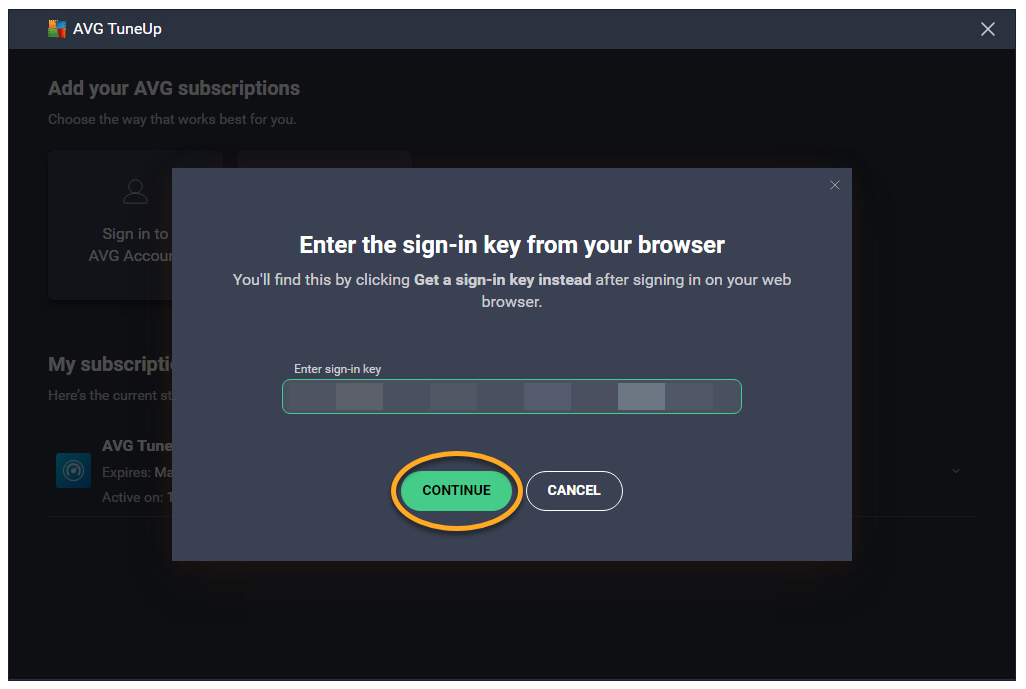
- Go to AVG TuneUp, and click enter the sign-in key from your browser.
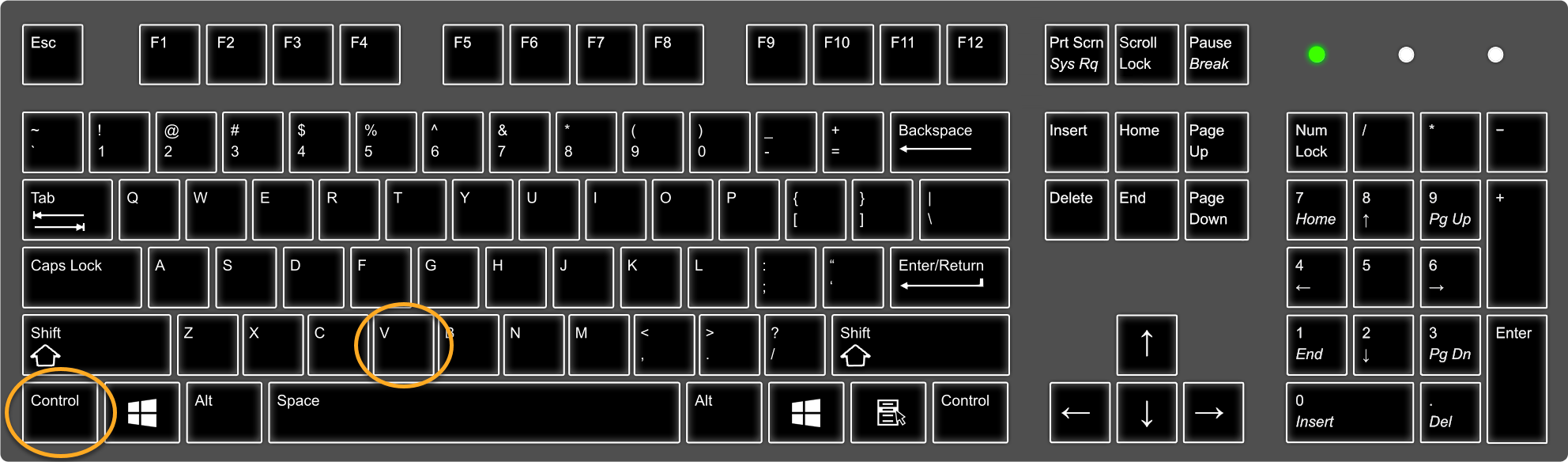
- Click in the text box, then press the
Ctrlkey and theVkey on your keyboard simultaneously to paste the sign-in key.
- Click Continue.
- If more than one app is associated with your AVG Account, ensure the apps you want to install are selected, then click Activate & install.
The apps you select are installed and activated automatically.
AVG TuneUp is now activated. If activation is unsuccessful, refer to the Still need help? section below.
AVG TuneUp for Mac is a paid app that requires a subscription to use. After installing AVG TuneUp, you may need to manually activate the app using a valid activation code or your AVG Account.
Enter activation code
To activate AVG TuneUp using an activation code:
- Locate your activation code. This is included in your order confirmation email. For detailed instructions, refer to the following article:
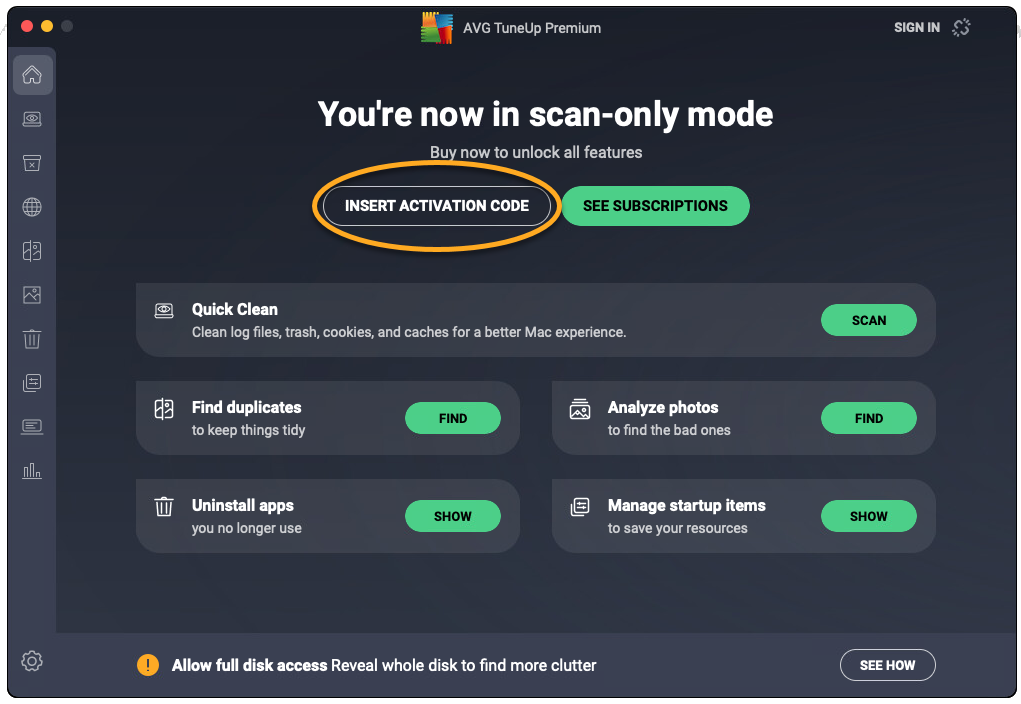
- Open AVG TuneUp and click Insert activation code on the main application screen,
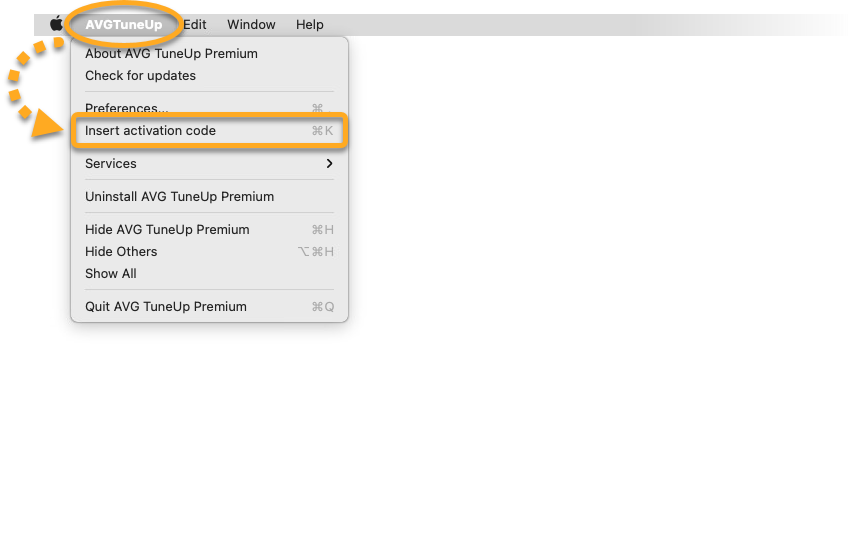
...or click AVG TuneUp ▸ Insert activation code in the Apple menu bar.
- Type or paste your activation code (including hyphens) into the text box, then click Activate.
 ...or click AVG TuneUp ▸ Insert activation code in the Apple menu bar.
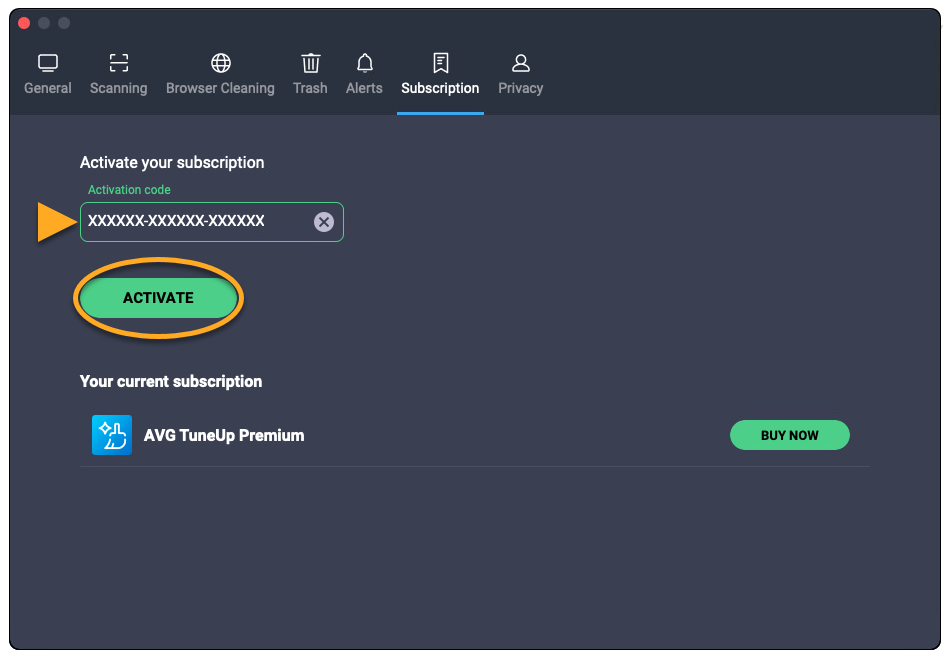
AVG TuneUp is now activated. If activation is unsuccessful, refer to the Still need help? section below.
If you have not yet enabled Full Disk Access, refer to the following article for instructions to complete initial setup of AVG TuneUp:
To learn how to activate your multi-device subscription on Android, refer to the following article: Activating a paid version of AVG Cleaner on Android
To confirm which subscription you purchased, check your order confirmation email or the AVG Account that contains your AVG TuneUp subscription.
Sign in to AVG Account
To activate AVG TuneUp using your AVG Account:
- Open AVG TuneUp and click Sign in ▸ Sign in to existing account.
- Enter the credentials for the AVG Account that contains your AVG TuneUp subscription, then click Sign in.
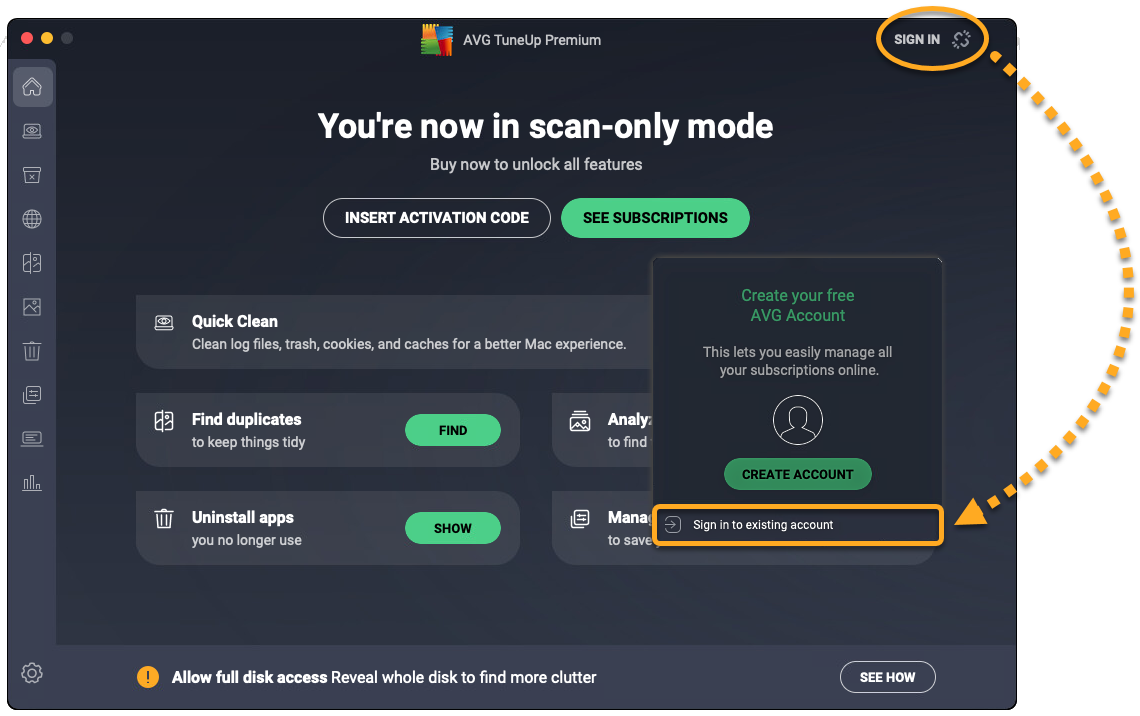
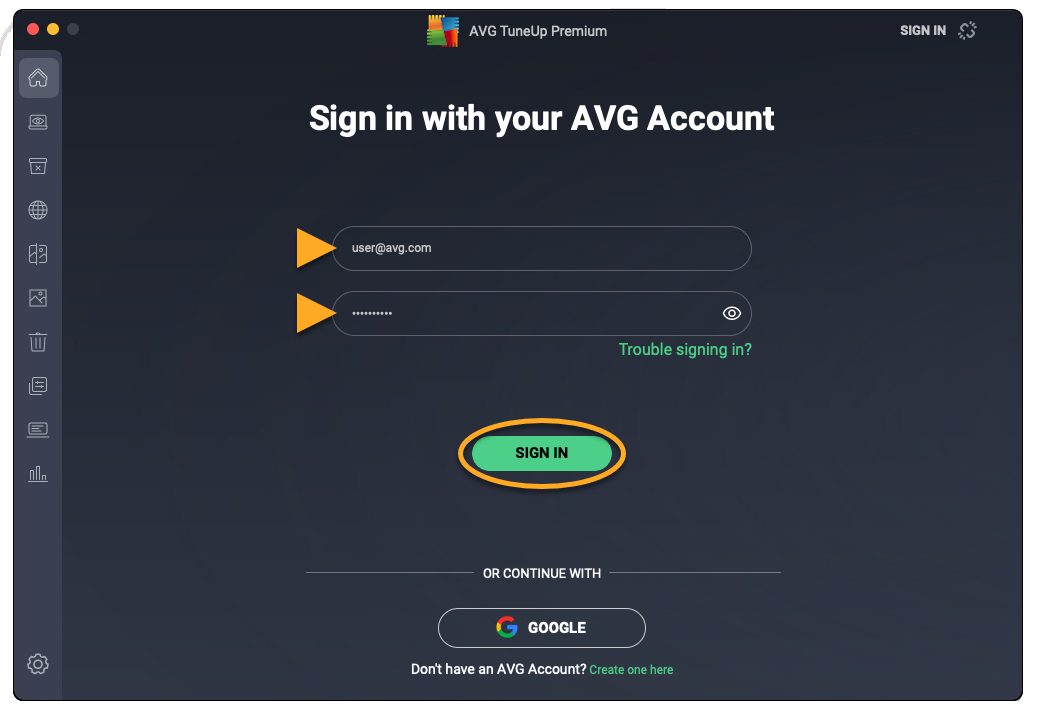
AVG TuneUp is now activated. If activation is unsuccessful, refer to the Still need help? section in this article.
If you have not yet enabled Full Disk Access, refer to the following article for instructions to complete initial setup of AVG TuneUp:
To learn how to activate your multi-device subscription on Android, refer to the following article:
Activating a paid version of AVG Cleaner on Android
To confirm which subscription you purchased, check your order confirmation email or the AVG Account that contains your AVG TuneUp subscription.
Still need help?
To learn how to resolve some of the most common activation issues, refer to the following articles:
If the issue persists, contact AVG Support.
Further recommendations
To learn more about AVG TuneUp, refer to the following article:
To learn how to transfer your subscription to a different device, refer to the following article:
- AVG TuneUp
- Windows and macOS