AVG AntiTrack protects your personal information, while blocking and notifying you of any tracking attempts made by the websites you visit. This article explains how to create an exception and allow tracking and profiling for a specific website.
Fix website issues
Certain websites require tracker blockers to be turned off to function correctly. If you encounter issues with a website due to the tracker blockers, such as slow loading times, certain web pages not displaying, or difficulties downloading email attachments, follow the steps below:
- Open your browser and navigate to the website that is not working correctly.
- Click the AVG AntiTrack browser extension in the top-right corner of the browser, then click Use lighter protection for this site.

This option blocks most trackers and helps you to load the site properly. If issues continue, you can pause tracker protection specifically for that website by following the steps below:
Disable AVG AntiTrack
- Open your browser and navigate to the website you want to add to the exception list.
- Click the AVG AntiTrack browser extension in the top-right corner of the browser, then click Pause tracker protection for this site.
The website is now added to the Exceptions List and tracking and profiling are disabled for it. If needed, you can re-enable AVG AntiTrack at any time by following the steps below:
Re-enable AVG AntiTrack
- Click the AVG AntiTrack browser extension in the top-right corner of the browser, then click Settings (the gear icon).
- On the Exceptions List, click Remove next to the chosen website.
 Settings (the gear icon).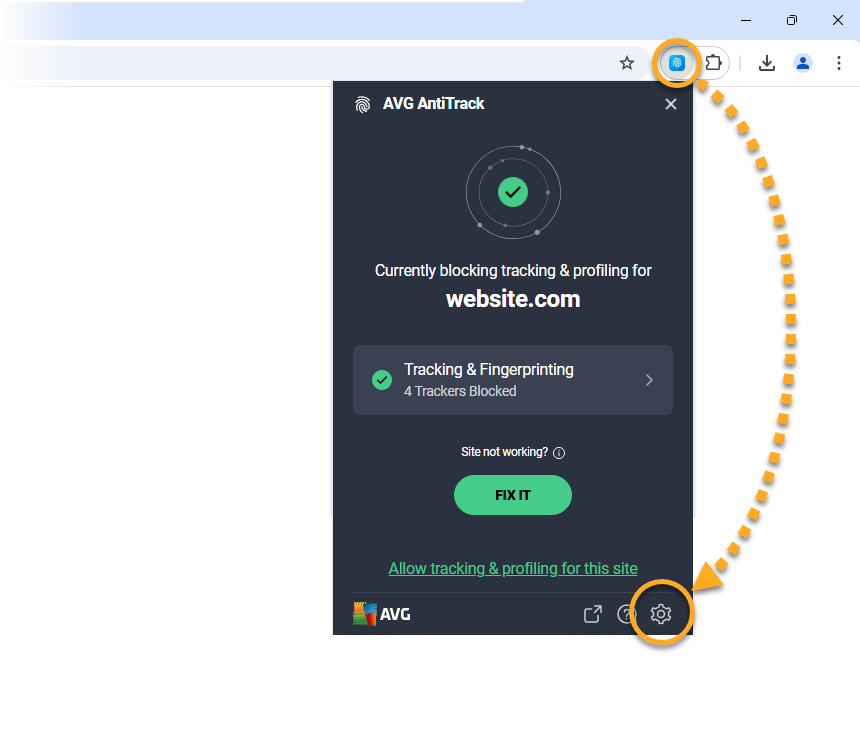
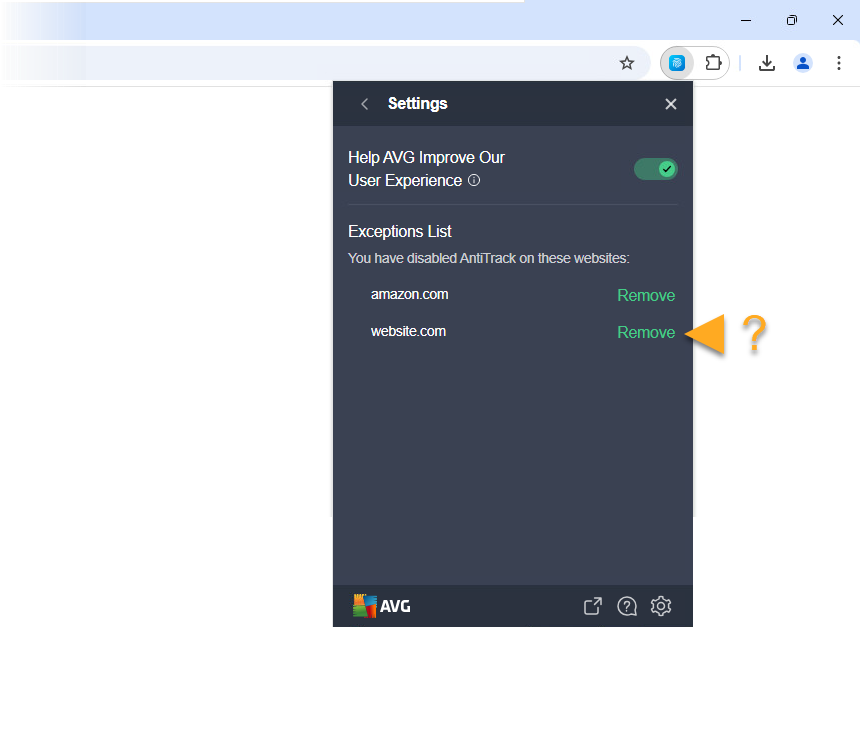
AVG AntiTrack continues to block tracking and profiling for this website.
- AVG AntiTrack
- Windows