AVG Cleaner for Android is a mobile app designed to help improve the performance of your device and preserve storage space by removing unnecessary media, files, apps, and app data. Remove these items by transferring them to a cloud storage account and/or deleting them from your device. You can also optimize photos to consume less space.
Navigate AVG Cleaner
- On the Home screen of your device, tap the Cleanup icon to open the app.

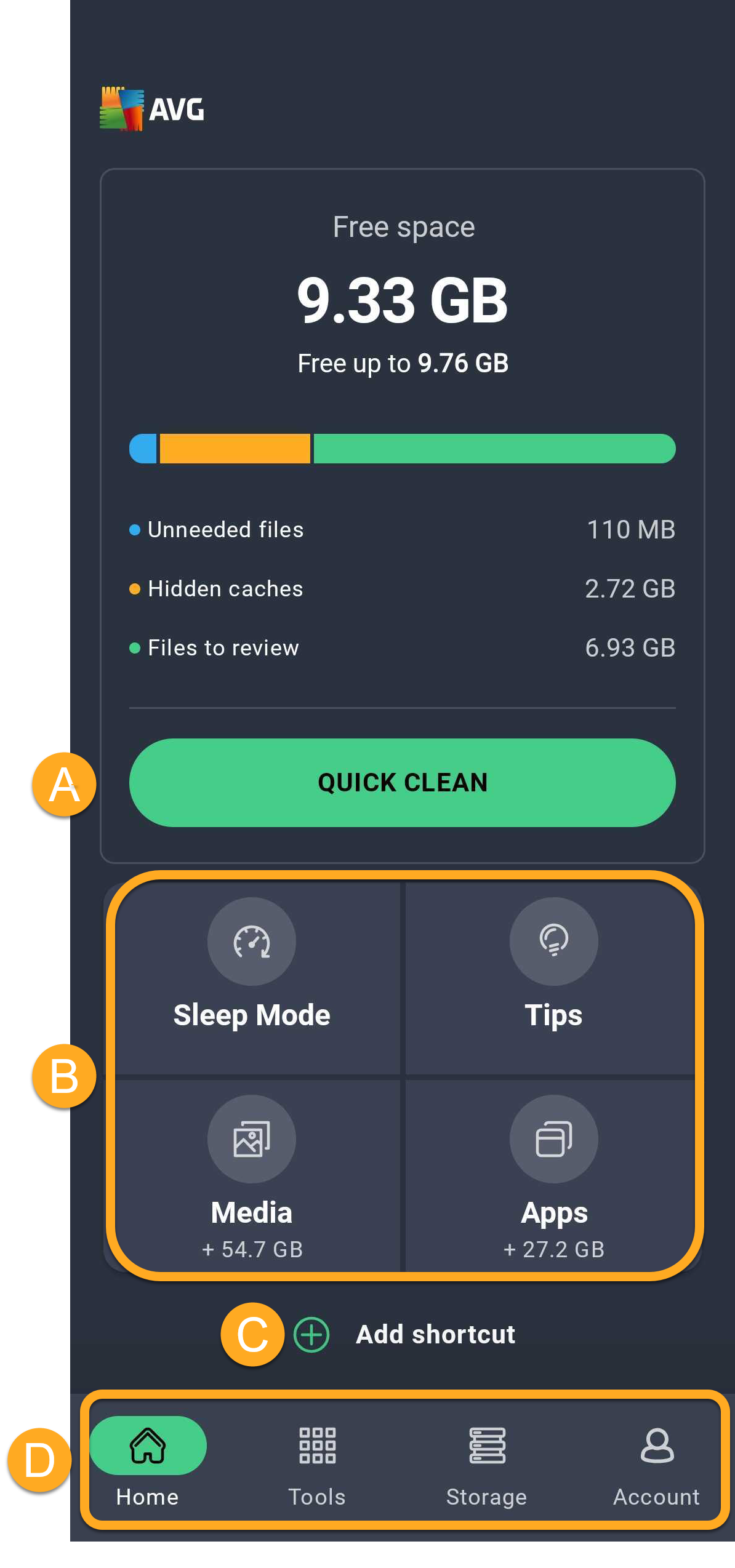
- The following options are available via the main app screen:
- Quick Clean: Scan for and delete dispensable items, including thumbnails, APKs, residual files, and hidden, visible, and shared cache.
- Shortcuts:
- Sleep Mode: Hibernate apps that are running in the background, stopping them from slowing down your device and draining your battery.
- Tips: Review tips for clearing space on your device. The first time you use the Tips feature, you are prompted to specify which kinds of tips you want AVG Cleaner to prioritize via the Analysis preferences screen.
- Media: Access an overview of the media that is stored on your device, including suggestions for clearing space.
- Apps: Access an overview of the apps that are installed on your device, including suggestions for clearing space.
- Add Shortcut: Customize the main dashboard by adding shortcuts.
- The navigation bar:
- Home: A quick access to AVG Cleaner Home screen.
- Tools: Access AVG Cleaner features.
- Storage: An overview of different apps and files.
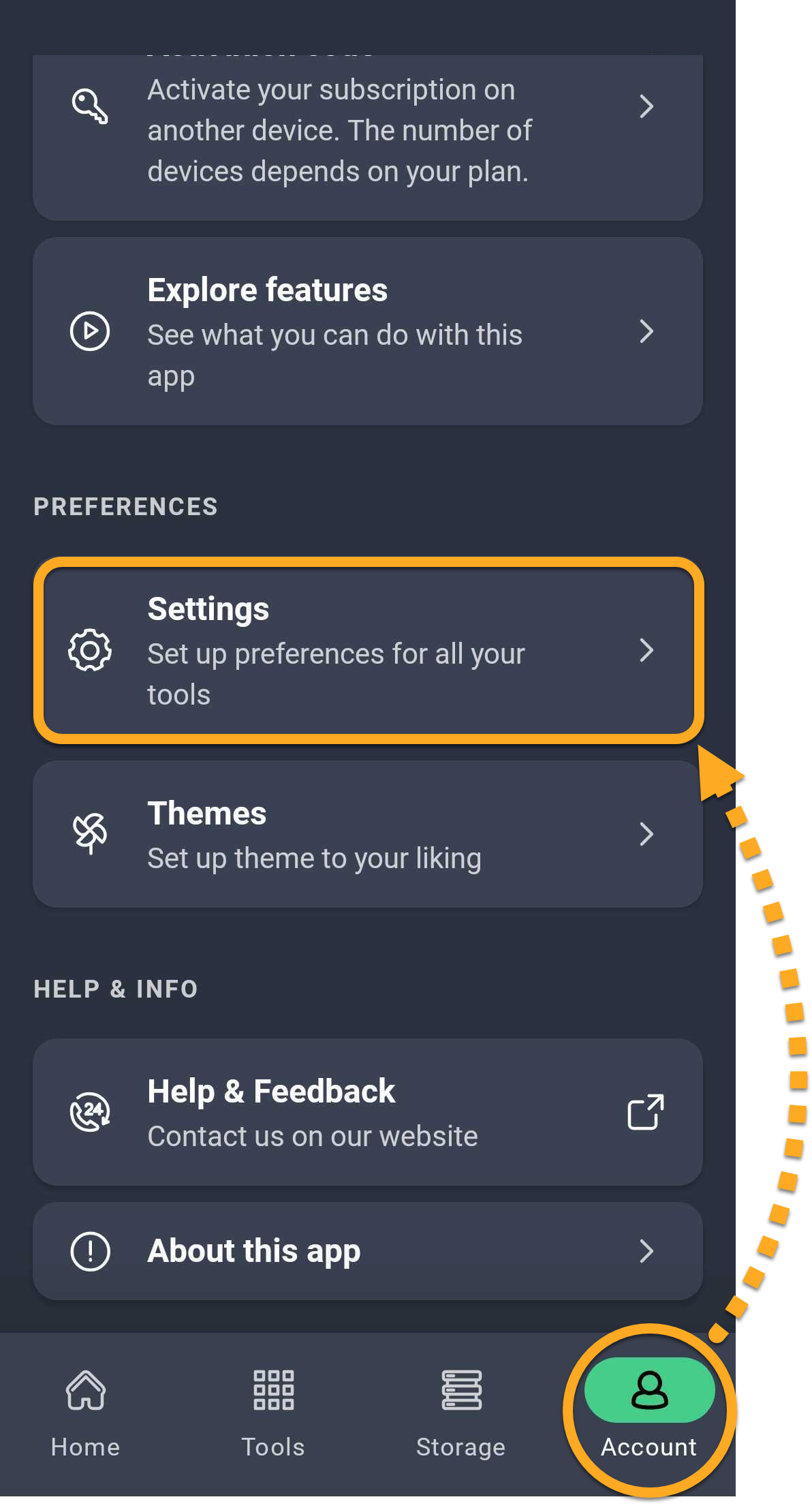
- Account: Includes various options, such as signing in to your AVG Account, checking your subscription details, and accessing the Settings.

Perform a Quick Clean
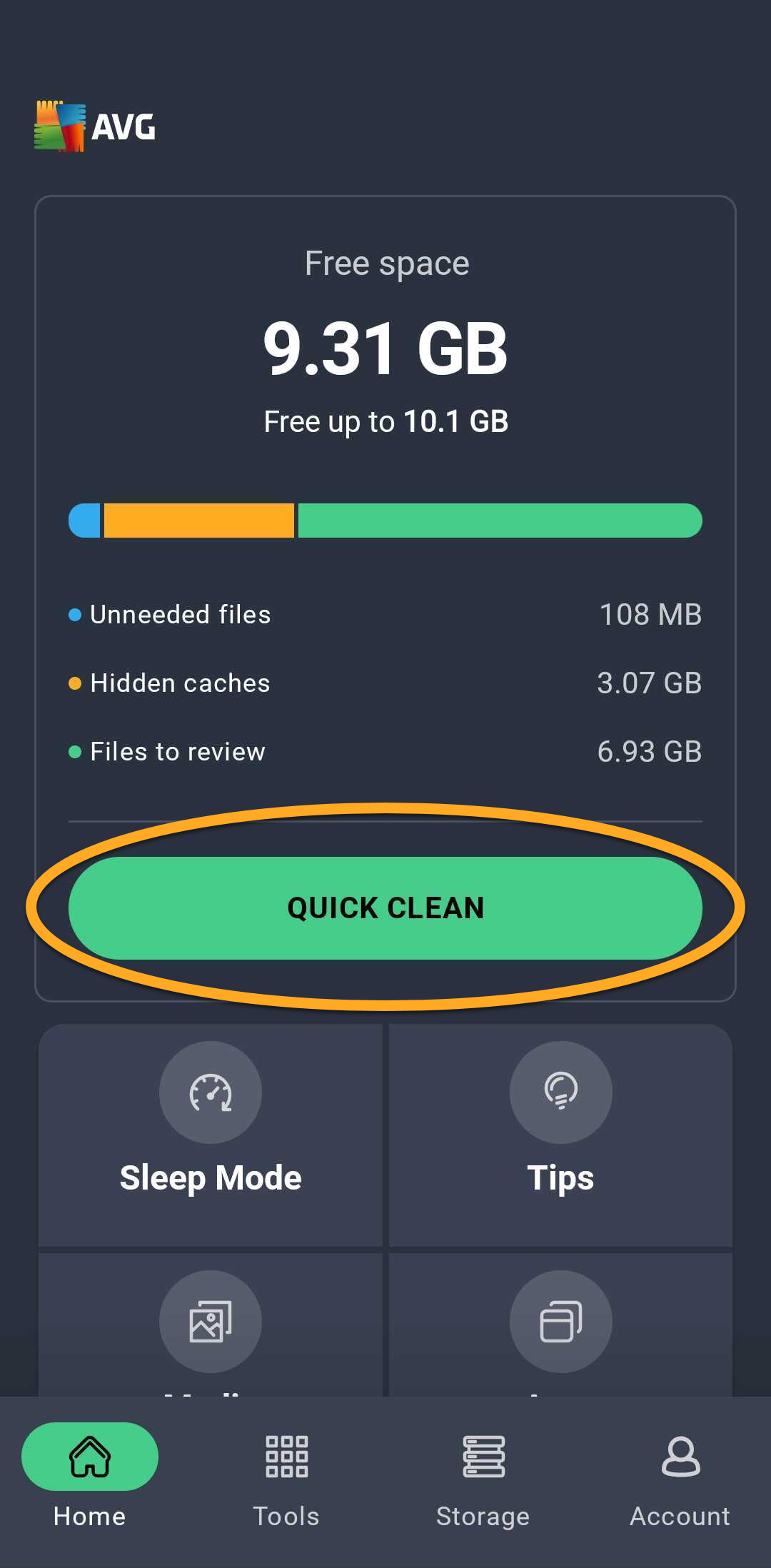
Quick Clean cleans your device by removing unnecessary files to free storage space. You can select which item types are removed before you clean.
- Tap the Quick Clean button.
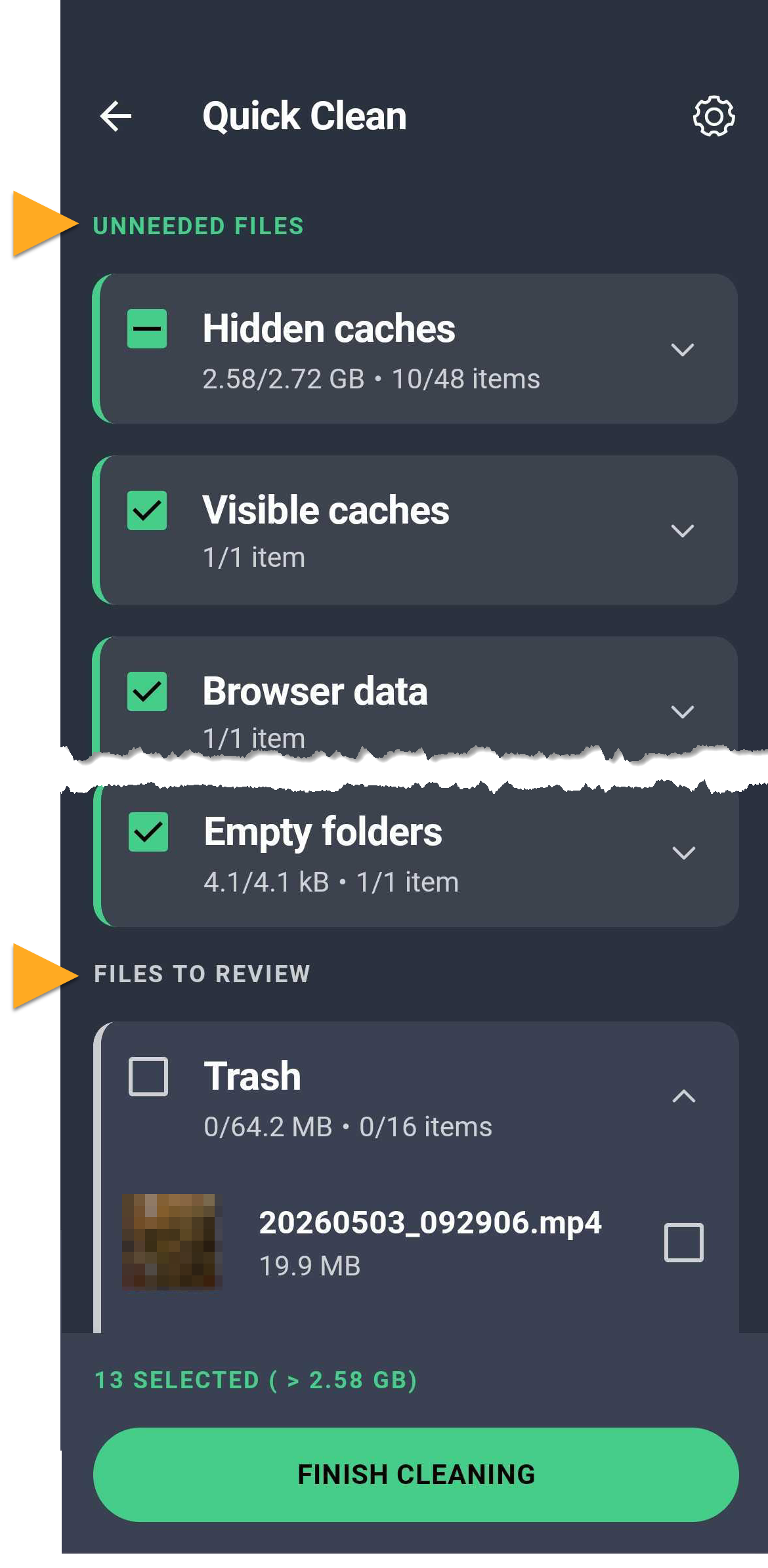
- Tick the item types you want to clean. Item types are divided into two sections (you may see one or both sections, depending on which data types are stored on your device):
- Unneeded files: Data that has been carefully selected to ensure that it is truly dispensable, including visible and hidden cache, browser data, residual files, installed APKs, thumbnails, ad caches, and empty folders.
- Files to review: Data that may not be valuable to you. We recommend reviewing items included in this group and only ticking items that are dispensable. All items are unticked by default and will not be deleted unless you manually select them.
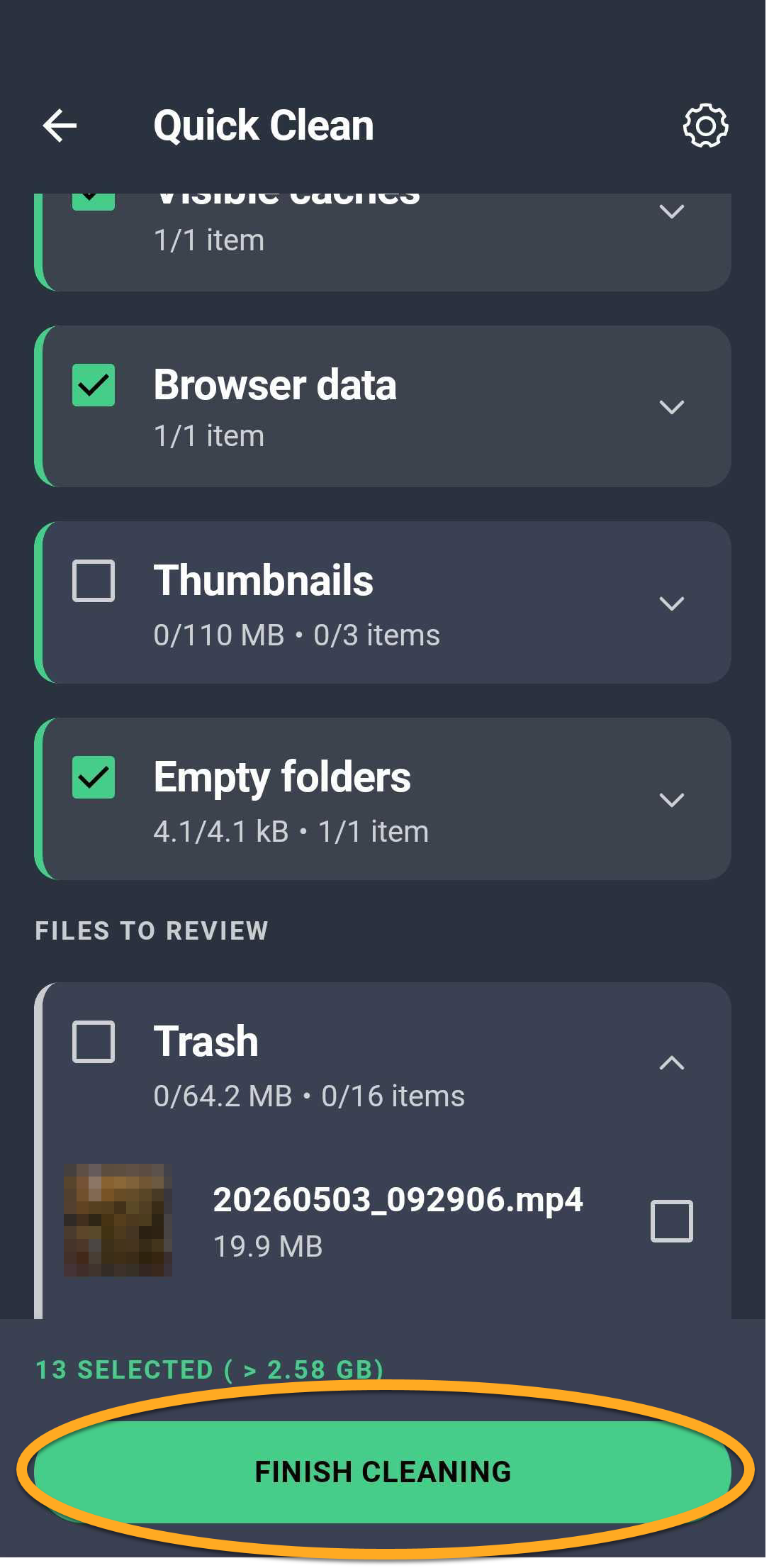
- Tap Finish cleaning to delete the selected items.
Hibernate apps
The Sleep Mode feature stops apps from running in the background, releasing memory for other tasks.
- Open AVG Cleaner and tap Tools (in the bottom navigation bar) ▸ Sleep Mode.
- Tick the apps that you want to stop, then tap Force stop.
You may need to grant AVG Cleaner permission to force stop apps in bulk via your device settings. Tap Grant, then follow the on-screen instructions. If you do not grant this permission, you are prompted to hibernate each selected app individually.
- Tap Proceed.

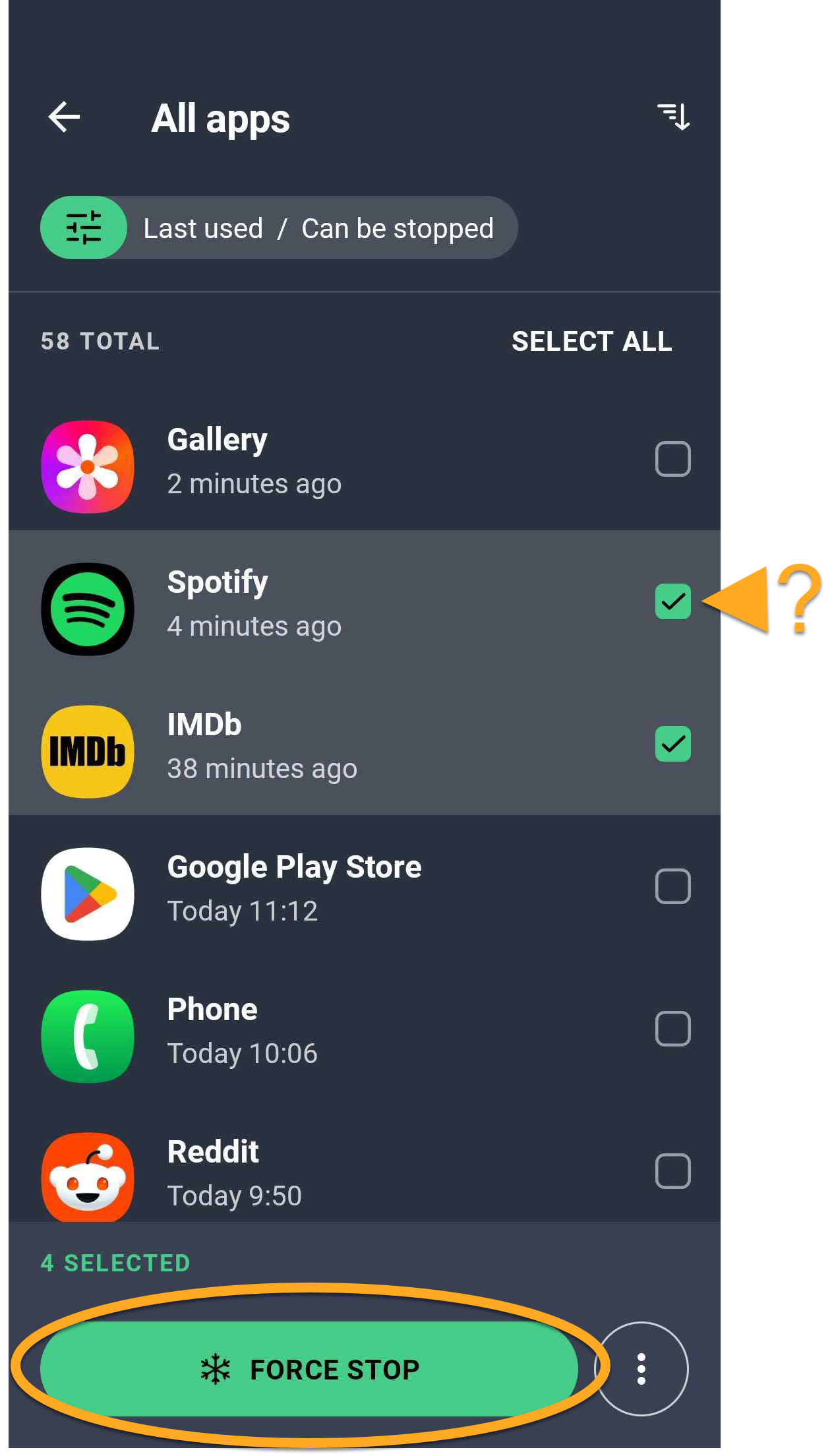
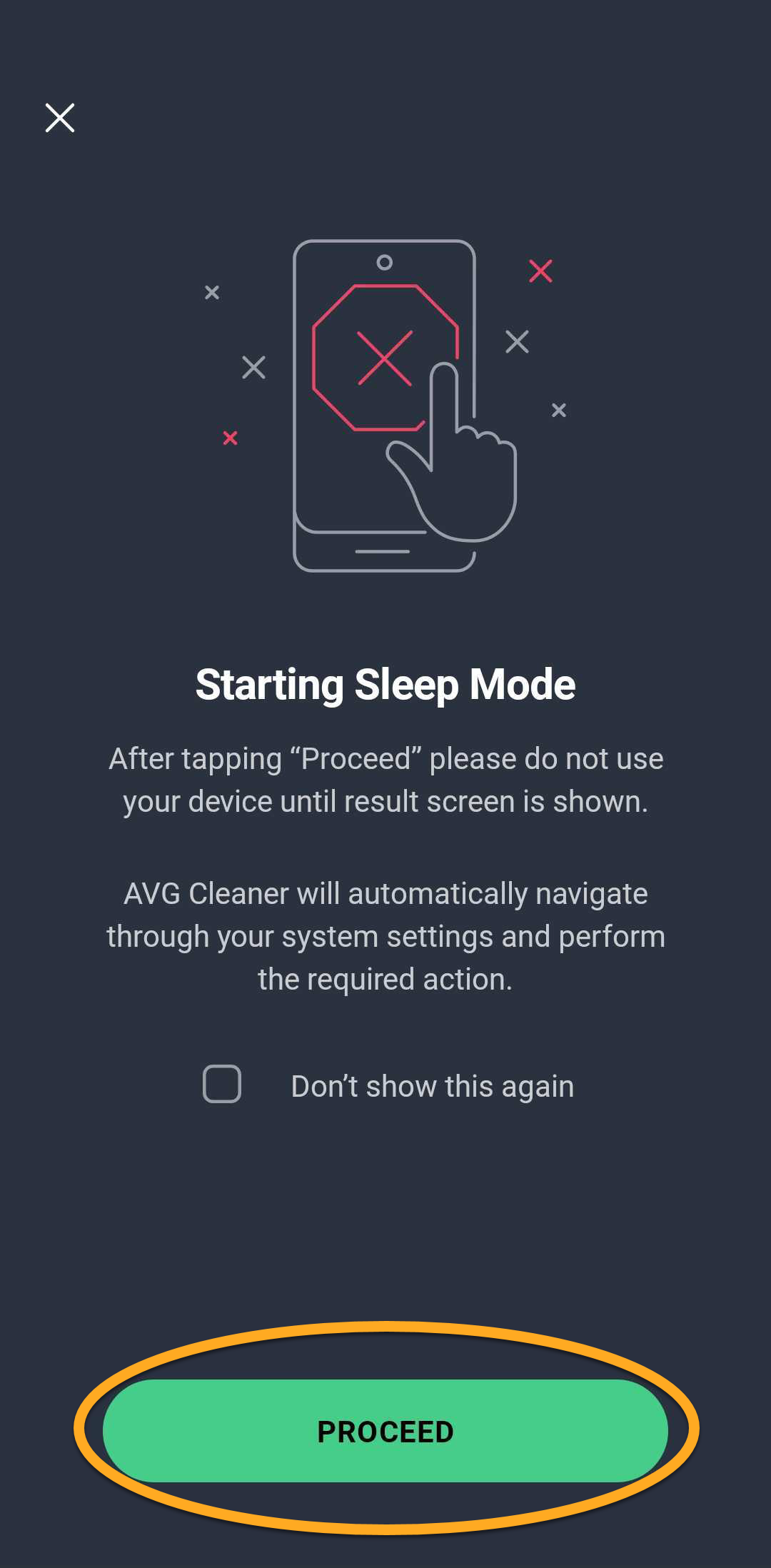
The selected apps are no longer running in the background.
Optimize your photos and videos
Photo & Video Optimizer help you reduce the size of photos and videos stored on your device to free up storage space while maintaining good quality. You can also choose to keep a backup of the original files.
To optimize photos or videos on your device:
Photo Optimizer
- Open AVG Cleaner and tap Tools (in the bottom navigation bar), then select Photo Optimizer.
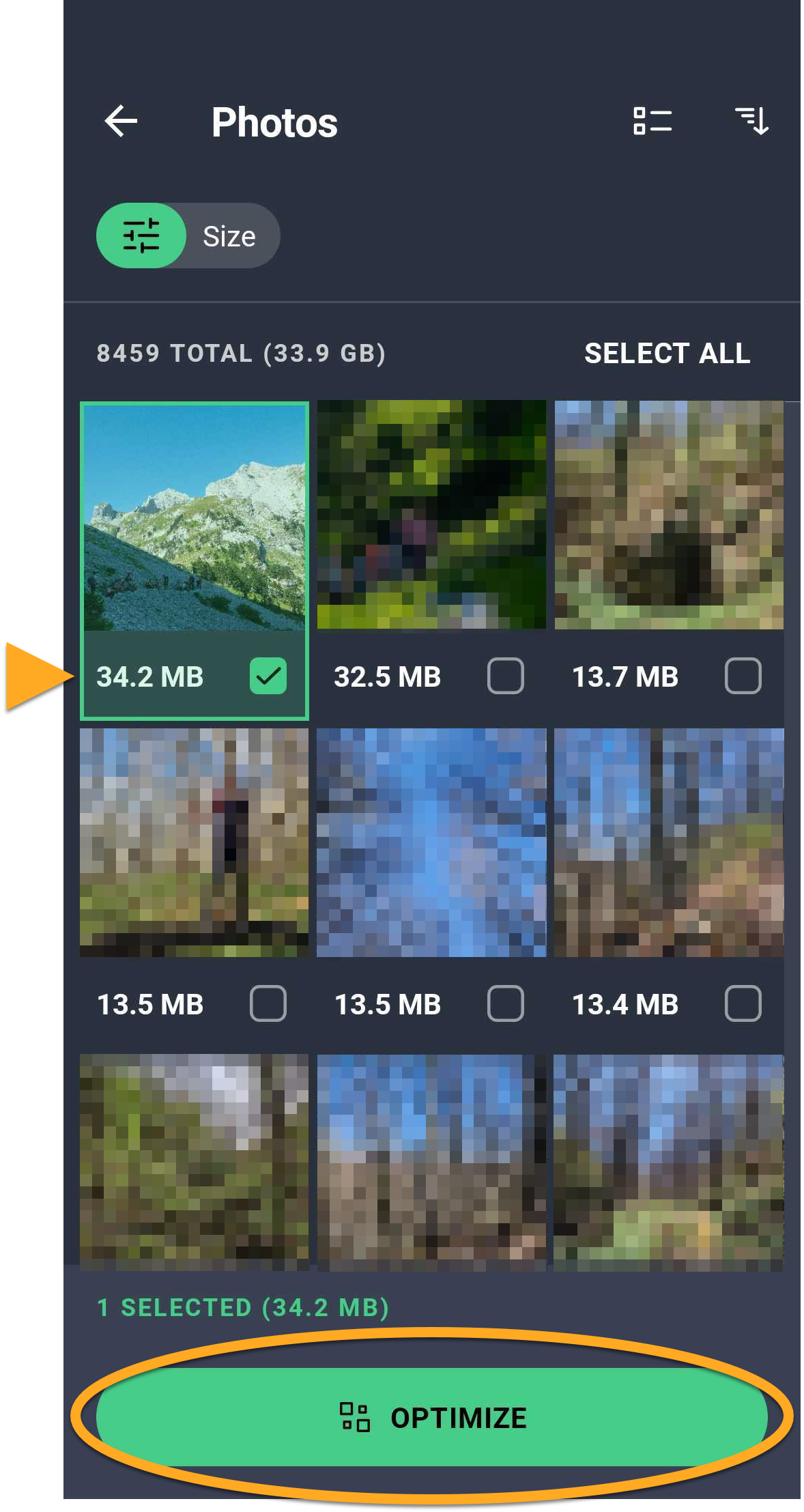
- Wait while AVG Cleaner analyzes your files, then tap Select photos.
- Select the photos you want to optimize, then tap Optimize.
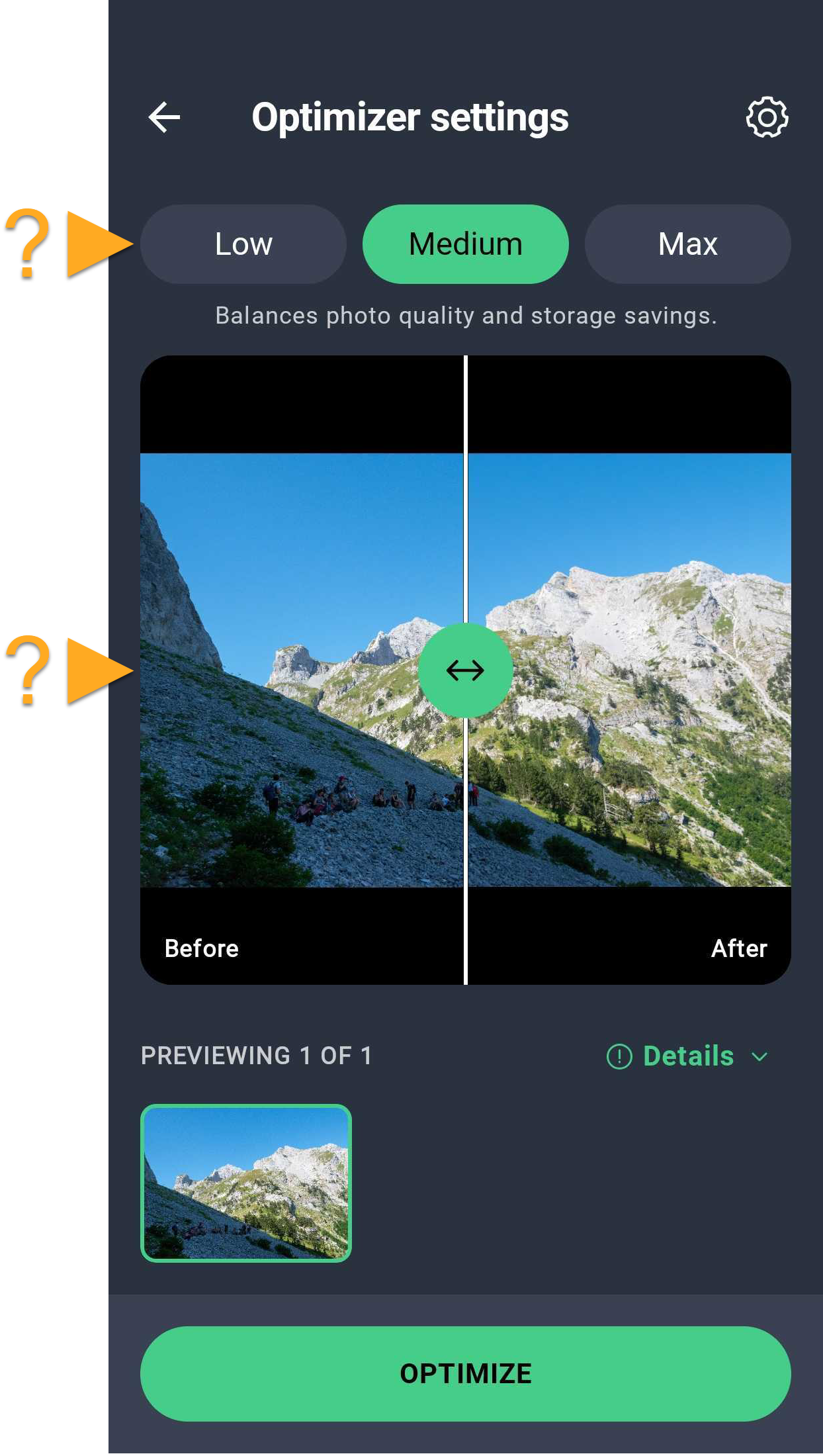
- Choose an optimization level: Low, Medium, or High. Use the slider in the middle to compare the quality before and after optimization.
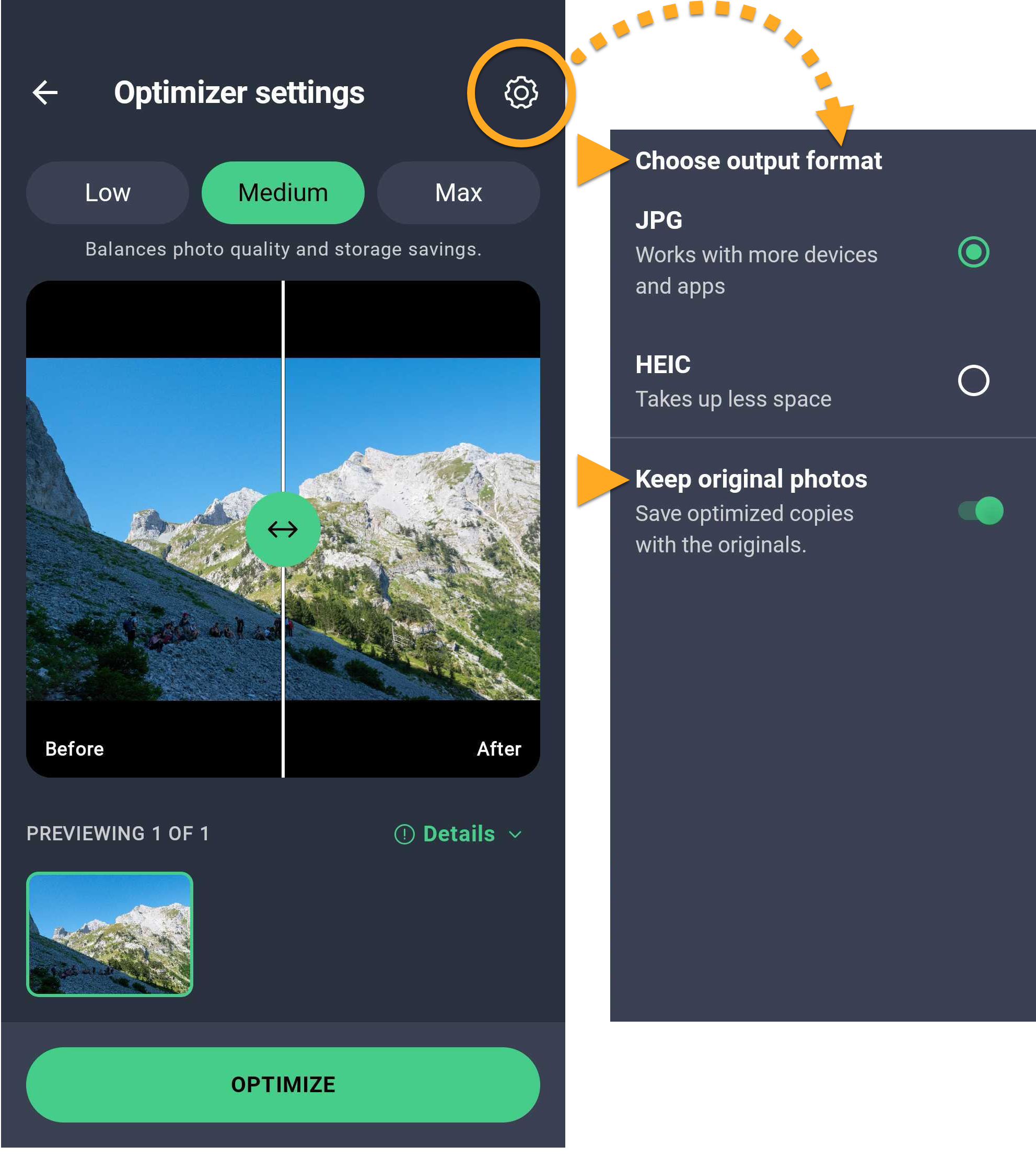
- Optionally, tap Settings (the gear icon) in the top-right corner to select the output format and choose whether to keep the original photos.
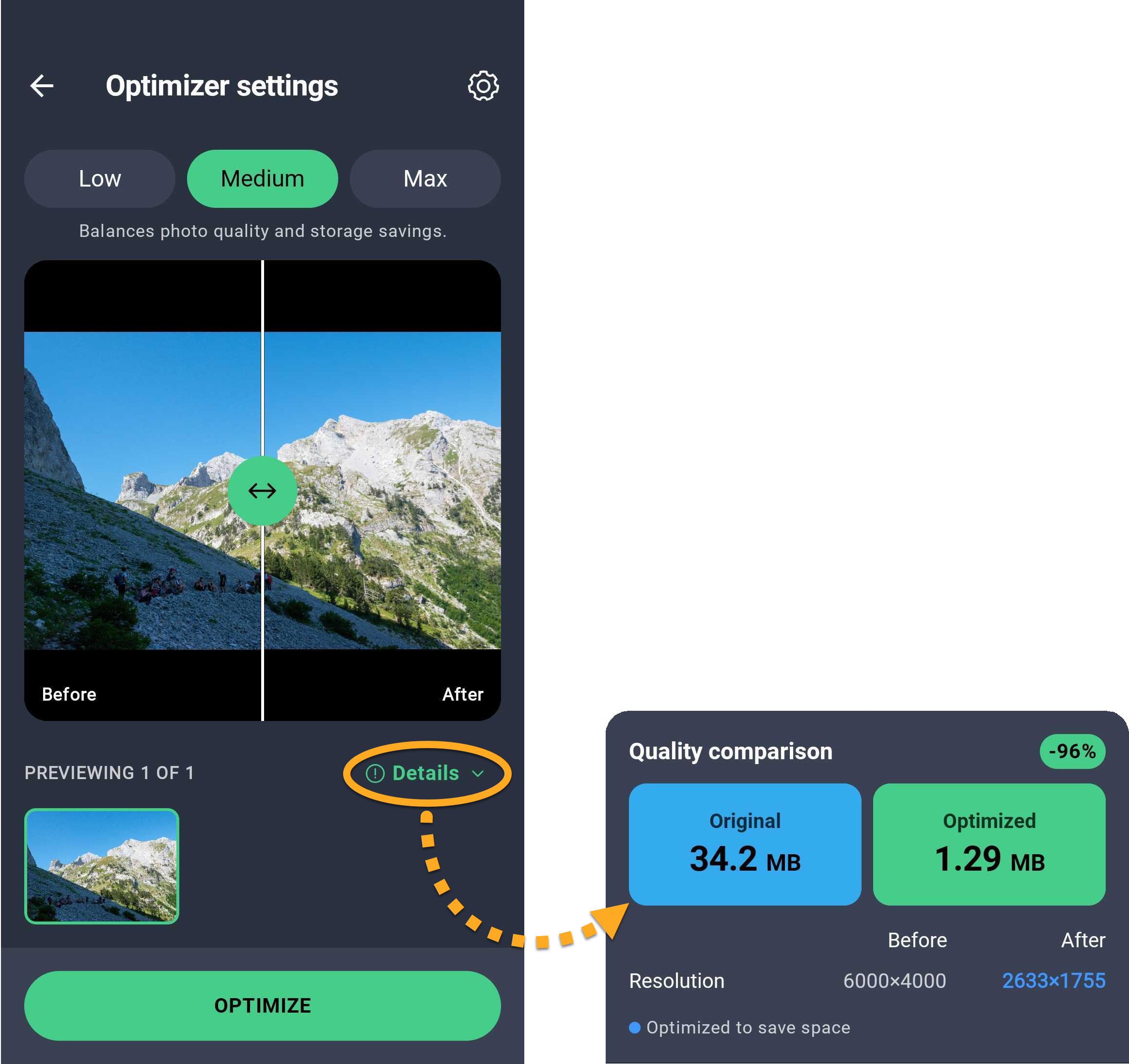
- Optionally, tap Details to compare the quality and file size before and after optimization.
- Tap Optimize to start optimizing the selected items.
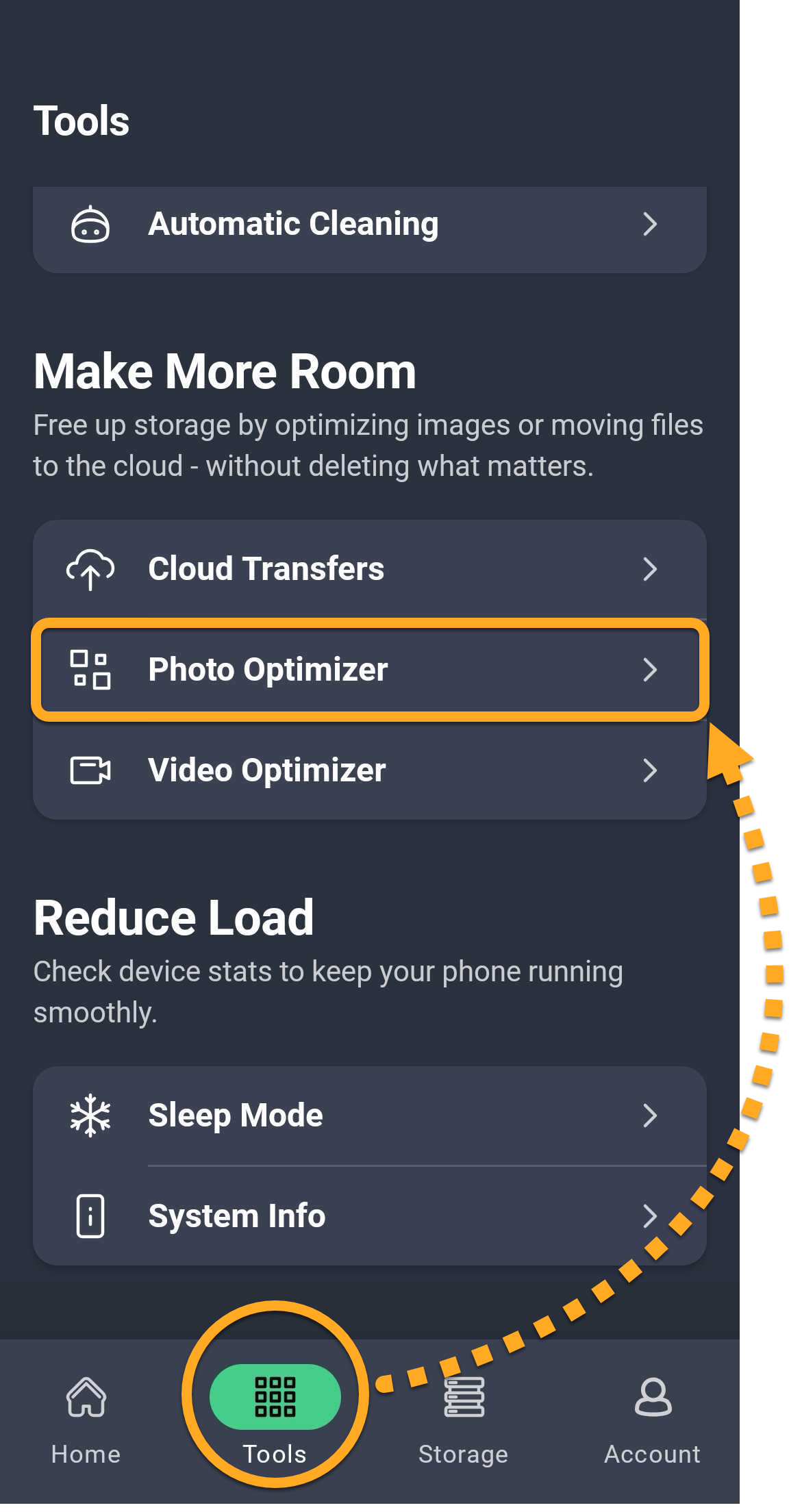
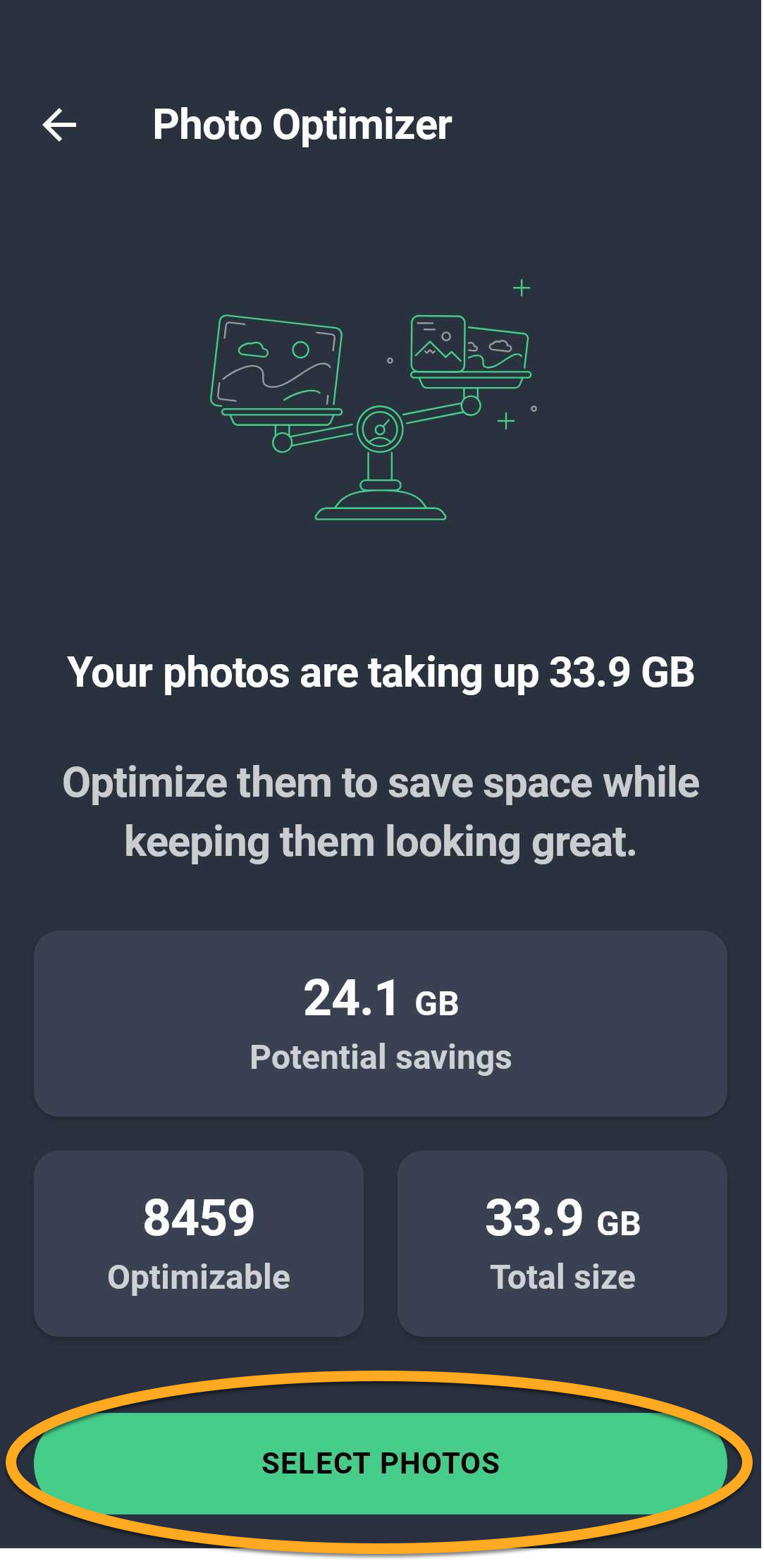
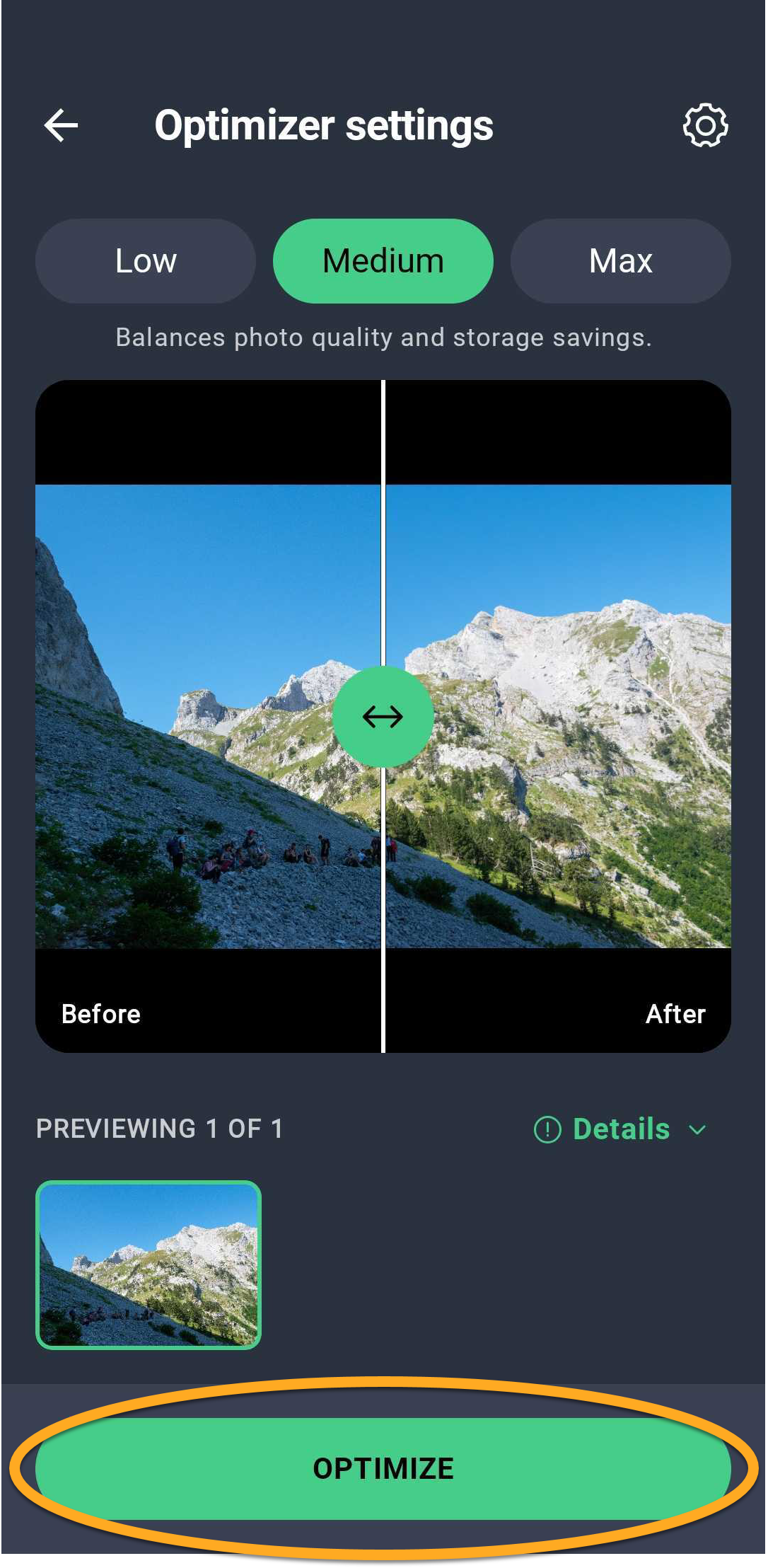
When the optimization is complete, tap Optimized results to view the optimized items and the storage space saved.
Video Optimizer
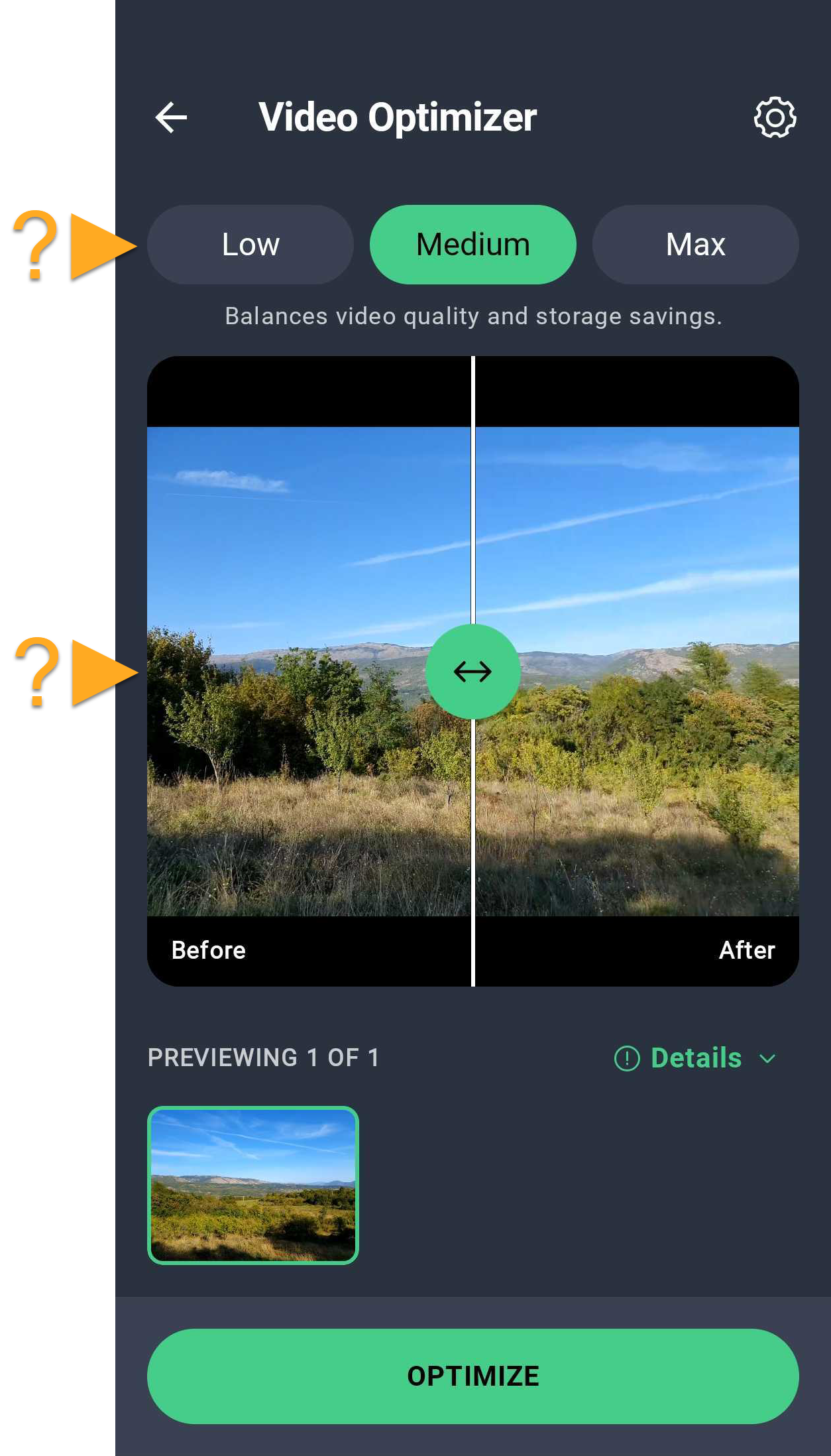
- Open AVG Cleaner and tap Tools (in the bottom navigation bar), then select Video Optimizer.
- Wait while AVG Cleaner analyzes your files, then tap Select videos.
- Select the videos you want to optimize, then tap Optimize.
- Choose an optimization level: Low, Medium, or High. Use the slider in the middle to compare the quality before and after optimization.
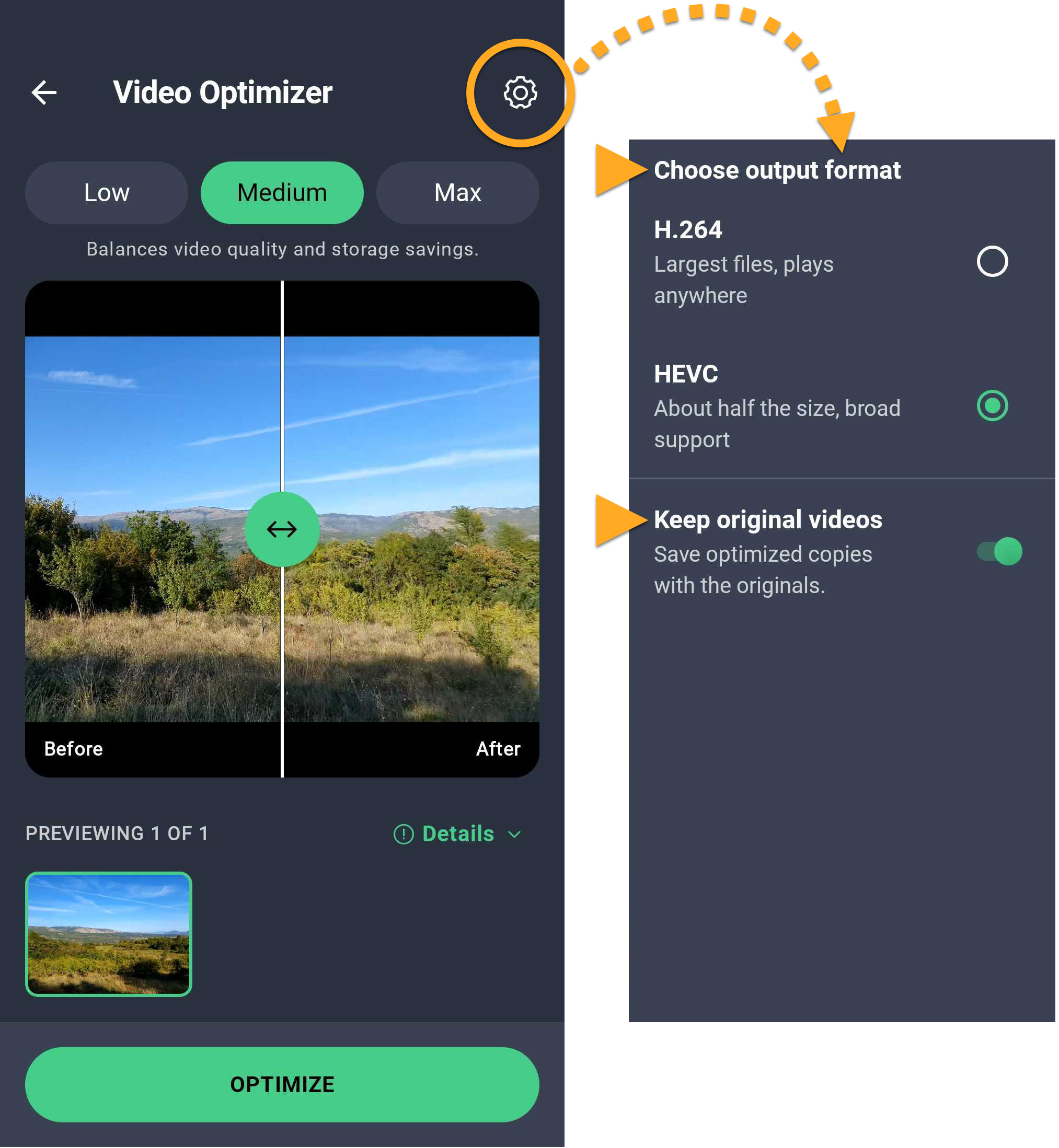
- Optionally, tap Settings (the gear icon) in the top-right corner to select the output format and choose whether to keep the original videos.
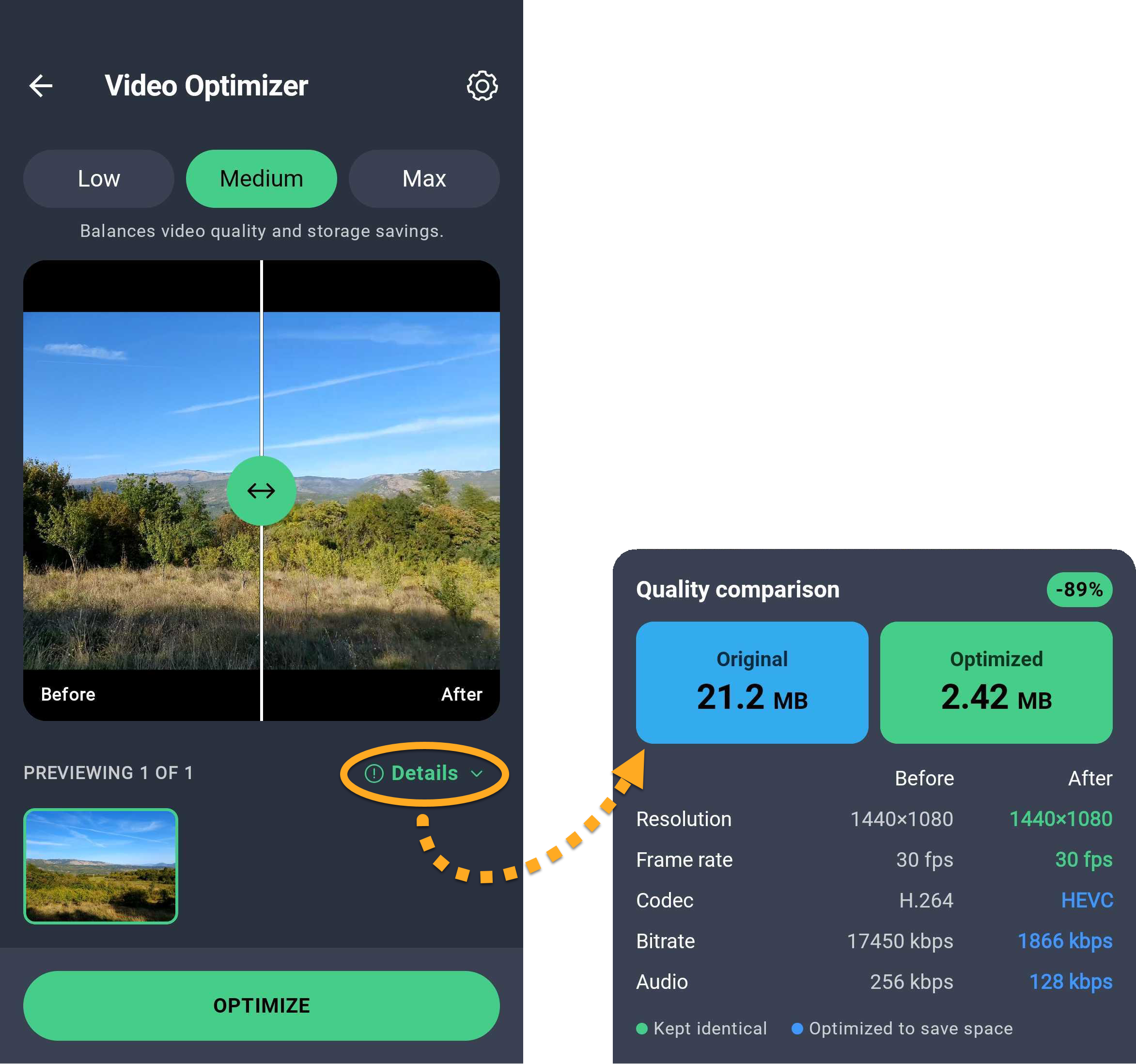
- Optionally, tap Details to compare the quality and file size before and after optimization.
- Tap Optimize to start optimizing the selected items.
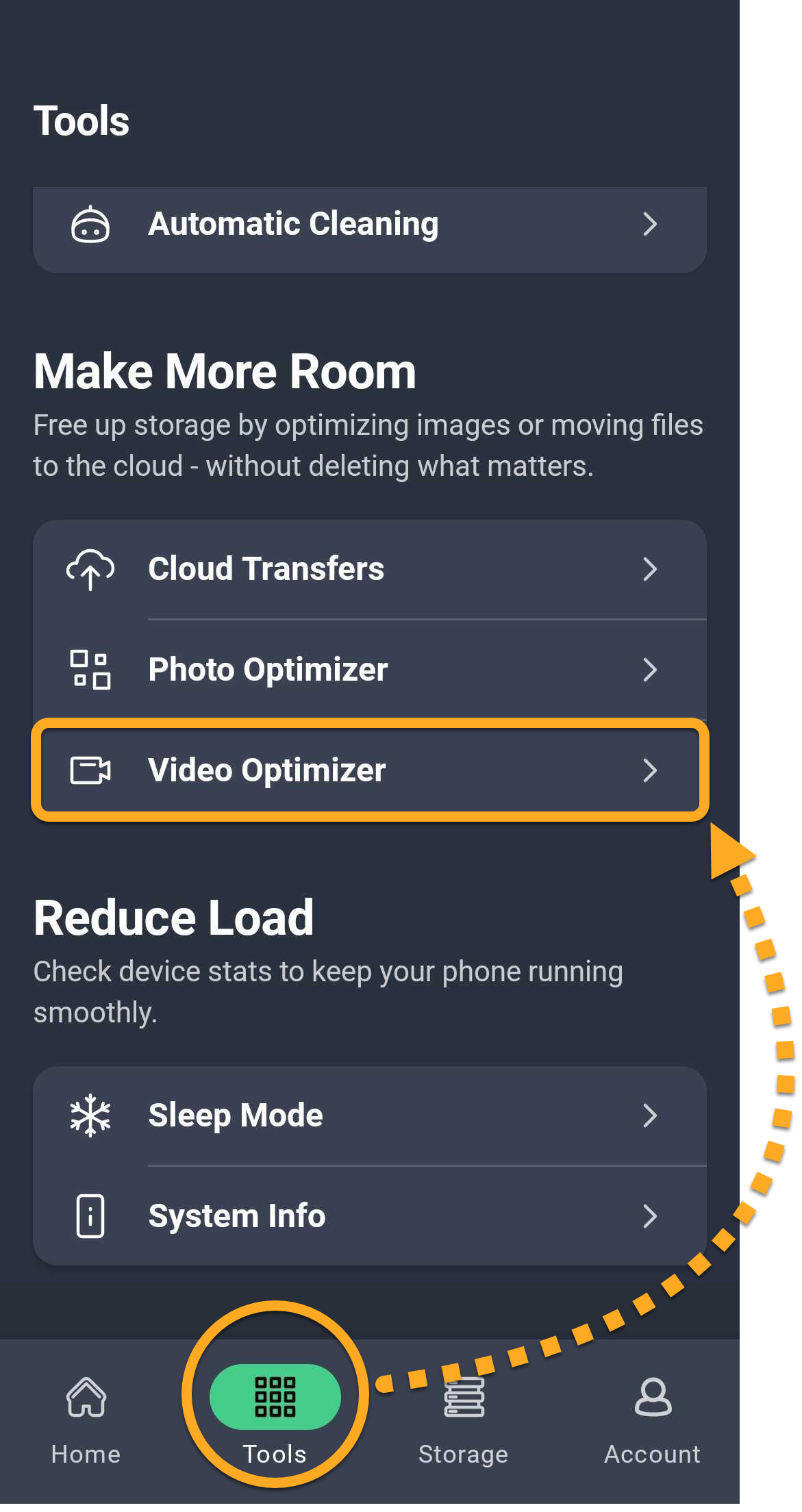
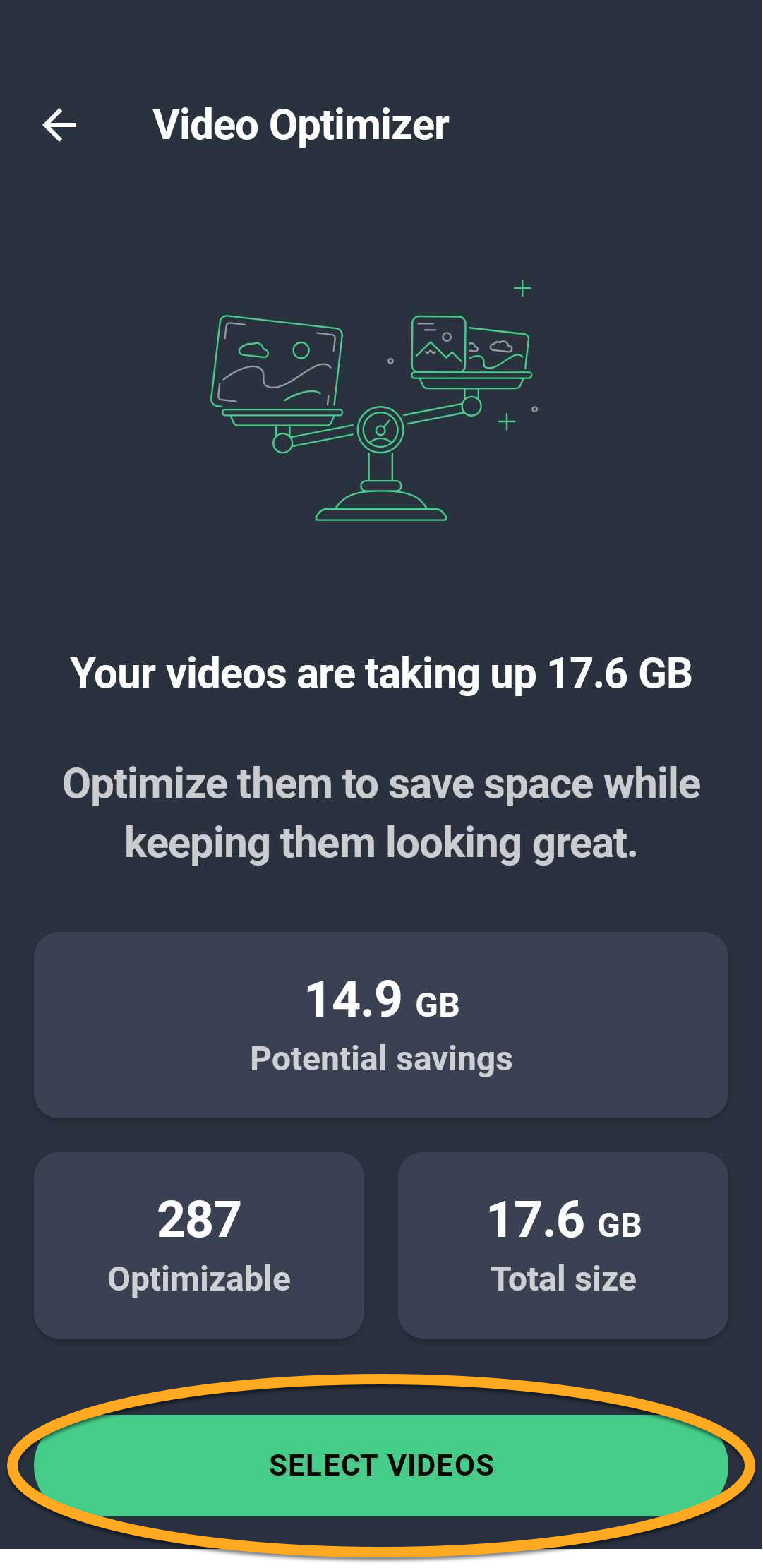
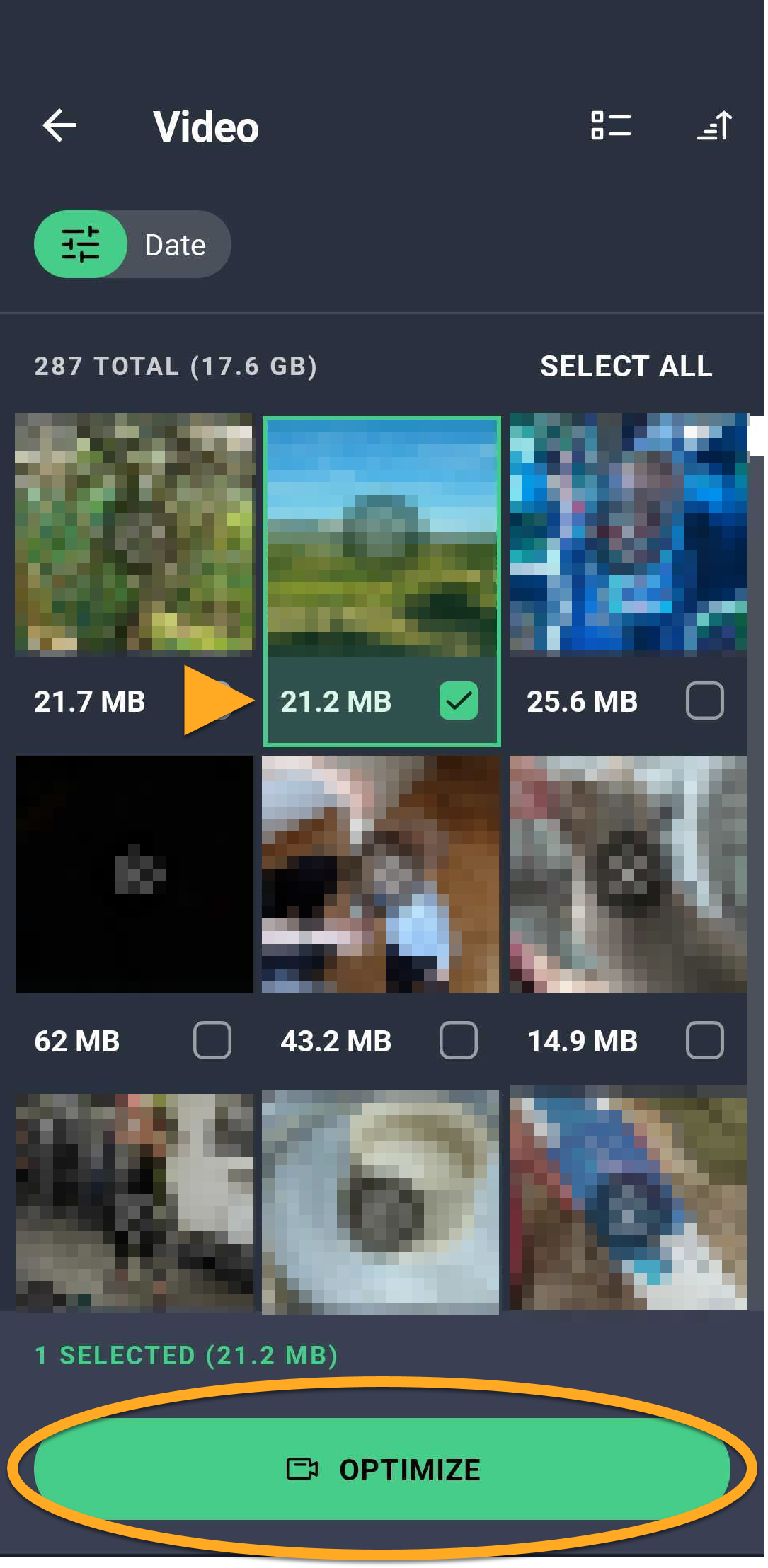
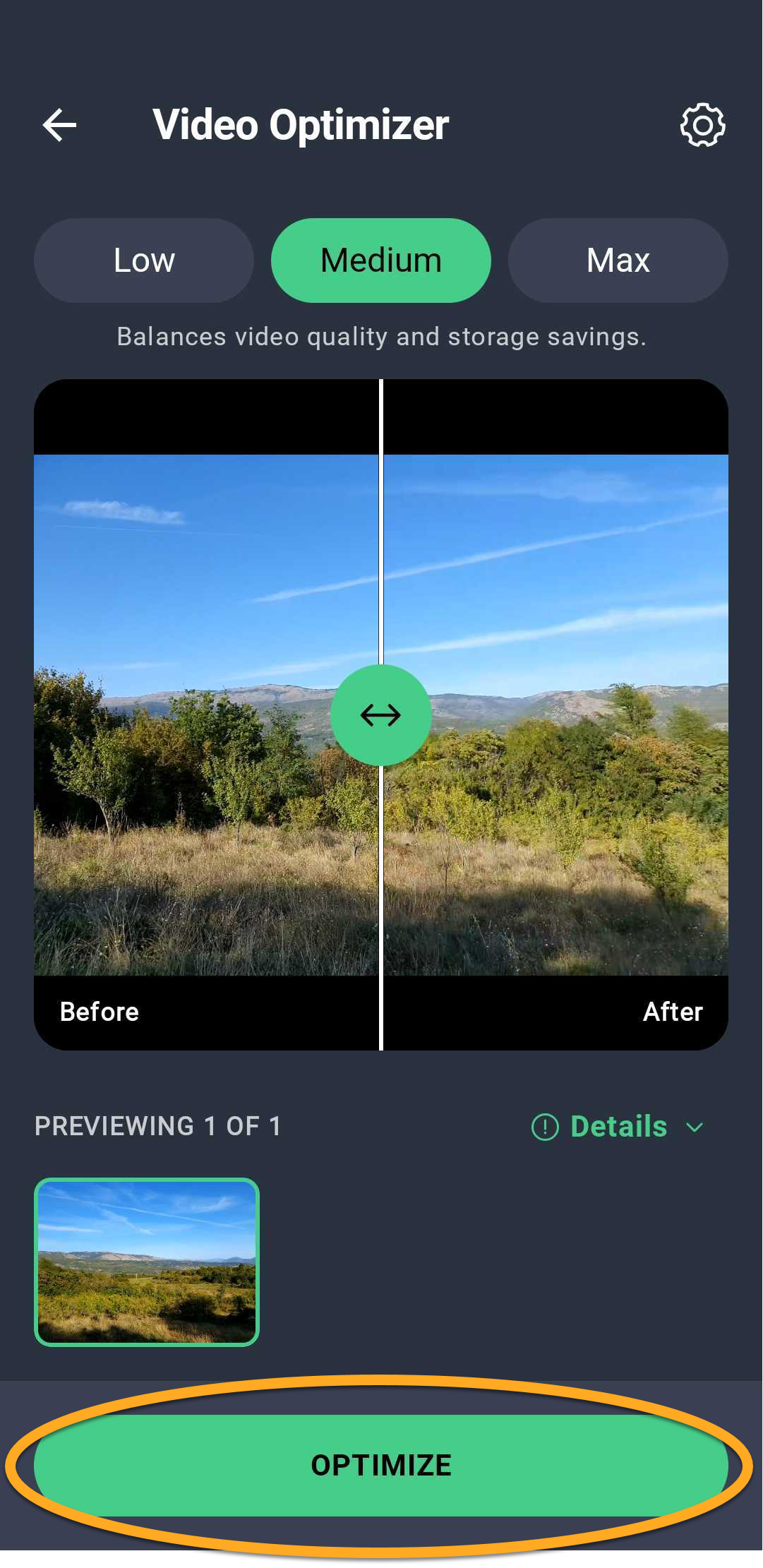
When the optimization is complete, tap Optimized results to view the optimized items and the storage space saved.
Define your Analysis preferences
When you tap the Tips tile on the main app screen, you can review tips for clearing space on your device. You can specify which kinds of tips you want AVG Cleaner to prioritize via the Analysis preferences screen:
- Open AVG Cleaner and tap Account (in the bottom navigation bar) ▸ Settings.
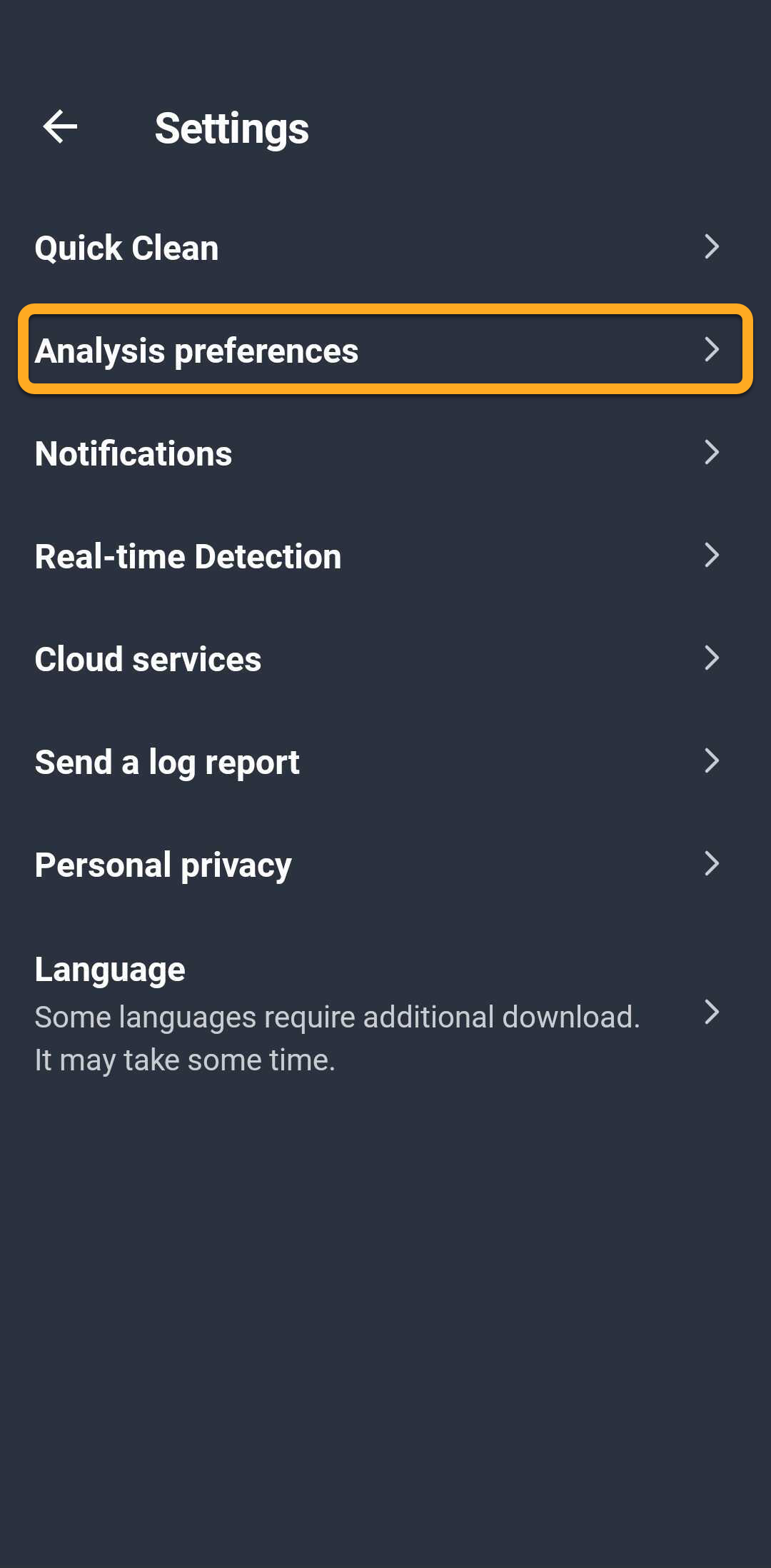
- Tap Analysis preferences.
- Touch and hold the icon (four lines) next to a tip category and drag the panel up or down to reorder your preferences. Optionally, tap the slider beside Find unwanted photos to turn the feature on (blue) or off (gray).
 icon (four lines) next to a tip category and drag the panel up or down to reorder your preferences. Optionally, tap the slider beside Find unwanted photos to turn the feature on (blue) or off (gray).
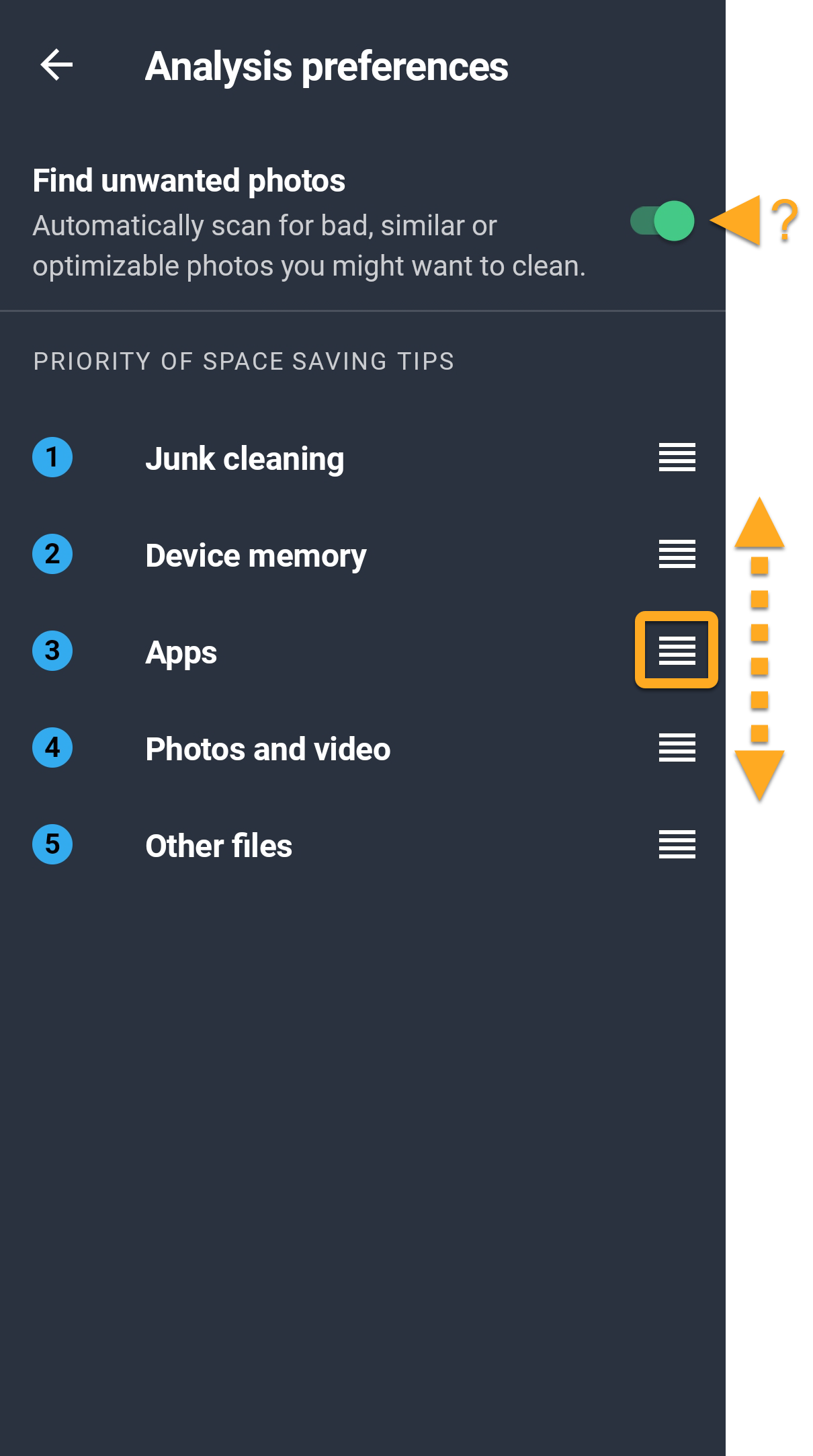
AVG Cleaner shows tips that match your specified preferences.
Manage cloud transfers
'The cloud' refers to virtual storage space where you can keep media and files such as photos, videos, and documents. AVG Cleaner allows you to easily transfer items from your device to a connected cloud storage account. To connect AVG Cleaner to a cloud storage account:
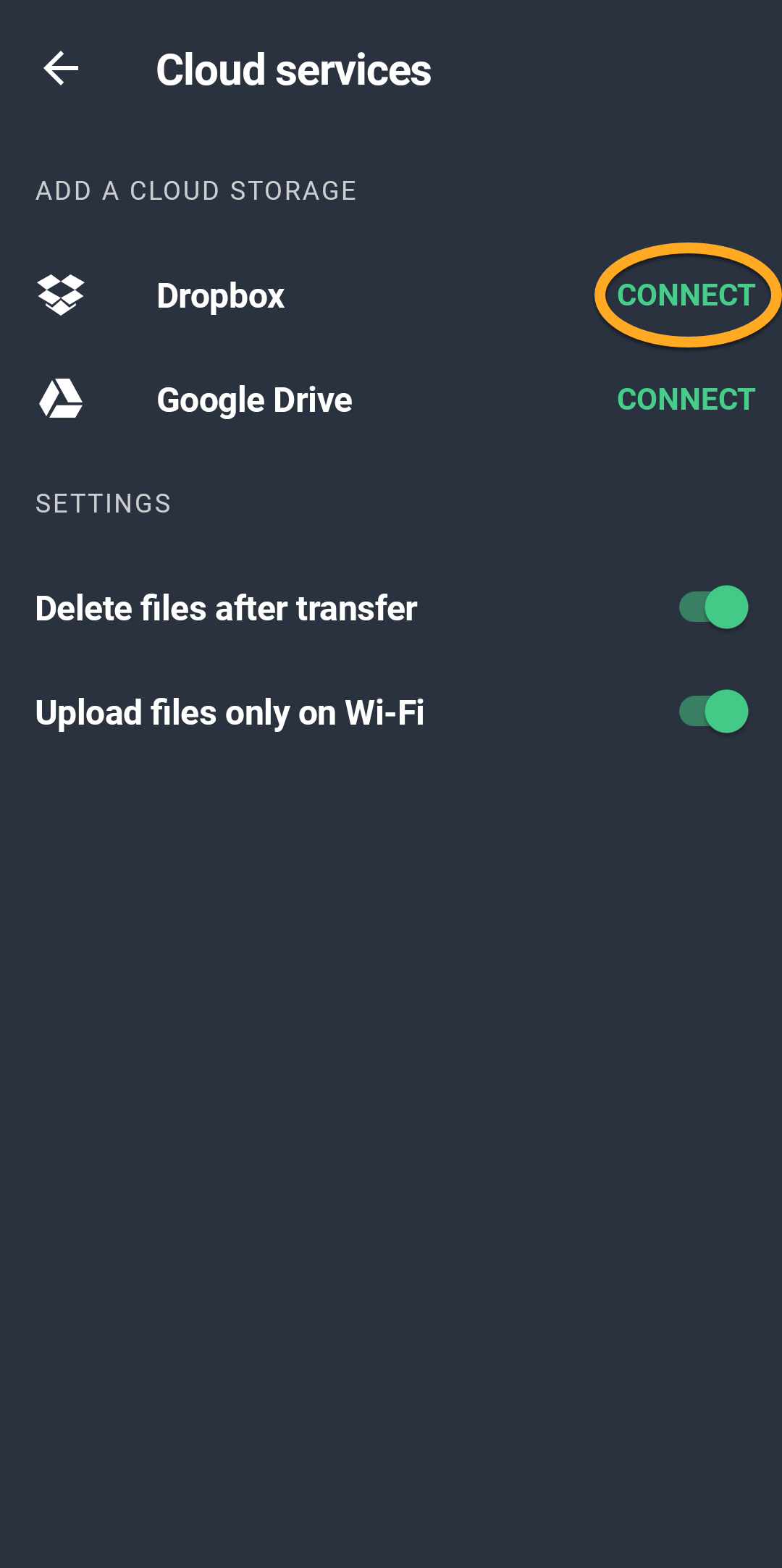
- Open AVG Cleaner and tap Account (in the bottom navigation bar) ▸ Cloud Transfers.
- Tap Connect next to your chosen cloud service (Dropbox or Google Drive).
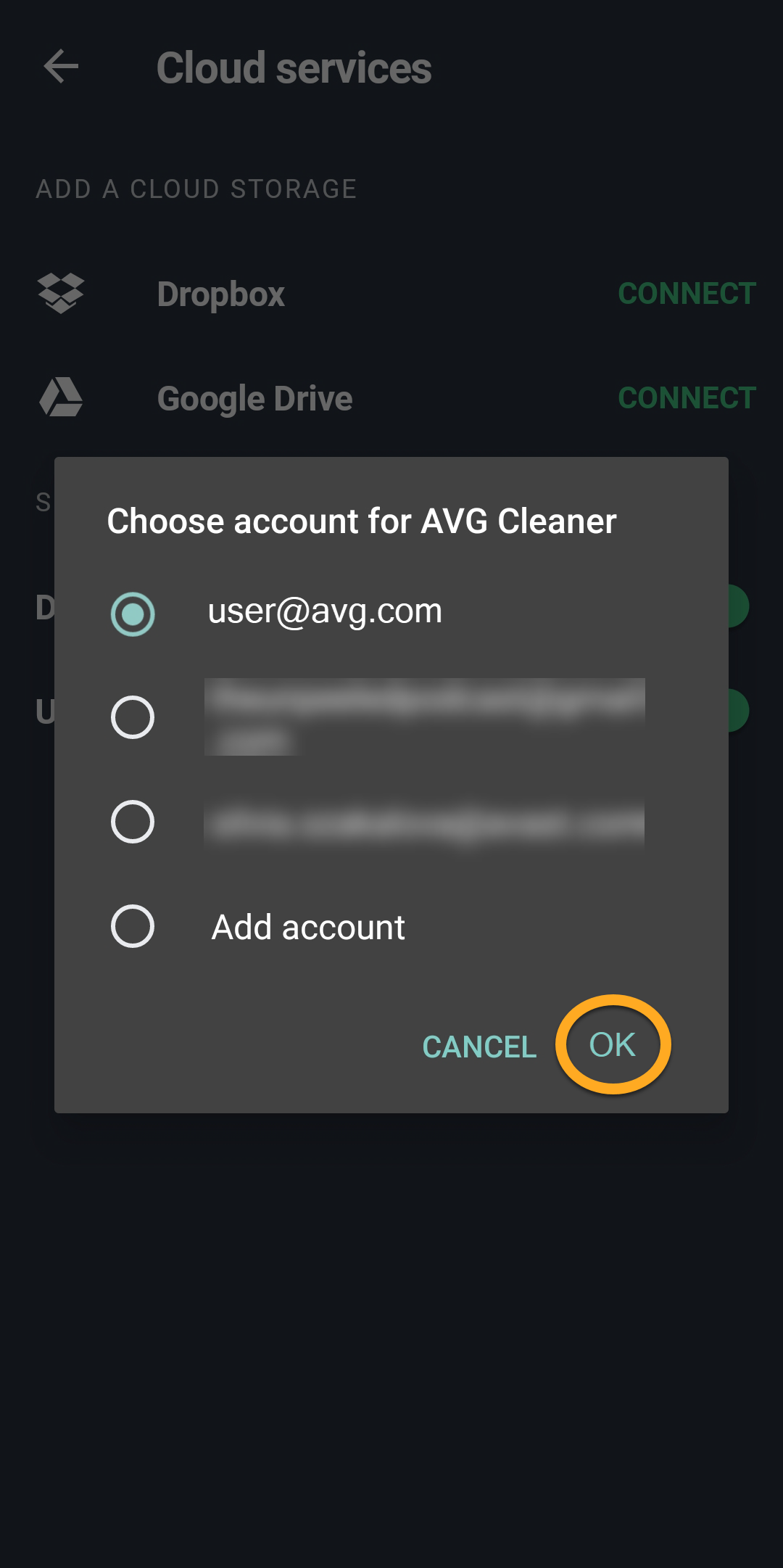
- Select your preferred account and tap OK. Enter login credentials if prompted.
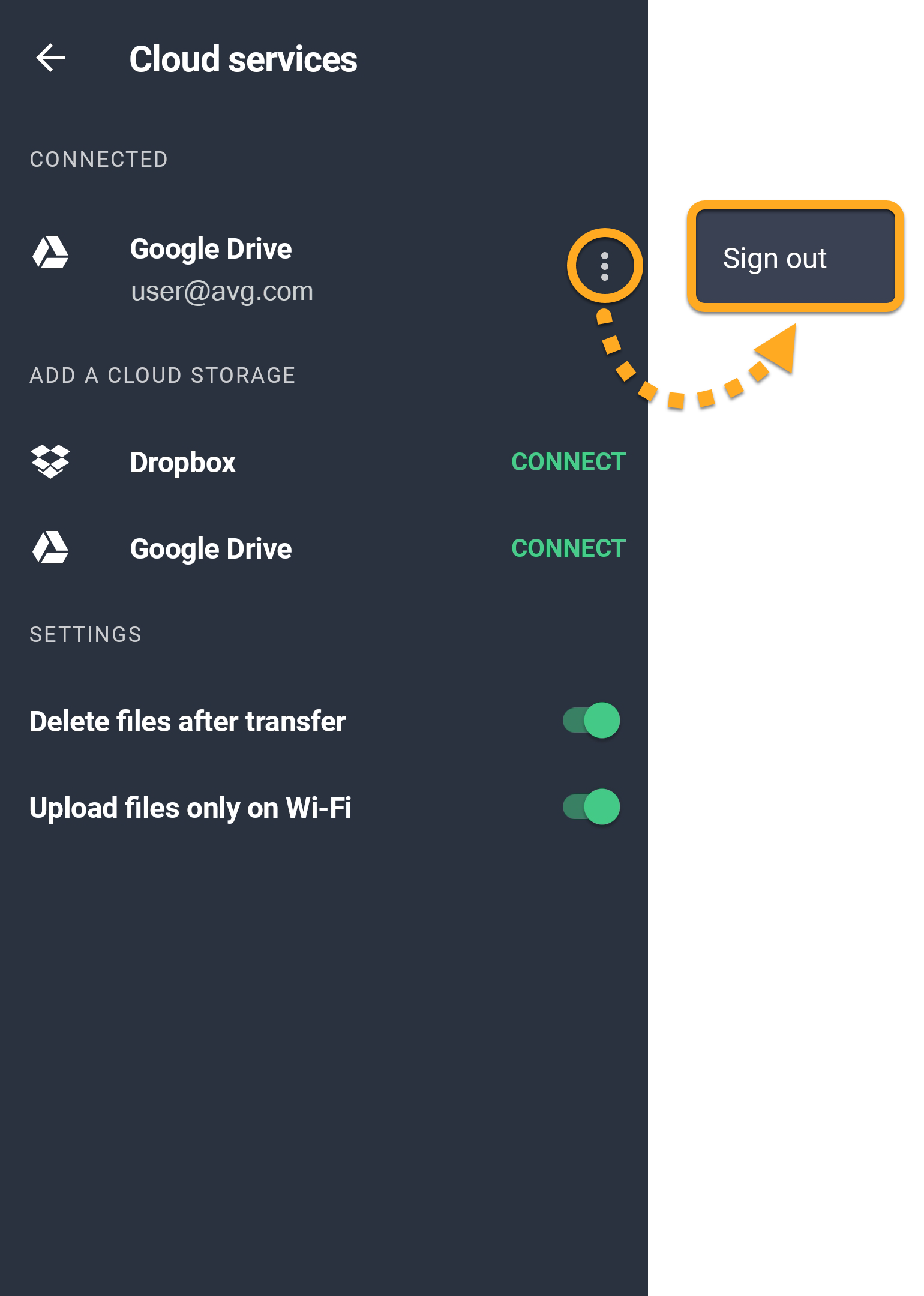
- The account now appears under Connected. To sign out of an account, tap
⋮More options (the three dots) next to the account and select Sign out.
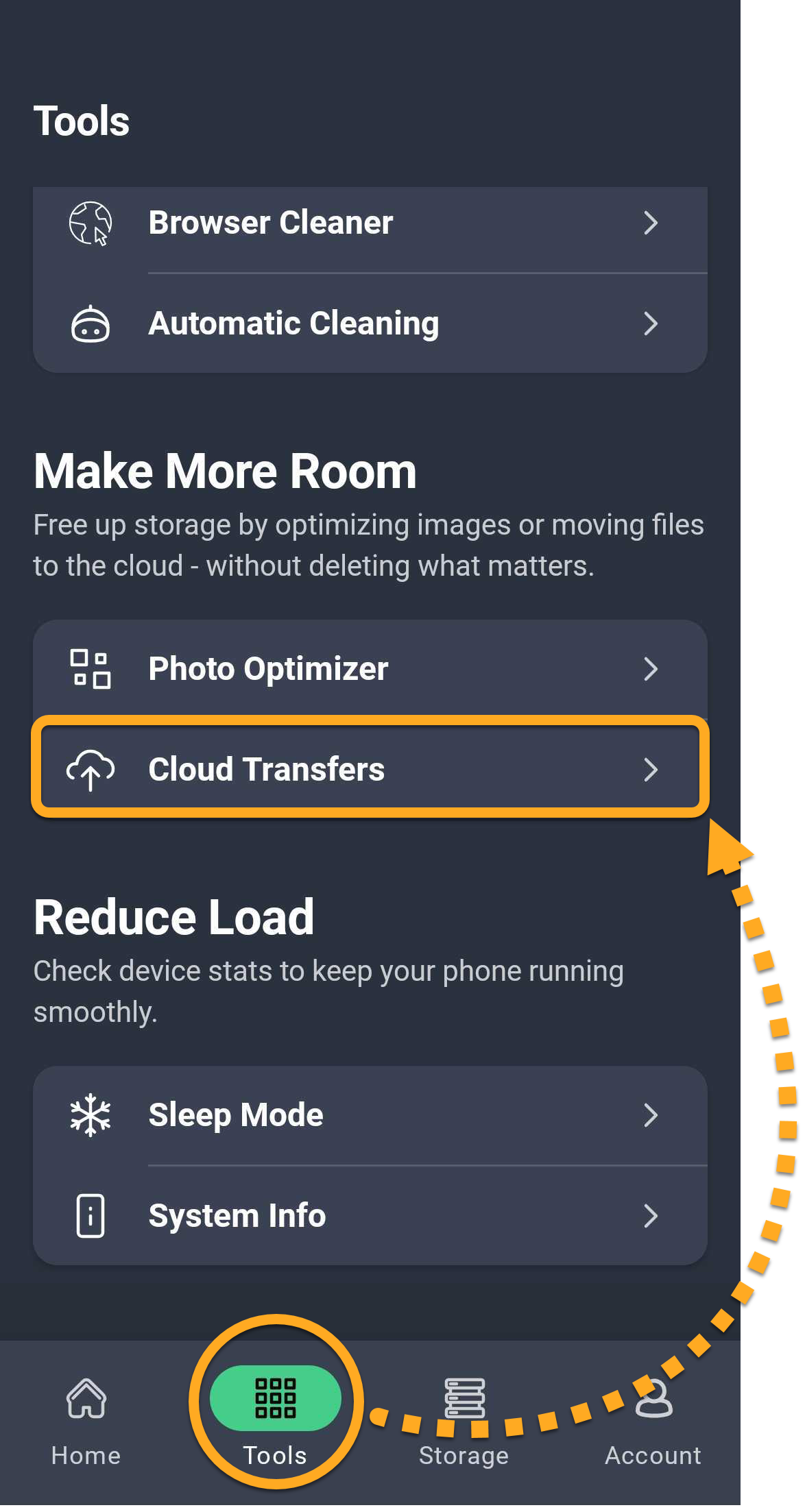
You can be connected to multiple Google Drive accounts and one Dropbox account at the same time. If you are connected to multiple accounts simultaneously, you are prompted to choose an account each time you attempt to transfer data to cloud storage.
Further recommendations
For more information about AVG Cleaner Premium, refer to the following article:
- AVG Cleaner
- Android